
Retrieves Milvus documentation and code snippets to generate PyMilvus code, convert between ORM and client styles, and translate code across multiple programming languages.
Click on "Install Server".
Wait a few minutes for the server to deploy. Once ready, it will show a "Started" state.
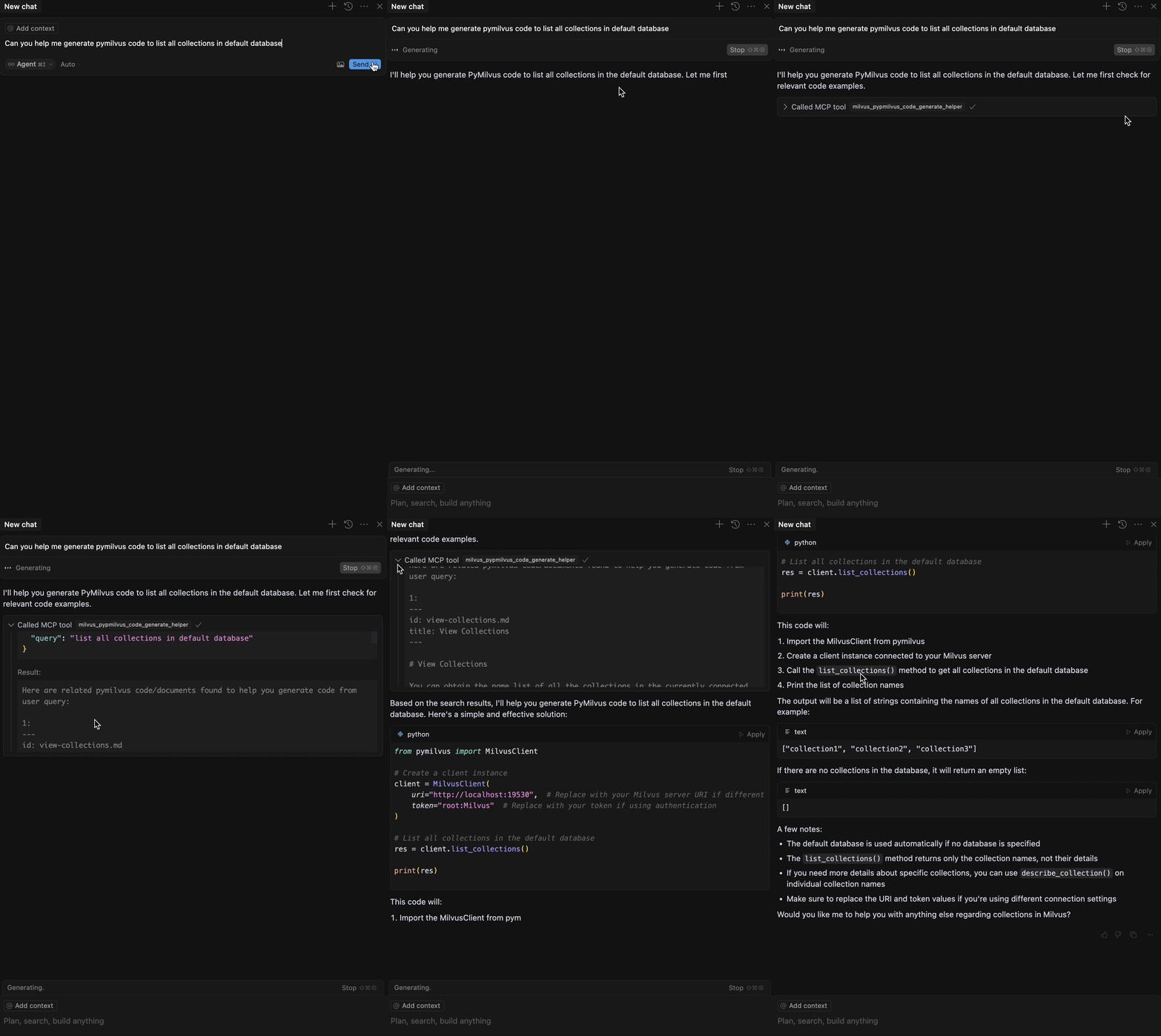
In the chat, type
@followed by the MCP server name and your instructions, e.g., "@milvus-sdk-code-helperHow do I create a collection with an HNSW index using PyMilvus?"
That's it! The server will respond to your query, and you can continue using it as needed.
Here is a step-by-step guide with screenshots.
milvus-sdk-code-helper
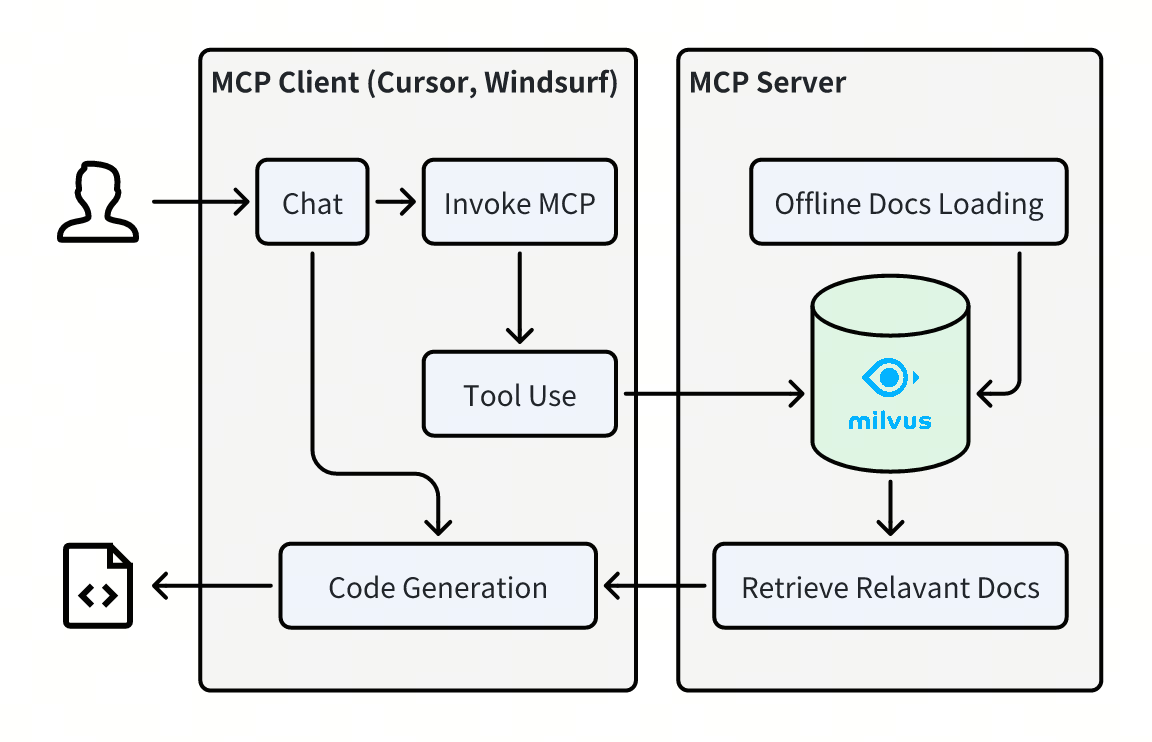
A Model Context Protocol server that retrieves relevant code snippets or documents to help generating pymilvus code.
Prerequisites
Before using this MCP server, ensure you have:
Python 3.10 or higher
A running Milvus instance (local or remote)
uv installed (recommended for running the server)
Quick Start with FastMCP
The recommended way to use this MCP server is through FastMCP, which provides better performance and easier configuration.
First Time Setup (with Document Update)
For the first time running the server, use the main FastMCP server which will automatically update the document database:
This will:
Connect to your Milvus instance (default: http://localhost:19530)
Download and process the latest Milvus documentation
Start the MCP server with all three tools available
Custom Configuration
Subsequent Runs (Lightweight Mode)
After the initial setup, you can use the lightweight FastMCP server for faster startup:
This lightweight version:
Skips document synchronization
Starts immediately without background tasks
Assumes documents are already loaded in Milvus
Lightweight Server Options
Key Features
Automatically fetches and indexes the latest Milvus documentation version (可以获取最新文档版本)
Weekly auto-refresh via a lightweight background scheduler
Usage with Cursor
Go to
Cursor>Settings>MCPClick on the
+ Add New Global MCP ServerbuttonConfigure based on your chosen mode:
For HTTP Transport (Recommended)
For SSE Transport
For STDIO Transport
Usage with Claude Desktop
Install Claude Desktop from https://claude.ai/download
Open your Claude Desktop configuration:
macOS:
~/Library/Application Support/Claude/claude_desktop_config.jsonWindows:
%APPDATA%\Claude\claude_desktop_config.json
Add the following configuration:
For HTTP Transport
For STDIO Transport
Restart Claude Desktop
⚠️ Note: Remember to set the
OPENAI_API_KEYenvironment variable when using STDIO transport.
Usage with Claude Code (VS Code)
Using CLI (Recommended)
Manual Configuration
Global (
~/.claude.json) – HTTP transport
Project (
.mcp.jsonat project root) – STDIO transport
Usage with Gemini CLI (as an MCP server)
You can add a Gemini MCP server alongside this project in the same client. This is optional and independent of this server.
Available Tools
The server provides three powerful tools for Milvus code generation and translation:
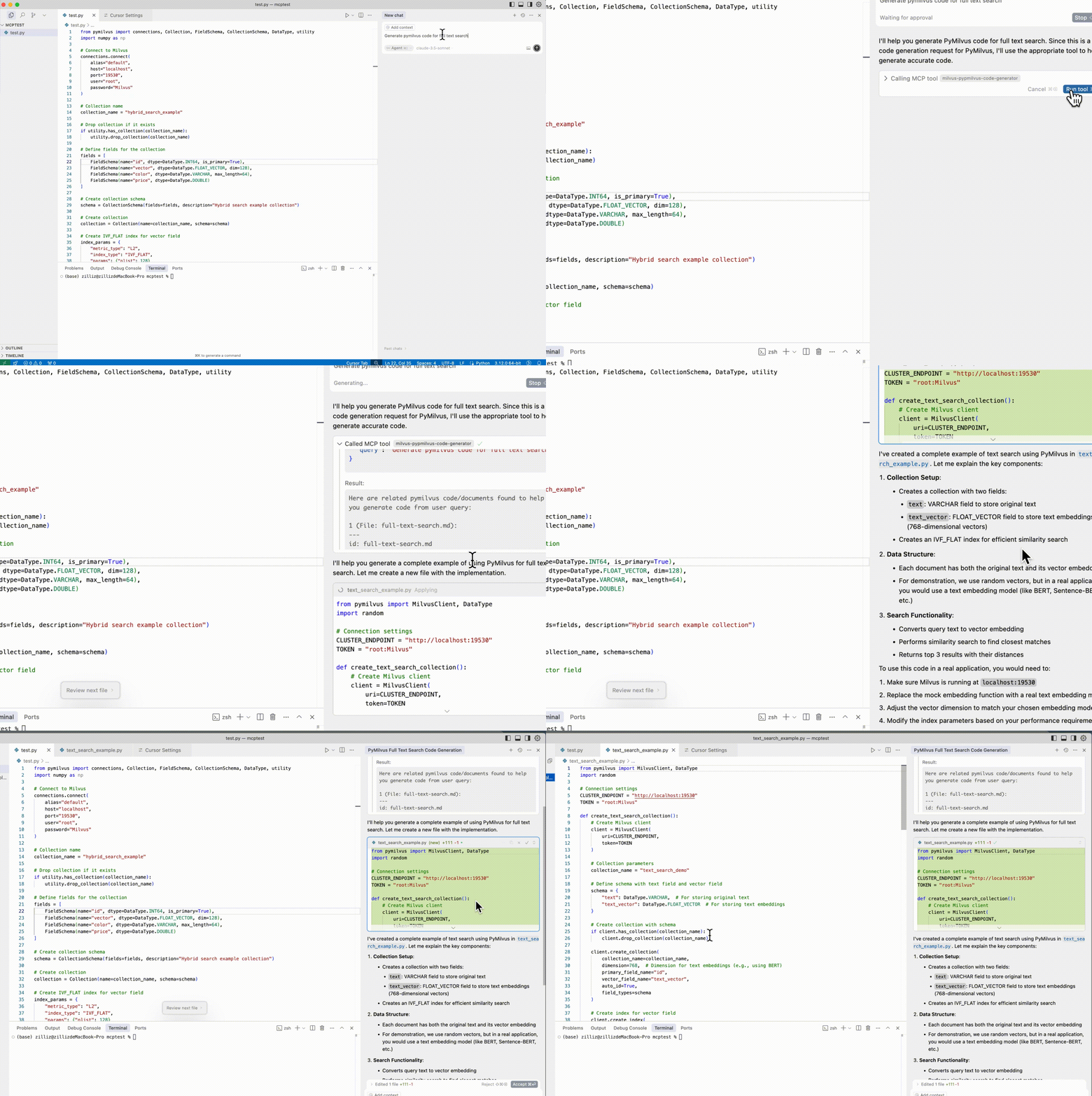
1. milvus_code_generator
Generate or provide sample PyMilvus/Milvus code based on natural language input.
When to use: Code generation, sample code requests, "how to write" queries
Parameters:
query: Your natural language request for code generation
Example: "Generate pymilvus code for hybrid search"
2. orm_client_code_convertor
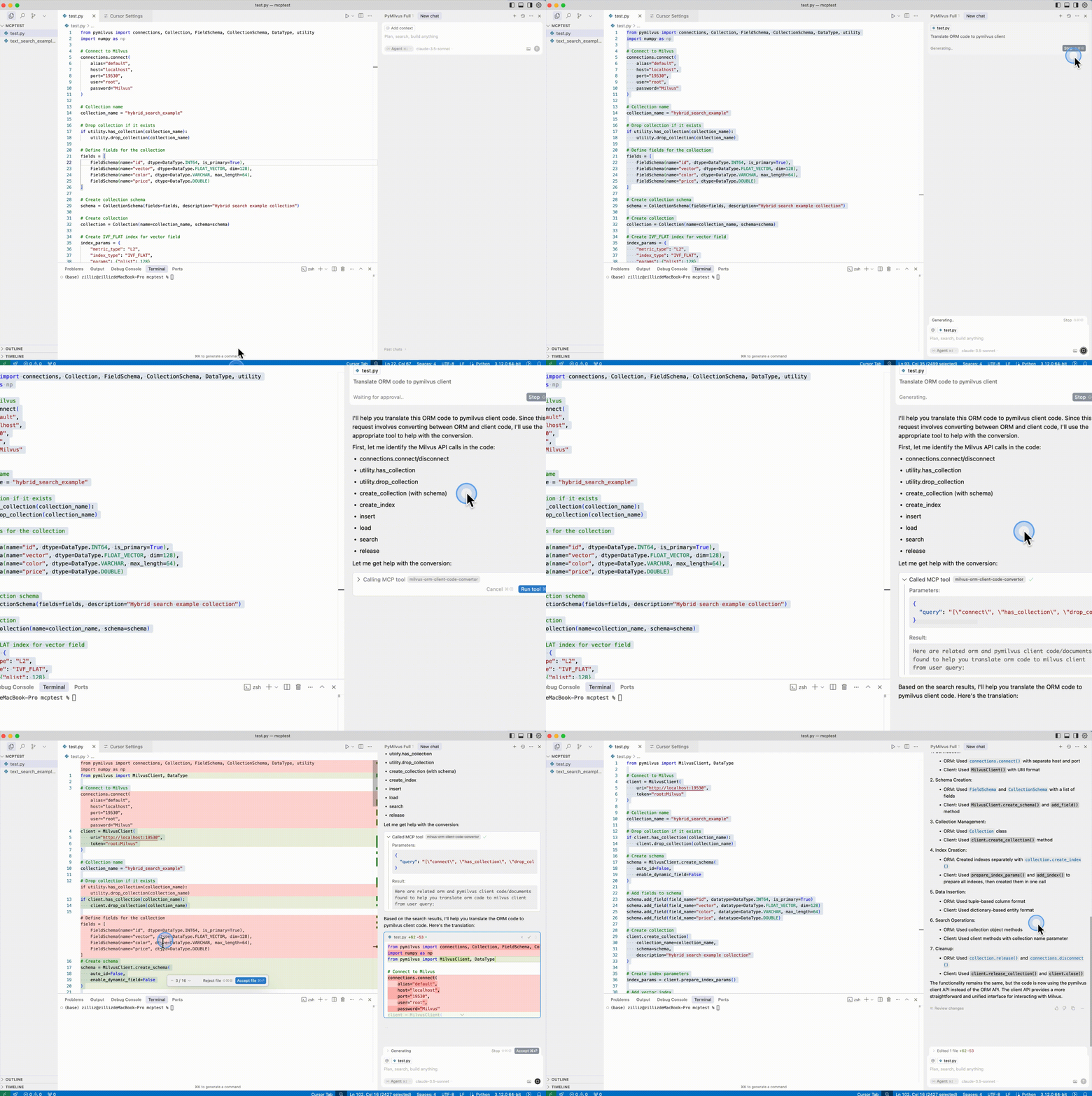
Convert between ORM and PyMilvus client code formats.
When to use: Converting between ORM and client styles, format adaptation
Parameters:
query: List of Milvus API names to convert (e.g.,["create_collection", "insert"])
Example: "Convert ORM code to PyMilvus client"
3. milvus_code_translator
Translate Milvus code between different programming languages.
When to use: Cross-language code translation
Parameters:
query: List of Milvus API names in escaped double quotes format (e.g.,[\"create_collection\", \"insert\", \"search\"])source_language: Source programming language (python, java, go, csharp, node, restful)target_language: Target programming language (python, java, go, csharp, node, restful)
Example: "Translate Python Milvus code to Java"
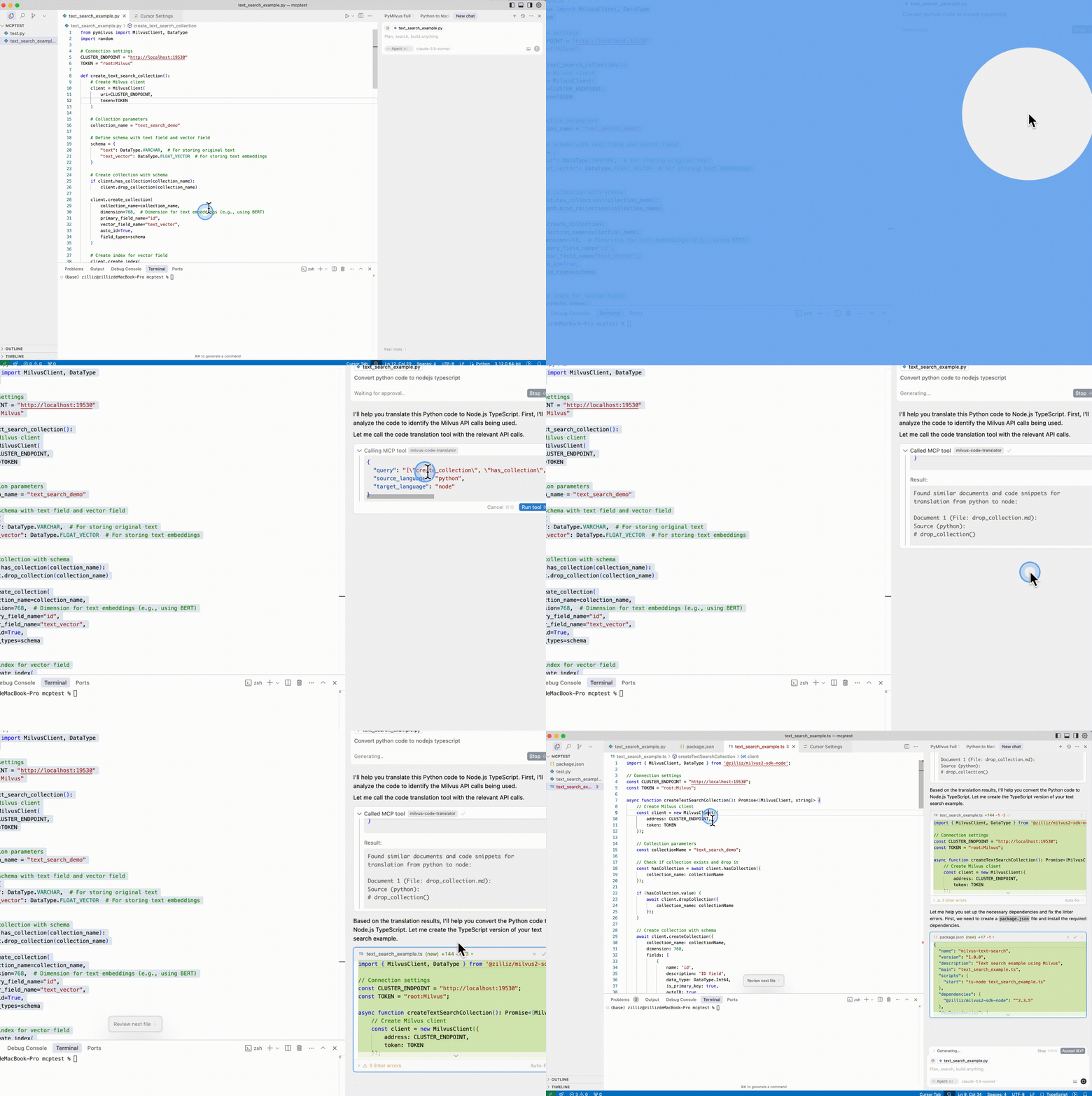
⚠️ Important: You don't need to specify tool names or parameters manually. Just describe your requirements naturally, and the MCP system will automatically select the appropriate tool and prepare the necessary parameters.
Legacy Transport Modes
For backward compatibility, the server also supports SSE and STDIO transport modes:
SSE Transport
STDIO Transport
Docker Support
You can also run the server using Docker:
Build the Docker Image
Run with FastMCP (Recommended)
Configuration Options
Server Parameters
Parameter | Description | Default |
| Milvus server URI |
|
| Milvus authentication token |
|
| Milvus database name |
|
| Server host address |
|
| Server port |
|
| HTTP endpoint path |
|
| Transport protocol |
|
Transport Options
http: RESTful HTTP transport (recommended)sse: Server-Sent Events transportstdio: Standard input/output transport
Environment Variables
OPENAI_API_KEY: Required for document processing and embedding generationMILVUS_URI: Alternative way to specify Milvus server URIMILVUS_TOKEN: Alternative way to specify Milvus authentication token
Troubleshooting
Common Issues
Connection refused: Ensure Milvus is running and accessible
Authentication failed: Check your Milvus token and credentials
Port conflicts: Change the port using
--portparameterMissing documents: Run the full server first to populate the database
Debug Mode
Enable debug logging:
Contributing
Contributions are welcome! If you have ideas for improving the retrieval results or adding new features, please submit a pull request or open an issue.
License
This project is licensed under the MIT License.