
Provides comprehensive WordPress site management capabilities including content creation and publishing, media library management, taxonomy operations (categories/tags), user management with role assignment, plugin and theme management, site health monitoring, core updates, database backups, and maintenance mode controls through the WordPress REST API.
Click on "Install Server".
Wait a few minutes for the server to deploy. Once ready, it will show a "Started" state.
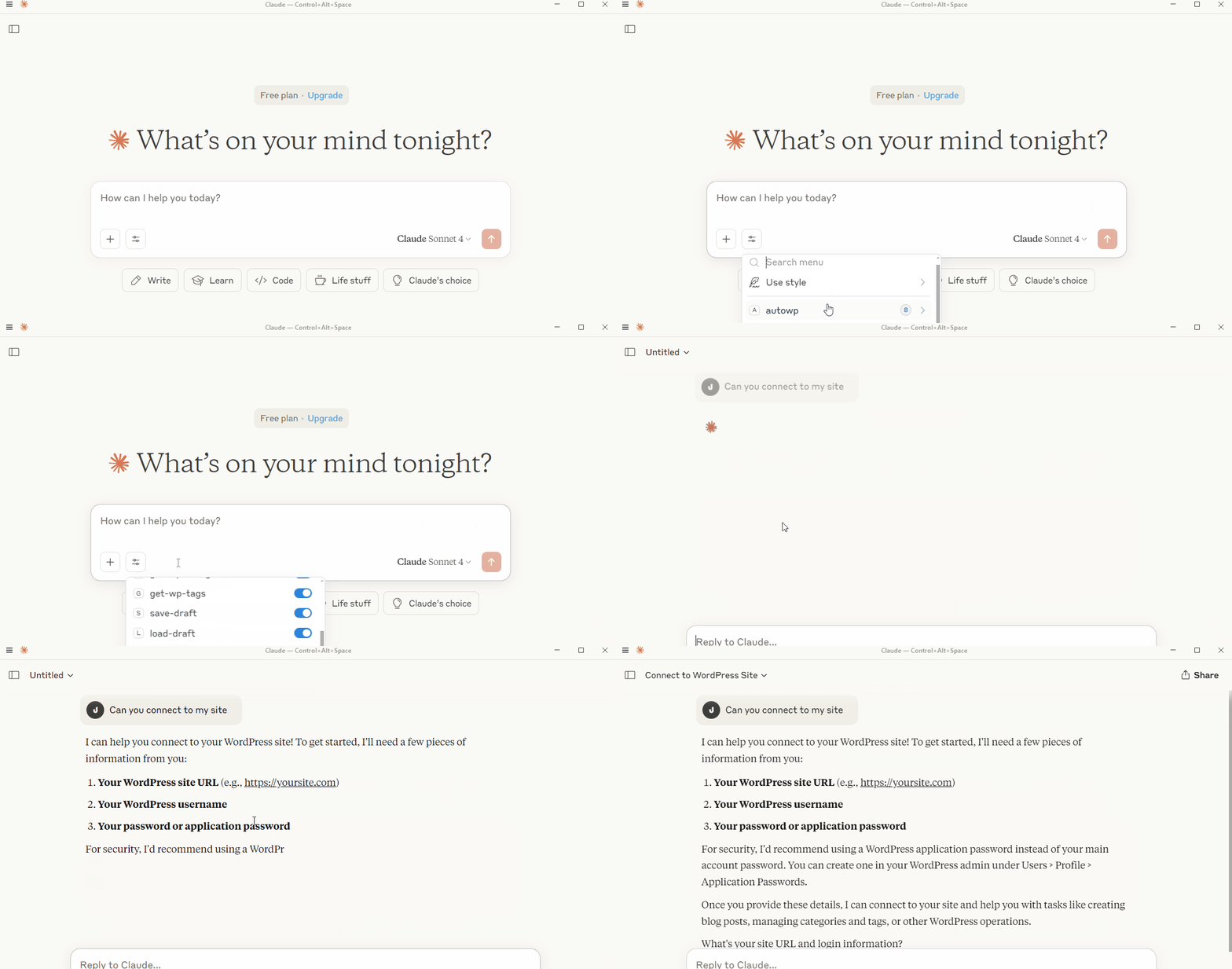
In the chat, type
@followed by the MCP server name and your instructions, e.g., "@AutoWP MCP Servercreate a blog post about AI content creation with the 'Technology' category"
That's it! The server will respond to your query, and you can continue using it as needed.
Here is a step-by-step guide with screenshots.
AutoWP MCP Server - WordPress Automation MCP Server

AutoWP MCP (Model Context Protocol) server connects Claude to WordPress sites and allows users to ask Claude to work on different tasks on their WordPress site like create and post blog posts and other WordPress site management tasks. It acts as a bridge between LLM clients like Claude Desktop and WordPress websites.
Features
It provides a secure, standardized way for AI assistants to interact with WordPress sites through the WordPress REST API, without the need for direct database access.
Key Capabilities
Authentication & Security
Handles secure login using WordPress application passwords
Manages authentication sessions safely
Test site connectivity before attempting operations
Content Management
Creates and publishes blog posts
Formats raw text into WordPress-compatible HTML
Manages post metadata (titles, excerpts, status)
Site Information Access
Retrieves available categories and tags
Accesses the site structure and permissions
Respects user role limitations (like your contributor role)
Draft Workflow
Saves drafts locally for editing
Loads previously saved content
Enables iterative content development
Installation & Authentication
Setup
Install & Build
npm install npm run build npm startConfigure Claude Desktop
Add to your Claude Desktop MCP configuration:
Available Tools
Authentication
authenticate-wp – Connect to your WordPress site
test-wp-connection – Test if a WordPress site is reachable
Content Management
create-blog-post – Create new blog posts with categories/tags
get-wp-categories – List all available categories
get-wp-tags – List all available tags
format-wp-content – Convert text to WordPress-ready HTML
Draft Management
save-draft – Save posts locally for later
load-draft – Load previously saved drafts
Media Management Tools
Core Media Operations
upload-media – Upload files from local paths or URLs with metadata
list-media – Browse media library with pagination and filters
search-media – Find media by keyword, type, or date range
get-media-details – Retrieve detailed media information
delete-media – Remove files from media library
bulk-delete-media – Delete multiple media files at once
Media Enhancement
edit-media-metadata – Update title, caption, alt text, description
set-featured-image – Assign featured images to posts
optimize-media – Compress images via external APIs (e.g., TinyPNG)
Taxonomy & Classification Tools
Existing Taxonomies
get-wp-categories – List all WordPress categories
get-wp-tags – List all WordPress tags
Taxonomy Management
create-category – Create new categories with hierarchy support
create-tag – Create new tags with descriptions
update-category – Rename/edit categories and hierarchy
update-tag – Rename/edit tag details
delete-category – Remove categories with force option
delete-tag – Remove tags with force option
Advanced Taxonomy Operations
merge-categories – Combine categories (moves posts, optionally deletes source)
assign-categories-to-posts – Bulk assign categories to multiple posts
assign-tags-to-posts – Bulk assign tags to multiple posts
list-taxonomies – View all taxonomies including custom ones
User Management Tools
Core User Operations
list-users – List WordPress users with filters like role, search, or registration date
create-user – Create a new user with optional profile and role details
update-user – Update user profile data including email, name, bio, and password
disable-user – Temporarily deactivate a user account with an optional reason
reset-user-password – Generate a password reset link or email it to the user
Role & Permission Management
set-user-role – Assign a specific role to a user, optionally removing others
list-user-roles – View all available WordPress user roles and their capabilities
Upcoming Tools
Plugin Management
list-plugins – List all WordPress plugins with their activation status
install-plugin – Install a plugin from the WordPress.org repository
toggle-plugin – Activate or deactivate a WordPress plugin
update-plugin – Update a WordPress plugin to its latest version
delete-plugin – Permanently delete a WordPress plugin
rollback-plugin – Rollback a plugin to a previous version
Theme Management
switch-theme – Change the active WordPress theme
get-theme-info – Get detailed information about installed themes
Settings Management
get-reading-settings – View WordPress reading/display settings
update-reading-settings – Modify basic WordPress reading settings
manage-comment-settings – Manage comment-related settings (Planned but not registered)
export-settings – Export current WordPress site settings (Planned)
import-settings – Import WordPress site settings from a file (Planned)
Site Health/ Maintenance & Testing / Core Updates
get-system-info - Get comprehensive WordPress system information
send-test-email – Send a test email to verify mail server configuration (Planned)
run-cron-jobs – Manually trigger WordPress cron jobs (Planned)
log-system-info – Log server and WordPress system info (Planned)
get-site-health - Check WordPress core health status and identify errors
check-core-updates - Check for available WordPress core updates
apply-core-update - Install available WordPress core updates
scan-for-malware - Scan WordPress site for malware and security threats
lock-site - Enable maintenance mode to lock the site
backup-database - Create a database backup
Why It's Useful
Instead of you having to log into WordPress manually, write posts, format content, and manage everything through the web interface, this MCP server helps you create, format, and publish content directly from our conversation. It's a WordPress automation assistant that bridges the gap between AI conversation and WordPress site management.
WordPress-Specific Tools
authenticate-wp - Connect to WordPress with credentials (which we just used)
test-wp-connection - Test if a WordPress site is reachable
create-blog-post - Create new blog posts with title, content, categories, tags, and status
get-wp-categories - Retrieve all available categories from your WordPress site
get-wp-tags - Retrieve all available tags from your WordPress site
format-wp-content - Convert raw text into WordPress-ready HTML format
Draft Management Tools
save-draft - Save blog post drafts locally for later use
load-draft - Load previously saved drafts
What You Can Do With These Tools
Content Creation: Write and format blog posts
Category Management: View and assign existing categories to posts
Tag Management: View and assign existing tags to posts
Draft Workflow: Save drafts locally and work on them over time
Publishing: Create posts as drafts or publish them directly - depending on your user permissions
Contribution
Contributions, issues, and feature requests are welcome! Feel free to check issues page or open a pull request.
License
This project is licensed under the terms described in the LICENSE file.
Support
If you find this project useful, give it a ⭐ on GitHub! If you have questions, feel free to email me.