<!--
Modifications to this file are related to the README.md in https://github.com/prefix-dev/setup-pixi,
please keep these two in sync by making a PR in both
-->
We created [prefix-dev/setup-pixi](https://github.com/prefix-dev/setup-pixi) to facilitate using pixi in CI.
## Usage
```yaml
- uses: prefix-dev/setup-pixi@v0.9.2
with:
pixi-version: v0.59.0
cache: true
auth-host: prefix.dev
auth-token: ${{ secrets.PREFIX_DEV_TOKEN }}
- run: pixi run test
```
!!!warning "Pin your action versions"
Since pixi is not yet stable, the API of this action may change between minor versions.
Please pin the versions of this action to a specific version (i.e., `prefix-dev/setup-pixi@v0.9.2`) to avoid breaking changes.
You can automatically update the version of this action by using [Dependabot](https://docs.github.com/en/code-security/dependabot/working-with-dependabot/keeping-your-actions-up-to-date-with-dependabot).
Put the following in your `.github/dependabot.yml` file to enable Dependabot for your GitHub Actions:
```yaml title=".github/dependabot.yml"
version: 2
updates:
- package-ecosystem: github-actions
directory: /
schedule:
interval: monthly # (1)!
groups:
dependencies:
patterns:
- "*"
```
1. or `daily`, `weekly`
## Features
To see all available input arguments, see the [`action.yml`](https://github.com/prefix-dev/setup-pixi/blob/main/action.yml) file in `setup-pixi`.
The most important features are described below.
### Caching
The action supports caching of the project and global pixi environments.
By default, project environment caching is enabled if a `pixi.lock` file is present.
It will then use the `pixi.lock` file to generate a hash of the environment and cache it.
If the cache is hit, the action will skip the installation and use the cached environment.
You can specify the behavior by setting the `cache` input argument.
Global environment caching is disabled by default and can be enabled by setting the `global-cache` input to `true`.
As there is no lockfile for global environments, the cache will expire at the end of every month to ensure it does not go stale.
!!!tip "Customize your cache key"
If you need to customize your cache-key, you can use the `cache-key` and `global-cache-key` input arguments.
These will be the prefixes of the cache keys. The full cache keys will be `<cache-key><conda-arch>-<hash>` and `<global-cache-key><conda-arch>-<YYYY-MM>-<hash>` respectively.
!!!tip "Only save caches on `main`"
In order to not exceed the [10 GB cache size limit](https://docs.github.com/en/actions/using-workflows/caching-dependencies-to-speed-up-workflows#usage-limits-and-eviction-policy) as fast, you might want to restrict when the cache is saved.
This can be done by setting the `cache-write` argument.
```yaml
- uses: prefix-dev/setup-pixi@v0.9.2
with:
cache: true
cache-write: ${{ github.event_name == 'push' && github.ref_name == 'main' }}
```
### Multiple environments
With pixi, you can create multiple environments for different requirements.
You can also specify which environment(s) you want to install by setting the `environments` input argument.
This will install all environments that are specified and cache them.
```toml
[workspace]
name = "my-package"
channels = ["conda-forge"]
platforms = ["linux-64"]
[dependencies]
python = ">=3.11"
pip = "*"
polars = ">=0.14.24,<0.21"
[feature.py311.dependencies]
python = "3.11.*"
[feature.py312.dependencies]
python = "3.12.*"
[environments]
py311 = ["py311"]
py312 = ["py312"]
```
#### Multiple environments using a matrix
The following example will install the `py311` and `py312` environments in different jobs.
```yaml
test:
runs-on: ubuntu-latest
strategy:
matrix:
environment: [py311, py312]
steps:
- uses: actions/checkout@v4
- uses: prefix-dev/setup-pixi@v0.9.2
with:
environments: ${{ matrix.environment }}
```
#### Install multiple environments in one job
The following example will install both the `py311` and the `py312` environment on the runner.
```yaml
- uses: prefix-dev/setup-pixi@v0.9.2
with:
environments: >- # (1)!
py311
py312
- run: |
pixi run -e py311 test
pixi run -e py312 test
```
1. separated by spaces, equivalent to
```yaml
environments: py311 py312
```
!!!warning "Caching behavior if you don't specify environments"
If you don't specify any environment, the `default` environment will be installed and cached, even if you use other environments.
### Global Environments
You can specify `pixi global install` commands by setting the `global-environments` input argument.
This will create one environment per line, and install them.
This is useful in particular to install executables that are needed for `pixi install` to work properly.
For instance, the `keyring`, or `gcloud` executables. The following example shows how to install both in separate global environments.
By default, global environments are not cached. You can enable caching by setting the `global-cache` input to `true`.
```yaml
- uses: prefix-dev/setup-pixi@v0.9.2
with:
global-environments: |
google-cloud-sdk
keyring --with keyrings.google-artifactregistry-auth
- run: |
gcloud --version
keyring --list-backends
```
### Authentication
There are currently five ways to authenticate with pixi:
- using a token
- using a username and password
- using a conda-token
- using an S3 key pair
- using keyring for PyPI registries
For more information, see [Authentication](../../deployment/authentication.md).
!!!warning "Handle secrets with care"
Please only store sensitive information using [GitHub secrets](https://docs.github.com/en/actions/security-guides/using-secrets-in-github-actions). Do not store them in your repository.
When your sensitive information is stored in a GitHub secret, you can access it using the `${{ secrets.SECRET_NAME }}` syntax.
These secrets will always be masked in the logs.
#### Token
Specify the token using the `auth-token` input argument.
This form of authentication (bearer token in the request headers) is mainly used at [prefix.dev](https://prefix.dev).
```yaml
- uses: prefix-dev/setup-pixi@v0.9.2
with:
auth-host: prefix.dev
auth-token: ${{ secrets.PREFIX_DEV_TOKEN }}
```
#### Username and password
Specify the username and password using the `auth-username` and `auth-password` input arguments.
This form of authentication (HTTP Basic Auth) is used in some enterprise environments with [artifactory](https://jfrog.com/artifactory) for example.
```yaml
- uses: prefix-dev/setup-pixi@v0.9.2
with:
auth-host: custom-artifactory.com
auth-username: ${{ secrets.PIXI_USERNAME }}
auth-password: ${{ secrets.PIXI_PASSWORD }}
```
#### Conda-token
Specify the conda-token using the `conda-token` input argument.
This form of authentication (token is encoded in URL: `https://my-quetz-instance.com/t/<token>/get/custom-channel`) is used at [anaconda.org](https://anaconda.org) or with [quetz instances](https://github.com/mamba-org/quetz).
```yaml
- uses: prefix-dev/setup-pixi@v0.9.2
with:
auth-host: anaconda.org # (1)!
auth-conda-token: ${{ secrets.CONDA_TOKEN }}
```
1. or my-quetz-instance.com
#### S3
Specify the S3 key pair using the `auth-access-key-id` and `auth-secret-access-key` input arguments.
You can also specify the session token using the `auth-session-token` input argument.
```yaml
- uses: prefix-dev/setup-pixi@v0.9.2
with:
auth-host: s3://my-s3-bucket
auth-s3-access-key-id: ${{ secrets.ACCESS_KEY_ID }}
auth-s3-secret-access-key: ${{ secrets.SECRET_ACCESS_KEY }}
auth-s3-session-token: ${{ secrets.SESSION_TOKEN }} # (1)!
```
1. only needed if your key uses a session token
See the [S3 section](../../deployment/s3.md) for more information about S3 authentication.
#### PyPI keyring provider
You can specify whether to use keyring to look up credentials for PyPI.
```yml
- uses: prefix-dev/setup-pixi@v0.9.2
with:
pypi-keyring-provider: subprocess # one of 'subprocess', 'disabled'
```
### Custom shell wrapper
`setup-pixi` allows you to run command inside of the pixi environment by specifying a custom shell wrapper with `shell: pixi run bash -e {0}`.
This can be useful if you want to run commands inside of the pixi environment, but don't want to use the `pixi run` command for each command.
```yaml
- run: | # (1)!
python --version
pip install --no-deps -e .
shell: pixi run bash -e {0}
```
1. everything here will be run inside of the pixi environment
You can even run Python scripts like this:
```yaml
- run: | # (1)!
import my_package
print("Hello world!")
shell: pixi run python {0}
```
1. everything here will be run inside of the pixi environment
If you want to use PowerShell, you need to specify `-Command` as well.
```yaml
- run: | # (1)!
python --version | Select-String "3.11"
shell: pixi run pwsh -Command {0} # pwsh works on all platforms
```
1. everything here will be run inside of the pixi environment
!!!note "How does it work under the hood?"
Under the hood, the `shell: xyz {0}` option is implemented by creating a temporary script file and calling `xyz` with that script file as an argument.
This file does not have the executable bit set, so you cannot use `shell: pixi run {0}` directly but instead have to use `shell: pixi run bash {0}`.
There are some custom shells provided by GitHub that have slightly different behavior, see [`jobs.<job_id>.steps[*].shell`](https://docs.github.com/en/actions/using-workflows/workflow-syntax-for-github-actions#jobsjob_idstepsshell) in the documentation.
See the [official documentation](https://docs.github.com/en/actions/using-workflows/workflow-syntax-for-github-actions#custom-shell) and [ADR 0277](https://github.com/actions/runner/blob/main/docs/adrs/0277-run-action-shell-options.md) for more information about how the `shell:` input works in GitHub Actions.
#### One-off shell wrapper using `pixi exec`
With `pixi exec`, you can also run a one-off command inside a temporary pixi environment.
```yaml
- run: | # (1)!
zstd --version
shell: pixi exec --spec zstd -- bash -e {0}
```
1. everything here will be run inside of the temporary pixi environment
```yaml
- run: | # (1)!
import ruamel.yaml
# ...
shell: pixi exec --spec python=3.11.* --spec ruamel.yaml -- python {0}
```
1. everything here will be run inside of the temporary pixi environment
See [here](../../reference/cli/pixi/exec.md) for more information about `pixi exec`.
### Environment activation
Instead of using a custom shell wrapper, you can also make all pixi-installed binaries available to subsequent steps by "activating" the installed environment in the currently running job.
To this end, `setup-pixi` adds all environment variables set when executing `pixi run` to `$GITHUB_ENV` and, similarly, adds all path modifications to `$GITHUB_PATH`.
As a result, all installed binaries can be accessed without having to call `pixi run`.
```yaml
- uses: prefix-dev/setup-pixi@v0.9.2
with:
activate-environment: true
```
If you are installing multiple environments, you will need to specify the name of the environment that you want to be activated.
```yaml
- uses: prefix-dev/setup-pixi@v0.9.2
with:
environments: >-
py311
py312
activate-environment: py311
```
Activating an environment may be more useful than using a custom shell wrapper as it allows non-shell based steps to access binaries on the path.
However, be aware that this option augments the environment of your job.
### `--frozen` and `--locked`
You can specify whether `setup-pixi` should run `pixi install --frozen` or `pixi install --locked` depending on the `frozen` or the `locked` input argument.
See the [official documentation](../../reference/cli/pixi/install.md#update-options) for more information about the `--frozen` and `--locked` flags.
```yaml
- uses: prefix-dev/setup-pixi@v0.9.2
with:
locked: true
# or
frozen: true
```
If you don't specify anything, the default behavior is to run `pixi install --locked` if a `pixi.lock` file is present and `pixi install` otherwise.
### Debugging
There are two types of debug logging that you can enable.
#### Debug logging of the action
The first one is the debug logging of the action itself.
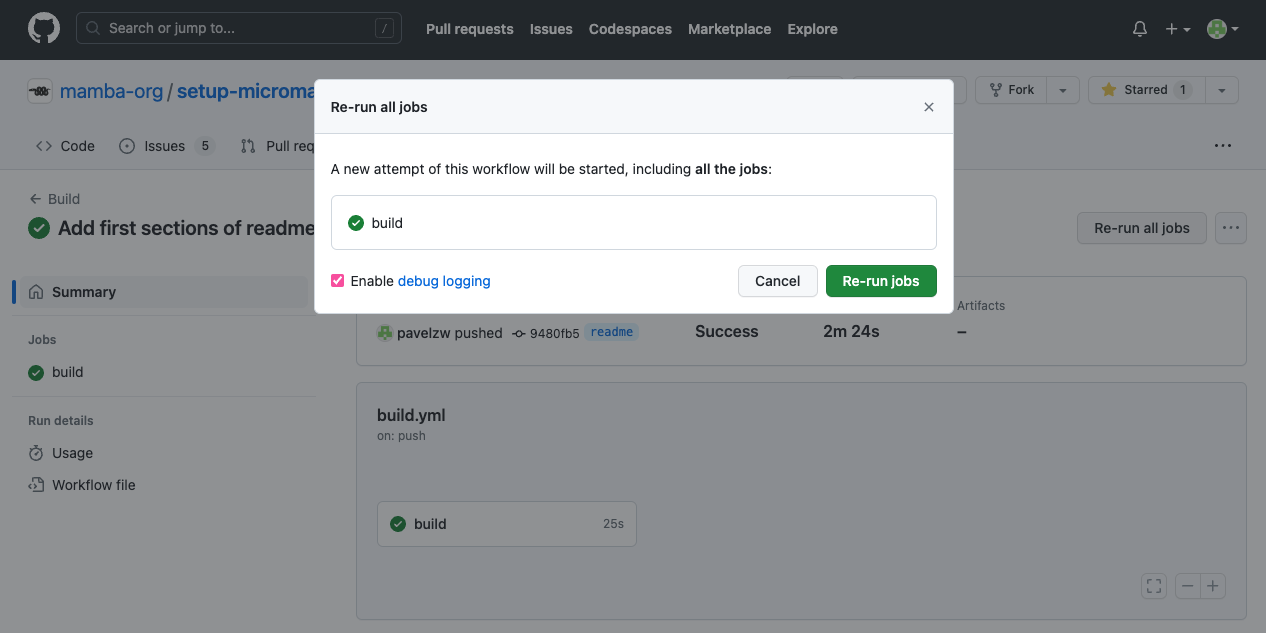
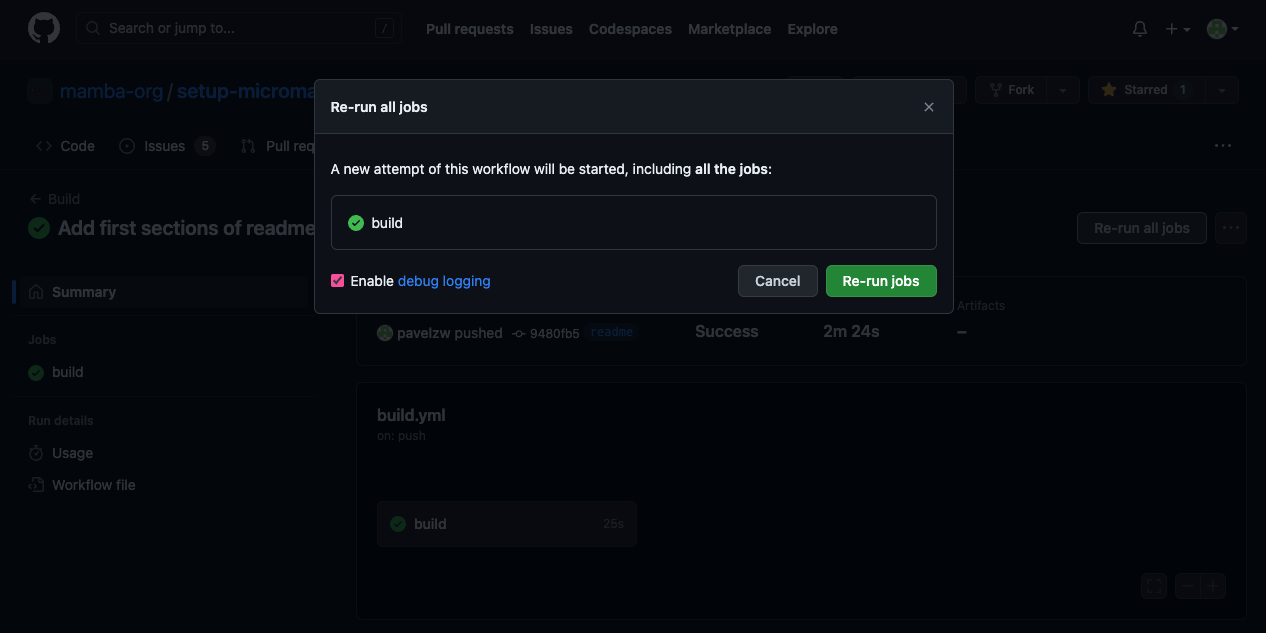
This can be enabled by for the action by re-running the action in debug mode:
!!!tip "Debug logging documentation"
For more information about debug logging in GitHub Actions, see [the official documentation](https://docs.github.com/en/actions/monitoring-and-troubleshooting-workflows/enabling-debug-logging).
#### Debug logging of pixi
The second type is the debug logging of the pixi executable.
This can be specified by setting the `log-level` input.
```yaml
- uses: prefix-dev/setup-pixi@v0.9.2
with:
log-level: vvv # (1)!
```
1. One of `q`, `default`, `v`, `vv`, or `vvv`.
If nothing is specified, `log-level` will default to `default` or `vv` depending on if [debug logging is enabled for the action](#debug-logging-of-the-action).
### Self-hosted runners
On self-hosted runners, it may happen that some files are persisted between jobs.
This can lead to problems or secrets getting leaked between job runs.
To avoid this, you can use the `post-cleanup` input to specify the post cleanup behavior of the action (i.e., what happens _after_ all your commands have been executed).
If you set `post-cleanup` to `true`, the action will delete the following files:
- `.pixi` environment
- the pixi binary
- the rattler cache
- other rattler files in `~/.rattler`
If nothing is specified, `post-cleanup` will default to `true`.
On self-hosted runners, you also might want to alter the default pixi install location to a temporary location. You can use `pixi-bin-path: ${{ runner.temp }}/bin/pixi` to do this.
```yaml
- uses: prefix-dev/setup-pixi@v0.9.2
with:
post-cleanup: true
pixi-bin-path: ${{ runner.temp }}/bin/pixi # (1)!
```
1. `${{ runner.temp }}\Scripts\pixi.exe` on Windows
You can also use a preinstalled local version of pixi on the runner by not setting any of the `pixi-version`,
`pixi-url` or `pixi-bin-path` inputs. This action will then try to find a local version of pixi in the runner's PATH.
### Using the `pyproject.toml` as a manifest file for pixi.
`setup-pixi` will automatically pick up the `pyproject.toml` if it contains a `[tool.pixi.workspace]` section and no `pixi.toml`.
This can be overwritten by setting the `manifest-path` input argument.
```yaml
- uses: prefix-dev/setup-pixi@v0.9.2
with:
manifest-path: pyproject.toml
```
### Only install pixi
If you only want to install pixi and not install the current workspace, you can use the `run-install` option.
```yml
- uses: prefix-dev/setup-pixi@v0.9.2
with:
run-install: false
```
### Download pixi from a custom URL
You can also download pixi from a custom URL by setting the `pixi-url` input argument.
Optionally, you can combine this with the `pixi-url-headers` input argument to supply additional headers for the download request, such as a bearer token.
```yml
- uses: prefix-dev/setup-pixi@v0.9.2
with:
pixi-url: https://pixi-mirror.example.com/releases/download/v0.48.0/pixi-x86_64-unknown-linux-musl
pixi-url-headers: '{"Authorization": "Bearer ${{ secrets.PIXI_MIRROR_BEARER_TOKEN }}"}'
```
The `pixi-url` input argument can also be a [Handlebars](https://handlebarsjs.com/) template string.
It will be rendered with the following variables:
- `version`: The version of pixi that is being installed (`latest` or a version like `v0.48.0`).
- `latest`: A boolean indicating if the version is `latest`.
- `pixiFile`: The name of the pixi binary to download, as determined by the system of the runner (e.g., `pixi-x86_64-unknown-linux-musl`).
By default, `pixi-url` is equivalent to the following template:
```yml
- uses: prefix-dev/setup-pixi@v0.9.2
with:
pixi-url: |
{{#if latest~}}
https://github.com/prefix-dev/pixi/releases/latest/download/{{pixiFile}}
{{~else~}}
https://github.com/prefix-dev/pixi/releases/download/{{version}}/{{pixiFile}}
{{~/if}}
```
### Setting inputs from environment variables
Alternatively to setting the inputs in the `with` section, you can also set each of them using environment variables.
The corresponding environment variable names are derived from the input names by converting them to uppercase, replacing hyphens with underscores, and prefixing them with `SETUP_PIXI_`.
For example, the `pixi-bin-path` input can be set using the `SETUP_PIXI_PIXI_BIN_PATH` environment variable.
This is particularly useful if executing the action on a self-hosted runner.
Inputs always take precedence over environment variables.
## More examples
If you want to see more examples, you can take a look at the [GitHub Workflows of the `setup-pixi` repository](https://github.com/prefix-dev/setup-pixi/blob/main/.github/workflows/test.yml).
