<!-- Keep in sync with https://github.com/quantco/pixi-pack/blob/main/README.md -->
[`pixi-pack`](https://github.com/quantco/pixi-pack) is a simple tool that takes a Pixi environment and packs it into a compressed archive that can be shipped to the target machine. The corresponding `pixi-unpack` tool can be used to unpack the archive and install the environment.
Both tools can be installed via
```bash
pixi global install pixi-pack pixi-unpack
```
Or by downloading our pre-built binaries from the [releases page](https://github.com/Quantco/pixi-pack/releases).
Instead of installing `pixi-pack` and `pixi-unpack` globally, you can also use `pixi exec` to run `pixi-pack` in a temporary environment:
```bash
pixi exec pixi-pack
pixi exec pixi-unpack environment.tar
```
!!!note ""
You can also write `pixi pack` (and `pixi unpack`) if you have `pixi`, and `pixi-pack` and `pixi-unpack` installed globally.
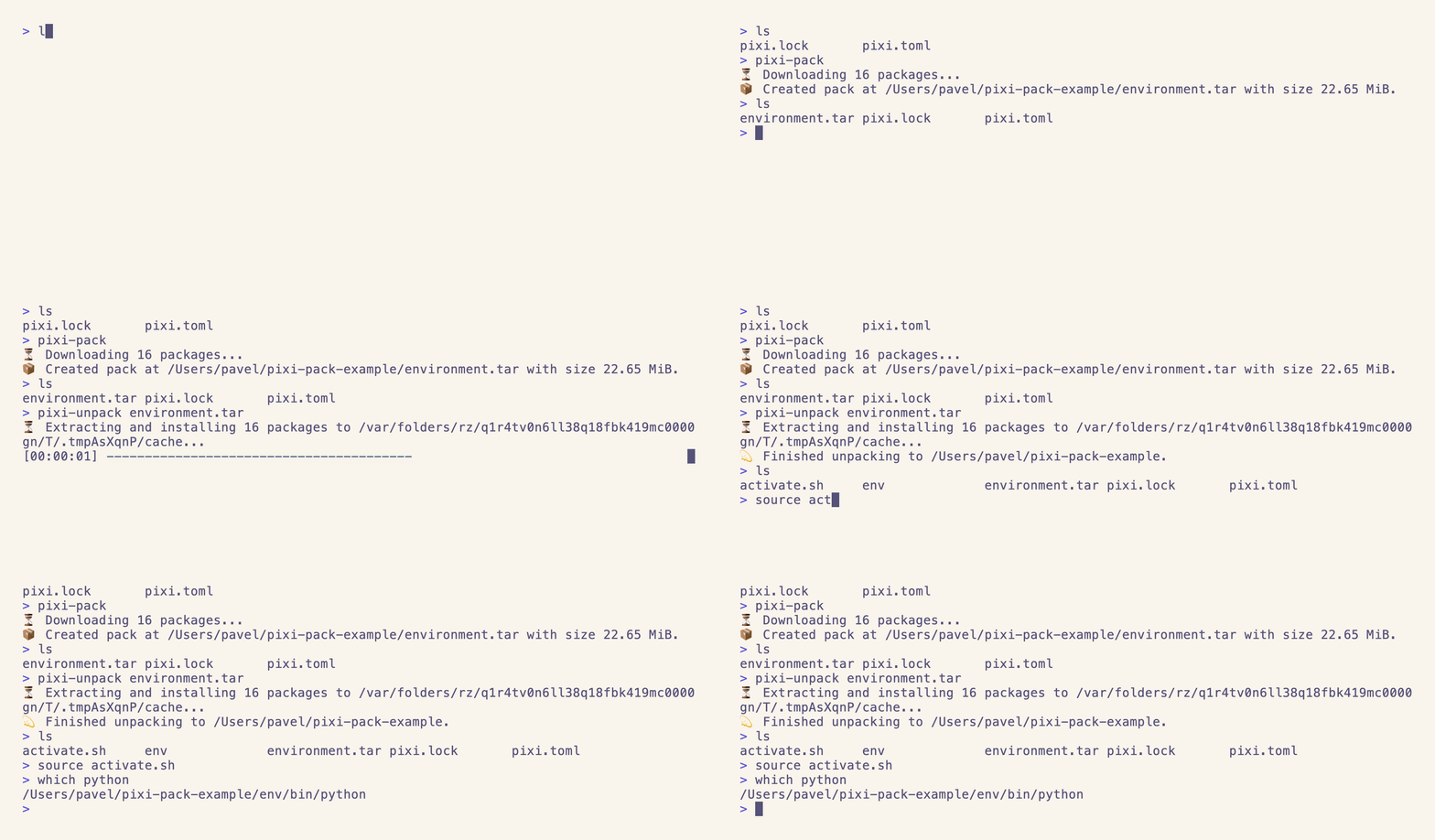

You can pack an environment with
```bash
pixi-pack --environment prod --platform linux-64 pixi.toml
```
This will create an `environment.tar` file that contains all conda packages required to create the environment.
```plain
# environment.tar
| pixi-pack.json
| environment.yml
| channel
| ├── noarch
| | ├── tzdata-2024a-h0c530f3_0.conda
| | ├── ...
| | └── repodata.json
| └── linux-64
| ├── ca-certificates-2024.2.2-hbcca054_0.conda
| ├── ...
| └── repodata.json
```
### `pixi-unpack`: Unpacking an environment
With `pixi-unpack environment.tar`, you can unpack the environment on your target system.
This will create a new conda environment in `./env` that contains all packages specified in your `pixi.toml`.
It also creates an `activate.sh` (or `activate.bat` on Windows) file that lets you activate the environment
without needing to have `conda` or `micromamba` installed.
```bash
$ pixi-unpack environment.tar
$ ls
env/
activate.sh
environment.tar
$ cat activate.sh
export PATH="/home/user/project/env/bin:..."
export CONDA_PREFIX="/home/user/project/env"
. "/home/user/project/env/etc/conda/activate.d/activate_custom_package.sh"
```
### Cross-platform Packs
Since `pixi-pack` just downloads the `.conda` and `.tar.bz2` files from the conda repositories, you can trivially create packs for different platforms.
```bash
pixi-pack --platform win-64
```
!!! note
You can only unpack a pack on a system that has the same platform as the pack was created for.
### Self-Extracting Binaries
You can create a self-extracting binary that contains the packed environment and a script that unpacks the environment.
This can be useful if you want to distribute the environment to users that don't have `pixi-unpack` installed.
=== "Linux & macOS"
```bash
$ pixi-pack --create-executable
$ ls
environment.sh
$ ./environment.sh
$ ls
env/
activate.sh
environment.sh
```
=== "Windows"
```powershell
PS > pixi-pack --create-executable
PS > ls
environment.ps1
PS > .\environment.ps1
PS > ls
env/
activate.sh
environment.ps1
```
#### Custom pixi-unpack executable path
When creating a self-extracting binary, you can specify a custom path or URL to a `pixi-unpack` executable to avoid downloading it from the [default location](https://github.com/Quantco/pixi-pack/releases/latest).
You can provide one of the following as the `--pixi-unpack-source`:
- a URL to a `pixi-unpack` executable like `https://my.mirror/pixi-pack/pixi-unpack-x86_64-unknown-linux-musl`
- a path to a `pixi-unpack` binary like `./pixi-unpack-x86_64-unknown-linux-musl`
##### Example Usage
Using a URL:
```bash
pixi-pack --create-executable --pixi-unpack-source https://my.mirror/pixi-pack/pixi-unpack-x86_64-unknown-linux-musl
```
Using a path:
```bash
pixi-pack --create-executable --pixi-unpack-source ./pixi-unpack-x86_64-unknown-linux-musl
```
!!! note
The produced executable is a simple shell script that contains both the `pixi-unpack` binary as well as the packed environment.
### Inject Additional Packages
You can inject additional packages into the environment that are not specified in `pixi.lock` by using the `--inject` flag:
```bash
pixi-pack --inject local-package-1.0.0-hbefa133_0.conda pixi.toml
```
This can be particularly useful if you build the package itself and want to include the built package in the environment but still want to use `pixi.lock` from the workspace.
### PyPi support
You can also pack PyPi wheel packages into your environment.
`pixi-pack` only supports wheel packages and not source distributions.
If you happen to use source distributions, you can ignore them by using the `--ignore-pypi-non-wheel` flag.
This will skip the bundling of PyPi packages that are source distributions.
The `--inject` option also supports wheels.
```bash
pixi-pack --ignore-pypi-non-wheel --inject my_webserver-0.1.0-py3-none-any.whl
```
!!! warning
In contrast to injecting from conda packages,
we cannot verify that injected wheels are compatible with the target environment. Please make sure the packages are compatible.
### Mirror and S3 middleware
You can use mirror middleware by creating a configuration file as described in the [pixi documentation](../reference/pixi_configuration.md#mirror-configuration) and referencing it using `--config`.
```toml title="config.toml"
[mirrors]
"https://conda.anaconda.org/conda-forge" = ["https://my.artifactory/conda-forge"]
```
If you are using [S3 in pixi](./s3.md), you can also add the appropriate S3 config in your config file and reference it.
```toml title="config.toml"
[s3-options.my-s3-bucket]
endpoint-url = "https://s3.eu-central-1.amazonaws.com"
region = "eu-central-1"
force-path-style = false
```
### Setting maximum number of parallel downloads
```toml
[concurrency]
downloads = 5
```
Use `pixi-pack --config config.toml` to use the custom configuration file.
See [pixi docs](../reference/pixi_configuration.md#concurrency) for more information.
### Cache Downloaded Packages
You can cache downloaded packages to speed up subsequent pack operations by using the `--use-cache` flag:
```bash
pixi-pack --use-cache ~/.pixi-pack/cache
```
This will store all downloaded packages in the specified directory and reuse them in future pack operations. The cache follows the same structure as conda channels, organizing packages by platform subdirectories (e.g., linux-64, win-64, etc.).
Using a cache is particularly useful when:
- Creating multiple packs with overlapping dependencies
- Working with large packages that take time to download
- Operating in environments with limited bandwidth
- Running CI/CD pipelines where package caching can significantly improve build times
### Unpacking Without pixi-pack
If you don't have `pixi-pack` available on your target system, and do not want to use self-extracting binaries (see above), you can still install the environment if you have `conda` or `micromamba` available.
Just unarchive the `environment.tar`, then you have a local channel on your system where all necessary packages are available.
Next to this local channel, you will find an `environment.yml` file that contains the environment specification.
You can then install the environment using `conda` or `micromamba`:
```bash
tar -xvf environment.tar
micromamba create -p ./env --file environment.yml
# or
conda env create -p ./env --file environment.yml
```
!!! note
The `environment.yml` and `repodata.json` files are only for this use case, `pixi-unpack` does not use them.
!!! note
Both `conda` and `mamba` are always installing pip as a side effect when they install python, see [`conda`'s documentation](https://docs.conda.io/projects/conda/en/25.1.x/user-guide/configuration/settings.html#add-pip-as-python-dependency-add-pip-as-python-dependency).
This is different from how `pixi` works and can lead to solver errors when using `pixi-pack`'s compatibility mode since `pixi` doesn't include `pip` by default.
You can fix this issue in two ways:
- Add `pip` to your `pixi.lock` file using `pixi add pip`.
- Configuring `conda` (or `mamba`) to not install `pip` by default by running `conda config --set add_pip_as_python_dependency false` (or by adding `add_pip_as_python_dependency: False` to your `~/.condarc`)
