
Click on "Install Server".
Wait a few minutes for the server to deploy. Once ready, it will show a "Started" state.
In the chat, type
@followed by the MCP server name and your instructions, e.g., "@Junos MCP Servershow me the current routing table on router1"
That's it! The server will respond to your query, and you can continue using it as needed.
Here is a step-by-step guide with screenshots.
junos-mcp-server
A Model Context Protocol (MCP) server for Juniper Junos devices that enables LLM interactions with network equipment.
Table of Contents
Important Security Notice
Warning: This server enables LLM access to your network infrastructure. Please review these security considerations carefully.
Security Requirements
Corporate Policy Compliance: Only use this server if your company's policy allows sending data of Junos devices to LLM services.
Server Security: Always secure your Junos MCP server before deployment in production environments.
Authentication: Do not use password authentication for production deployments. We strongly recommend using SSH key-based authentication for enhanced security.
Deployment Strategy: Until your MCP server is properly secured, only deploy locally for testing purposes. Do not deploy remote servers in production without proper security measures.
Security Best Practices
Use SSH key authentication instead of passwords
Implement proper network access controls
Monitor and log all MCP server activities
Regular security audits and updates
Follow your organization's security policies
Important Configuration Notice
Warning: The Junos MCP server supports configuration changes, but please ensure you only use this functionality when you want LLM-generated configurations to be loaded and committed on your Junos router.
Always review the configuration being generated by the LLM and only allow tool execution if it's the correct configuration for your use case.
Getting Started
Get the code.
git clone https://github.com/Juniper/junos-mcp-server.git
cd junos-mcp-server
pip install -r requirements.txt
Running with uv
If you're using uv, you can run the server directly:
uv run python jmcp.py -f devices.json -t stdioStart Junos MCP Server
python3.11 jmcp.py --help
Junos MCP Server

options:
  -h, --help            show this help message and exit
  -f DEVICE_MAPPING, --device-mapping DEVICE_MAPPING
                        the name of the JSON file containing the device mapping
  -H HOST, --host HOST  Junos MCP Server host
  -t TRANSPORT, --transport TRANSPORT
                        Junos MCP Server transport
  -p PORT, --port PORT  Junos MCP Server port
Junos MCP server supports both streamable-http and stdio transport. Do not use --host with stdio transport.
Environment Variables
JUNOS_TIMEOUT: Command timeout in seconds for Junos CLI operations.JMCP_STATELESS: Controls streamable-http session mode.Default:
false(stateful sessions, required for elicitation workflows such asadd_device).Accepted true values:
1,true,yes,y,onAccepted false values:
0,false,no,n,off
Configuration
Config for Claude Desktop (stdio transport)
{
  "mcpServers": {
    "jmcp": {
      "type": "stdio",
      "command": "python3",
      "args": ["jmcp.py", "-f", "devices.json", "-t", "stdio"]
    }
  }
}
Config for Claude Desktop (using uv)
{
  "mcpServers": {
    "jmcp": {
      "type": "stdio",
      "command": "uv",
      "args": ["run", "python", "jmcp.py", "-f", "devices.json", "-t", "stdio"]
    }
  }
}
Note: Please provide absolute path for jmcp.py and devices.json file.
Config for Claude Desktop (Docker container)
{
  "mcpServers": {
    "jmcp": {
      "type": "stdio",
      "command": "/usr/local/bin/docker",
      "args": [
        "run",
        "--rm",
        "-i",
        "-v",
        "devices.json:/app/config/devices.json",
        "-v",
        "vsrx_keypair.pem:/app/config/vsrx_keypair.pem",
        "junos-mcp-server:latest"
      ]
    }
  }
}
Docker Usage
Build Docker Container
docker build -t junos-mcp-server:latest .Running with Default Settings
By default, the Docker container runs with stdio transport:
docker run --rm -it -v /path/to/your/devices.json:/app/config/devices.json
junos-mcp-server:latest
This uses the default command: python jmcp.py -f /app/config/devices.json -t
stdio
Overriding Default Arguments
You can override any arguments by specifying the full command:
For stdio transport:
docker run --rm -it -v /path/to/your/devices.json:/app/config/devices.json
junos-mcp-server:latest python jmcp.py -f /app/config/devices.json -t stdio
For streamable-http transport:
docker run --rm -it -v /path/to/your/devices.json:/app/config/devices.json -p
30030:30030 junos-mcp-server:latest python jmcp.py -f /app/config/devices.json
-t streamable-http -H 0.0.0.0
For streamable-http in stateless mode:
$ docker run --rm -it -e JMCP_STATELESS=true -v /path/to/your/devices.json:/app/config/devices.json -p 30030:30030 junos-mcp-server:latest python jmcp.py -f /app/config/devices.json -t streamable-http -H 0.0.0.0For streamable-http with custom port:
docker run --rm -it -v /path/to/your/devices.json:/app/config/devices.json -p
8080:8080 junos-mcp-server:latest python jmcp.py -f /app/config/devices.json -t
streamable-http -p 8080 -H 0.0.0.0
Note:
Always mount your device configuration file using
-v /path/to/you/
devices.json:/app/config/devices.json
For streamable-http transport, expose the port using
-p
host_port:container_port
Mount any SSH private key files if using key-based authentication (e.g.,
-v
/path/to/key.pem:/app/config/key.pem
)
Build docker container for Junos MCP Server
docker build -t junos-mcp-server:latest .Note: Mount your config file devices.json and mount any other files, in
my case I am using pem file for ssh priv key authentication so I am also
mounting vsrx_keypair.pem
Junos Device Configuration
Junos MCP server supports both password based auth as well as SSH key based
authentication (See first 2 routers configs [router-1, router-2]).
{
    "router-1": {
        "ip": "ip-addr",
        "port": 22,
        "username": "user",
        "auth": {
            "type": "password",
            "password": "pwd"
        }
    },
    "router-2": {
        "ip": "ip-addr",
        "port": 22,
        "username": "user",
        "auth": {
            "type": "ssh_key",
            "private_key_path": "/path/to/private/key.pem"
        }
    },
    "router-3": {
        "ip": "ip-addr",
        "port": 22,
        "username": "user",
        "ssh_config": "~/.ssh/config_dc",
        "auth": {
            "type": "ssh_key",
            "private_key_path": "/path/to/private/key.pem"
        }
    },
    "router-4": {
        "ip": "ip-addr",
        "port": 22,
        "username": "user",
        "ssh_config": "/home/user/.ssh/config_jumphost",
        "auth": {
            "type": "password",
            "password": "pwd"
        }
    }
}
Junos MCP server also provides support for ProxyCommand. (See last 2 routers
configs [router-3, router-4]), which enables you to access a target device
through an intermediary host that supports netcat. This is useful when you
can only log in to the target device through the intermediate host (jumphost).
This is an example of an SSH config file being used .ssh/config_jumphost:
# Jumphost VM Connection
Host jumphost-vm
  HostName 10.2.11.200
  User root
  # Used for MCP server
  IdentityFile /home/user/.ssh/id_rsa_claude
  IdentitiesOnly yes
  StrictHostKeyChecking no

# cRPD Devices (via jump host)
Host dt-crpd1 dtwin-crpd1 digital-twin-crpd1 clab-digital-twin-eop6-pe1
    HostName 172.20.20.11
    User claude
    IdentityFile c
    # ProxyJump jumphost-vm # Not working with JunOS MCP
    ProxyCommand ssh -l root jumphost-vm nc %h 22 2>/dev/null
    StrictHostKeyChecking no
Note #1: Port value should be an integer (typically 22 for SSH).
Note #2: IdentityFile recommendation use full path (e.g /home/user/.ssh
/id_rsa_claude rather than ~/.ssh/id_rsa_claude).
Dynamic Device Management with Elicitation
Elicitation Compatibility Notice
Important: The elicitation feature currently only works with VSCode (using streamable-http transport). Claude Desktop does not yet support elicitation, so the
add_devicetool will not work with Claude Desktop.
The add_device Tool
The Junos MCP server includes a powerful add_device tool that allows you to
dynamically add new Junos devices without modifying the configuration file.
This tool uses MCP's elicitation feature to interactively collect device
information.
How It Works
When you use the add_device tool, it will interactively ask for:
Device Name: A unique identifier for your device (e.g., "router1-east")
IP Address: The device's IP address
SSH Port: The SSH port (defaults to 22)
Username: The username for authentication
SSH Key Path: The path to the SSH private key file on the MCP server
The tool validates each input:
Device names must be unique
IP addresses must be valid
SSH key files must exist and be readable
Optional connection test before adding the device
Security Note
The add_device tool only supports SSH key authentication. Password
authentication has been disabled for security reasons and because VSCode's
elicitation UI doesn't properly mask password fields.
Example Usage
In VSCode with GitHub Copilot:
@jmcp Please add a new device to the MCP serverThe tool will then guide you through the process:
Enter device name:
vsrx-lab1Enter IP address:
10.0.1.100Enter SSH port:
22(or press Enter for default)Enter username:
adminEnter SSH key path:
/home/user/.ssh/junos_key.pemConfirm and optionally test connection
After successful addition, the device is immediately available for use with all other Junos MCP tools.
SSH Key Requirements
The SSH private key file must exist on the MCP server filesystem
The file must be readable by the process running the MCP server
For Docker deployments, mount the SSH key file into the container
Example Docker mount:
docker run --rm -it \
  -v /path/to/devices.json:/app/config/devices.json \
  -v /path/to/ssh_key.pem:/app/config/ssh_key.pem \
  -p 30030:30030 \
  junos-mcp-server:latest \
  python jmcp.py -f /app/config/devices.json -t streamable-http -H 0.0.0.0
Limitations
VSCode Only: Elicitation is not supported in Claude Desktop
SSH Key Only: No password authentication support
No Persistence: Added devices are only stored in memory; they will be lost when the server restarts
Timeout: Users have 5 minutes to respond to each prompt
For Claude Desktop users, devices must still be configured in the devices.json
file as described in the Junos device config section.
VSCode + GitHub Copilot Integration
Start Your Server
python3.11 jmcp.py -f devices.json
[06/11/25 08:26:11] INFO     Starting MCP server 'jmcp-server' with transport
'streamable-http' on http://127.0.0.1:30030/mcp
INFO:     Started server process [33512]
INFO:     Waiting for application startup.
INFO:     Application startup complete.
INFO:     Uvicorn running on http://127.0.0.1:30030 (Press CTRL+C to quit)
Point to This URL in Your VSCode Config
{
    "mcp": {
        "servers": {
            "my-junos-mcp-server": {
                "url": "http://127.0.0.1:30030/mcp/"
            }
        }
    }
}
Note: You can use VSCode's Cmd+Shift+P to configure MCP server.
Authentication for MCP Server Access
The Junos MCP server supports token-based authentication for secure client access when using streamable-http transport. This prevents unauthorized access to your network infrastructure.
Authentication Behavior
stdio transport (Claude Desktop): No authentication required - secure by design as it runs locally
streamable-http transport (VSCode, web clients): Token-based authentication available
Token Management
The server includes a dedicated token management CLI tool:
jmcp_token_manager.py
Generate a New Token
# Basic token generation
python jmcp_token_manager.py generate --id "vscode-dev"

# With description
python jmcp_token_manager.py generate --id "vscode-dev" --description "VSCode
development environment"

# Example output:
Generated new token:
  ID: vscode-dev
  Token: jmcp_a1b2c3d4e5f6g7h8i9j0k1l2m3n4o5p6q7r8
  Description: VSCode development environment

Save this token securely - it won't be shown again!
List All Tokens
python jmcp_token_manager.py list

# Example output:
ID                   Description                              Created
-------------------------------------------------------------------------------------
vscode-dev          VSCode development environment
2025-01-28T10:30:00Z
prod-client         Production client access
2025-01-28T09:15:00Z
Show Token Value (Recovery)
python jmcp_token_manager.py show --id "vscode-dev"

# Example output:
Token ID: vscode-dev
Token: jmcp_a1b2c3d4e5f6g7h8i9j0k1l2m3n4o5p6q7r8
Description: VSCode development environment
Created: 2025-01-28T10:30:00Z
Revoke a Token
python jmcp_token_manager.py revoke --id "vscode-dev"

# Example output:
Token 'vscode-dev' has been revoked
Server Authentication Status
The server automatically detects and enables authentication based on the presence of tokens:
With tokens configured:
python jmcp.py -f devices.json -t streamable-http
INFO - Token-based authentication enabled
INFO - Clients must send 'Authorization: Bearer <token>' header
INFO - Use jmcp_token_manager.py to manage tokens
INFO - Streamable HTTP server started on http://127.0.0.1:30030
Without tokens configured:
python jmcp.py -f devices.json -t streamable-http
WARNING - No .tokens file found - server is open to all clients
INFO - Create tokens using: python jmcp_token_manager.py generate --id <token-i
>
INFO - Streamable HTTP server started on http://127.0.0.1:30030
Client Configuration with Authentication
VSCode Configuration with Token
{
    "mcp": {
        "servers": {
            "my-junos-mcp-server": {
                "url": "http://127.0.0.1:30030/mcp/",
                "headers": {
                    "Authorization": "Bearer
                    jmcp_a1b2c3d4e5f6g7h8i9j0k1l2m3n4o5p6q7r8"
                }
            }
        }
    }
}
Testing with curl
# Test authentication with valid token
curl -X POST "http://127.0.0.1:30030/mcp/" \
  -H "Authorization: Bearer jmcp_a1b2c3d4e5f6g7h8i9j0k1l2m3n4o5p6q7r8" \
  -H "Content-Type: application/json" \
  -H "Accept: application/json, text/event-stream" \
  -d '{"jsonrpc":"2.0","id":1,"method":"tools/list","params":{}}'

# Test without token (should fail with 401)
curl -X POST "http://127.0.0.1:30030/mcp/" \
  -H "Content-Type: application/json" \
  -H "Accept: application/json, text/event-stream" \
  -d '{"jsonrpc":"2.0","id":1,"method":"tools/list","params":{}}'
Note: MCP streamable-http requires the Accept: application/json, tex
/event-stream header.
Docker with Authentication
When using Docker, mount the .tokens file to enable authentication:
# Generate token first (outside container)
python jmcp_token_manager.py generate --id "docker-client"

# Run container with token file mounted
docker run --rm -it \
  -v /path/to/devices.json:/app/config/devices.json \
  -v /path/to/.tokens:/app/.tokens \
  -p 30030:30030 \
  junos-mcp-server:latest \
  python jmcp.py -f /app/config/devices.json -t streamable-http -H 0.0.0.0
Security Best Practices
Token Security:
Store tokens securely (password managers, environment variables)
Use descriptive token IDs for easy management
Regularly rotate tokens by revoking old ones and generating new ones
Never commit tokens to version control
Access Control:
Generate separate tokens for different clients/environments
Revoke tokens immediately when no longer needed
Monitor server logs for unauthorized access attempts
Network Security:
Run streamable-http server behind reverse proxy with HTTPS in production
Use firewall rules to restrict access to MCP server port
Consider VPN access for remote clients
Token File Format
The .tokens file stores tokens in JSON format:
{
  "vscode-dev": {
    "token": "jmcp_a1b2c3d4e5f6g7h8i9j0k1l2m3n4o5p6q7r8",
    "description": "VSCode development environment",
    "created": "2025-01-28T10:30:00Z"
  },
  "prod-client": {
    "token": "jmcp_x9y8z7w6v5u4t3s2r1q0p9o8n7m6l5k4j3i2",
    "description": "Production client access",
    "created": "2025-01-28T09:15:00Z"
  }
}Important: Keep this file secure and don't commit it to version control.
GuardRails for Config Commit
The load_and_commit_config tool now includes a pre-commit guardrail check that validates the submitted candidate configuration against patterns in block.cfg before any device commit actions are attempted.
How it works
Each non-comment line in
block.cfgis treated as a blocked pattern.Pattern matching is done against normalized config lines from the submitted
config_text.Patterns support regex tokens (for example to match dynamic usernames).
If any line matches, the request is rejected and no configuration is loaded or committed.
Example block.cfg
# Blocked configuration prefixes/patterns for load_and_commit_config
set system root-authentication
set system login user ([^ ]+) authentication
This protects common high-risk configuration areas (for example, root authentication or unmanaged local user credential changes) from being committed by automation.
GuardRails for Executing Operational Commands
The execute_junos_command and execute_junos_command_batch tools now include command guardrails using block.cmd.
How it works
Each non-comment line in
block.cmdis treated as a regex command pattern.Submitted commands are normalized and checked before execution.
If a command matches a blocked pattern, execution is rejected.
For batch execution, the blocked command is rejected before dispatching to routers.
Example block.cmd
# Blocked operational command prefixes/patterns for execute_junos_command
request system reboot
request system halt
request system power-cycle
request system power-off
request system zeroize
This blocks disruptive commands (reboot/power/zeroize class actions) while still allowing read-only operational show commands.
Using MCP Server with Juniper Cloud-Native Router (JCNR)
JCNR is a cloud native router that runs on various cloud environments. One can use this MCP server with JCNR as well by following the steps given below. Please refer to JCNR documentation for more details on configuration.
Configure SSH access in JCNR on a desired port other than 22. This is required because, JCNR runs as a container on shared operating system. Running SSH on default port is not recommended. By default SSH is enabled on port 24. But, it is preferred to change this to desired port depending on your networking needs.
Enable authentication method for SSH. JCNR supports SSH key and password based authentications.
Enable Netconf over SSH. This is enabled by default.
set system services netconf ssh
set system services ssh port 3030
set system services ssh root-login allow
set system root-authentication encrypted-password
"$6$3vvMI$RNemhmu9izWXzO46msh38frIg4VoeFNJWJZugxgnU.NQso3OQ00QWOIZmzNePD.MWjDOD
BBEYut/W7kfADdV." (or)
set system root-authentication load-key-file <public key>
Developer Guide
This section explains the architecture of the Junos MCP server and how to extend it with new tools.
Architecture Overview
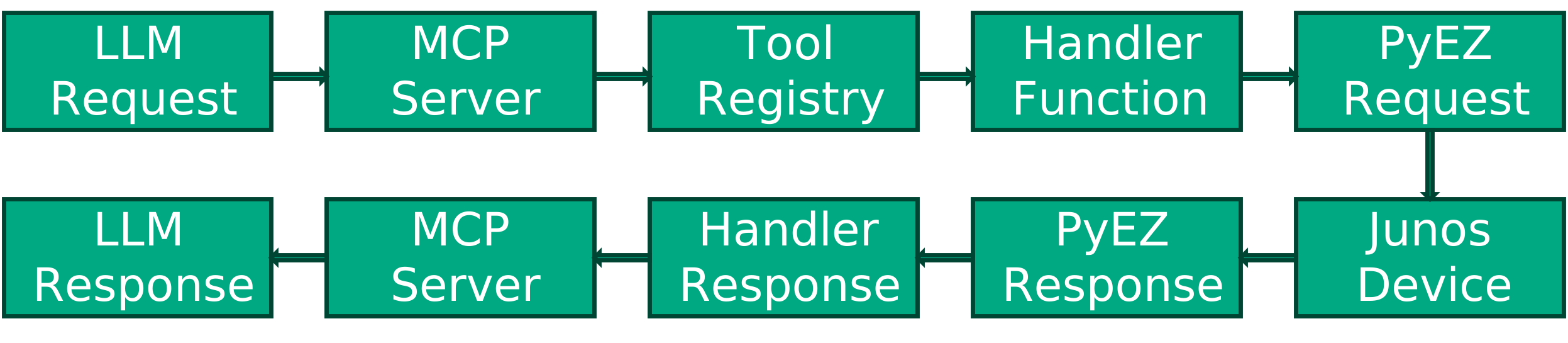
The Junos MCP server uses the Model Context Protocol (MCP) to enable LLMs to interact with Juniper network devices. The server architecture consists of:
MCP Server Core (
jmcp.py): Handles MCP protocol communicationTool Handlers: Individual functions that implement specific network operations
Tool Registry: Maps tool names to their handler functions
Transport Layer: Supports stdio (Claude Desktop) and streamable-http (VSCode)
How Tools Work
Each tool in the MCP server follows this flow:
Adding a New Tool
Adding a new tool is a simple 3-step process:
Step 1: Create a Handler Function
Create an async handler function in jmcp.py (before the TOOL_HANDLERS
dictionary):
async def handle_my_new_tool(arguments: dict) -> list[types.ContentBlock]:
    """Handler for my_new_tool - describe what it does"""
    # Extract arguments
    router_name = arguments.get("router_name", "")
    my_param = arguments.get("my_param", "default_value")

    # Validate router exists
    if router_name not in devices:
        result = f"Router {router_name} not found in the device mapping."
    else:
        # Your tool logic here
        log.debug(f"Executing my_new_tool on router {router_name}")
        result = _run_junos_cli_command(router_name, f"show {my_param}")

    return [types.TextContent(type="text", text=result)]
Step 2: Register the Handler
Add your handler to the TOOL_HANDLERS dictionary (around line 330):
TOOL_HANDLERS = {
    "execute_junos_command": handle_execute_junos_command,
    "get_junos_config": handle_get_junos_config,
    "junos_config_diff": handle_junos_config_diff,
    "gather_device_facts": handle_gather_device_facts,
    "get_router_list": handle_get_router_list,
    "load_and_commit_config": handle_load_and_commit_config,
    "add_device": handle_add_device,      # Dynamic device management with
    elicitation
    "my_new_tool": handle_my_new_tool,    # Add your tool here
}
Step 3: Define Tool Metadata
Add the tool definition to the list_tools() method (around line 410):
types.Tool(
    name="my_new_tool",
    description="Brief description of what your tool does",
    inputSchema={
        "type": "object",
        "properties": {
            "router_name": {"type": "string", "description": "The name of the
            router"},
            "my_param": {"type": "string", "description": "Description of
            parameter"}
        },
        "required": ["router_name"]  # List required parameters
    }
)
Example: Creating a BGP Neighbors Tool
Here's a complete example of adding a tool to show BGP neighbors:
# Step 1: Handler function
async def handle_show_bgp_neighbors(arguments: dict) -> list[types.ContentBloc
]:
    """Handler for show_bgp_neighbors tool"""
    router_name = arguments.get("router_name", "")
    neighbor_address = arguments.get("neighbor_address", "")

    if router_name not in devices:
        result = f"Router {router_name} not found in the device mapping."
    else:
        log.debug(f"Getting BGP neighbors from router {router_name}")
        if neighbor_address:
            cmd = f"show bgp neighbor {neighbor_address}"
        else:
            cmd = "show bgp summary"
        result = _run_junos_cli_command(router_name, cmd)

    return [types.TextContent(type="text", text=result)]

# Step 2: Add to TOOL_HANDLERS
TOOL_HANDLERS = {
    # ... existing tools ...
    "show_bgp_neighbors": handle_show_bgp_neighbors,
}

# Step 3: Add to list_tools()
types.Tool(
    name="show_bgp_neighbors",
    description="Show BGP neighbor information",
    inputSchema={
        "type": "object",
        "properties": {
            "router_name": {"type": "string", "description": "The name of the
            router"},
            "neighbor_address": {"type": "string", "description": "Optional:
            specific neighbor IP"}
        },
        "required": ["router_name"]
    }
)
Using Elicitation in Tools
The MCP server supports elicitation for interactive data collection. To use elicitation in your tools:
from mcp.server.elicitation import ElicitationResult
from pydantic import BaseModel, Field

# Define elicitation schema
class MyInputSchema(BaseModel):
    user_input: str = Field(description="Enter your input")

async def handle_my_elicitation_tool(arguments: dict, context: Context) -> list
[types.ContentBlock]:
    """Tool that uses elicitation to collect user input"""

    # Use elicitation to ask for user input
    result = await context.elicit(
        message="Please provide the required input:",
        schema=MyInputSchema
    )

    # Handle the result
    match result:
        case AcceptedElicitation(data=data):
            user_input = data.user_input
            # Process the input...
            return [types.TextContent(type="text", text=f"Processing:
            {user_input}")]
        case DeclinedElicitation() | CancelledElicitation():
return [types.TextContent(type="text", text="Operation cancelled")]Note: Elicitation currently only works with VSCode (streamable-http transport). Claude Desktop does not support elicitation yet.
Best Practices for Tool Development
Error Handling: Always handle connection errors and invalid inputs gracefully
Logging: Use the global
loglogger for debuggingValidation: Check if router exists before attempting operations
Documentation: Write clear descriptions for tools and parameters
Timeouts: Support configurable timeouts for long-running operations
Return Format: Always return
list[types.ContentBlock]with text contentElicitation: Use elicitation for interactive data collection when needed
Context Parameter: Include
context: Contextparameter if using elicitation
Using PyEZ for Advanced Operations
For operations beyond CLI commands, use PyEZ directly:
from jnpr.junos import Device
from jnpr.junos.utils.config import Config

# Example: Using PyEZ tables
async def handle_get_interfaces(arguments: dict) -> list[types.ContentBlock]:
    router_name = arguments.get("router_name", "")

    if router_name not in devices:
        result = f"Router {router_name} not found in the device mapping."
    else:
        device_info = devices[router_name]
        try:
            connect_params = prepare_connection_params(device_info, router_name)
            with Device(**connect_params) as junos_device:
                # Use PyEZ tables or other utilities
                interfaces = junos_device.rpc.get_interface_information()
                # Process interfaces...
                result = "Interface information..."
        except Exception as e:
            result = f"Error: {e}"

    return [types.TextContent(type="text", text=result)]
Testing Your Tools
Unit Testing: Test handler functions with mock arguments
Integration Testing: Test with actual Junos devices or vSRX
Error Cases: Test with invalid routers, network failures, etc.
Example test:
# Test the handler directly
result = await handle_my_new_tool({
    "router_name": "router-1",
    "my_param": "test"
})
print(result[0].text)
Debugging Tips
Enable debug logging to see detailed execution:
logging.basicConfig(level=logging.DEBUG)Use the stdio transport for easier debugging:
python jmcp.py -f devices.json -t stdioTest individual commands manually:
 result = _run_junos_cli_command("router-1", "show version")
print(result)This server cannot be installed
Resources
Unclaimed servers have limited discoverability.
Looking for Admin?
If you are the server author, to access and configure the admin panel.