
Enables building Docker images, checking build status, monitoring build progress, and retrieving build logs through the Bio-OS system.
Click on "Install Server".
Wait a few minutes for the server to deploy. Once ready, it will show a "Started" state.
In the chat, type
@followed by the MCP server name and your instructions, e.g., "@Bio-OS MCP Servervalidate my WDL script for the RNA-seq workflow"
That's it! The server will respond to your query, and you can continue using it as needed.
Here is a step-by-step guide with screenshots.
Bio-OS MCP Server
A Model Context Protocol (MCP) based tool and prompt server for Bio-OS that provides workflow management and Docker image building capabilities.
Usage
We recommend using the CLINE extension for VSCode to interact with this MCP tool. There are two deployment options available: standalone installation on your local machine or using Code Server in a Miracle Cloud IES instance. Choose the option that best suits your needs.
Local Installation (Using MCP through local VSCode)
Prerequisites
Bio-OS MCP Server requires the following dependencies:
Install uv (Python package manager):
Install Cromwell (Workflow execution engine):
Installation
Clone the Bio-OS MCP Server repository:
Configuration
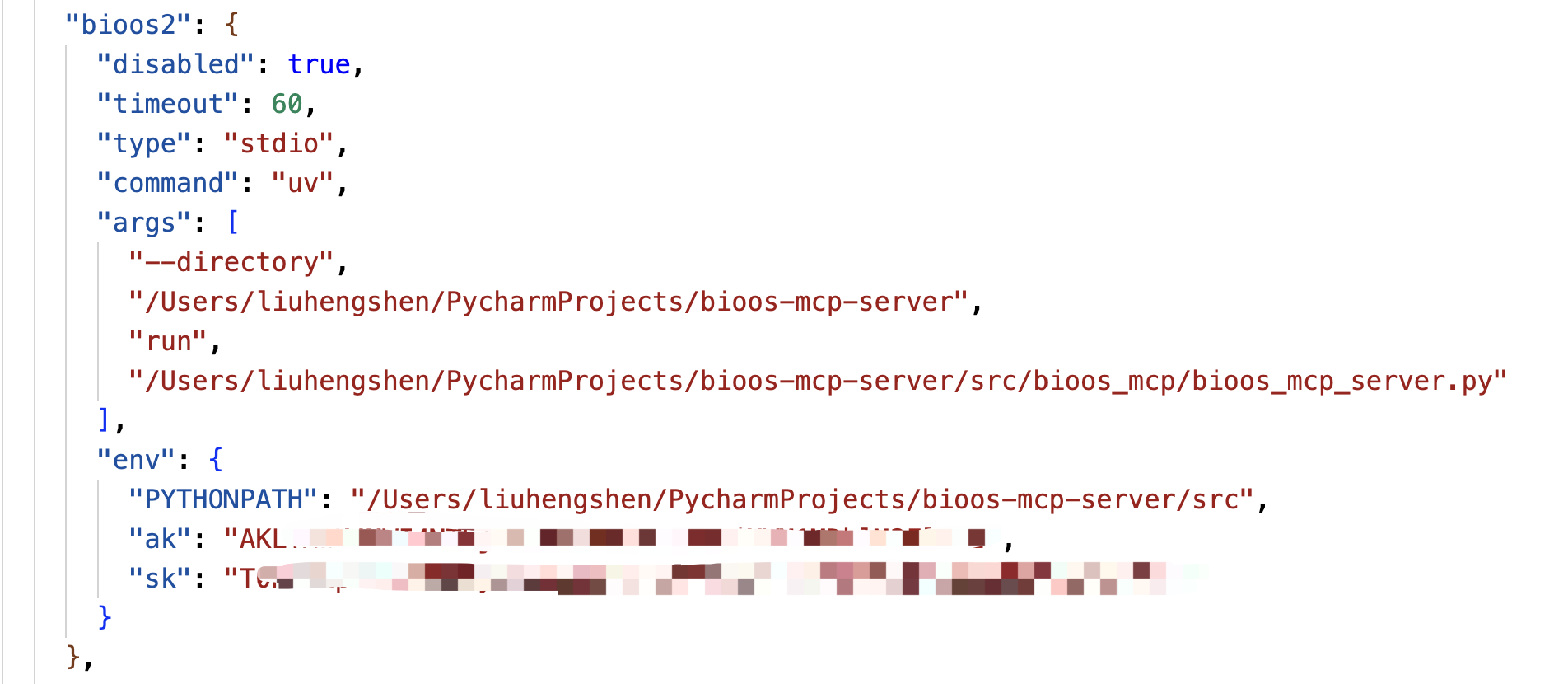
Configure the Bio-OS MCP Server script path in CLINE's MCP settings. Replace the placeholders with absolute paths to your installation:
Follow the configuration process shown below. The Bio-OS MCP Server is ready to use when the status turns green. If the connection is unstable, click "Retry Connection":
Since CLINE does not yet support MCP Prompts, copy the contents of bioos-mcp-prompt.md into CLINE's Custom Instructions for optimal experience:
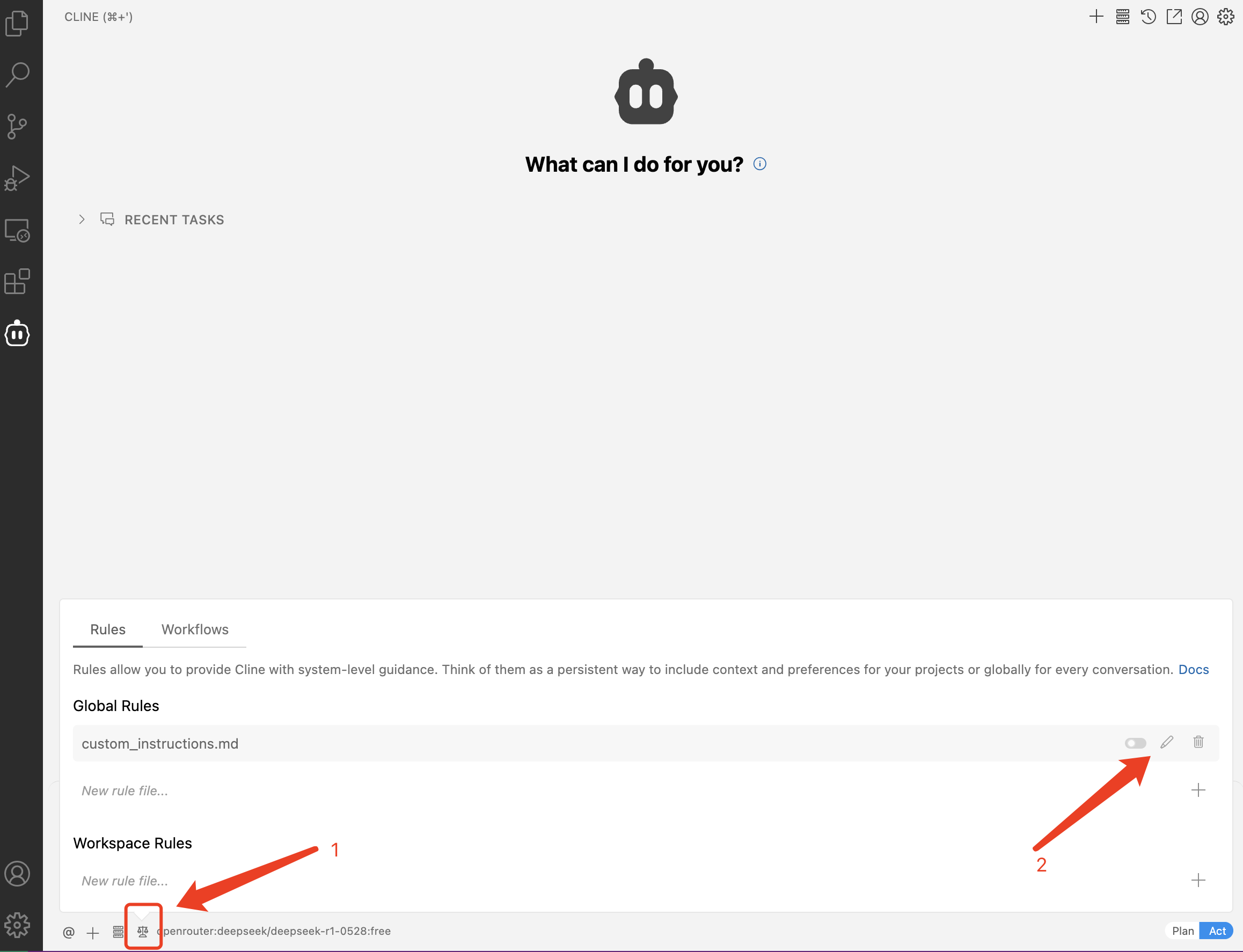
After completing the configuration, you can begin using the Bio-OS MCP Server for development.
Cloud Installation (Using MCP through Code Server in Miracle Cloud)
For Miracle Cloud users, we provide a pre-configured Docker image with all Bio-OS MCP Server dependencies. Follow these steps:
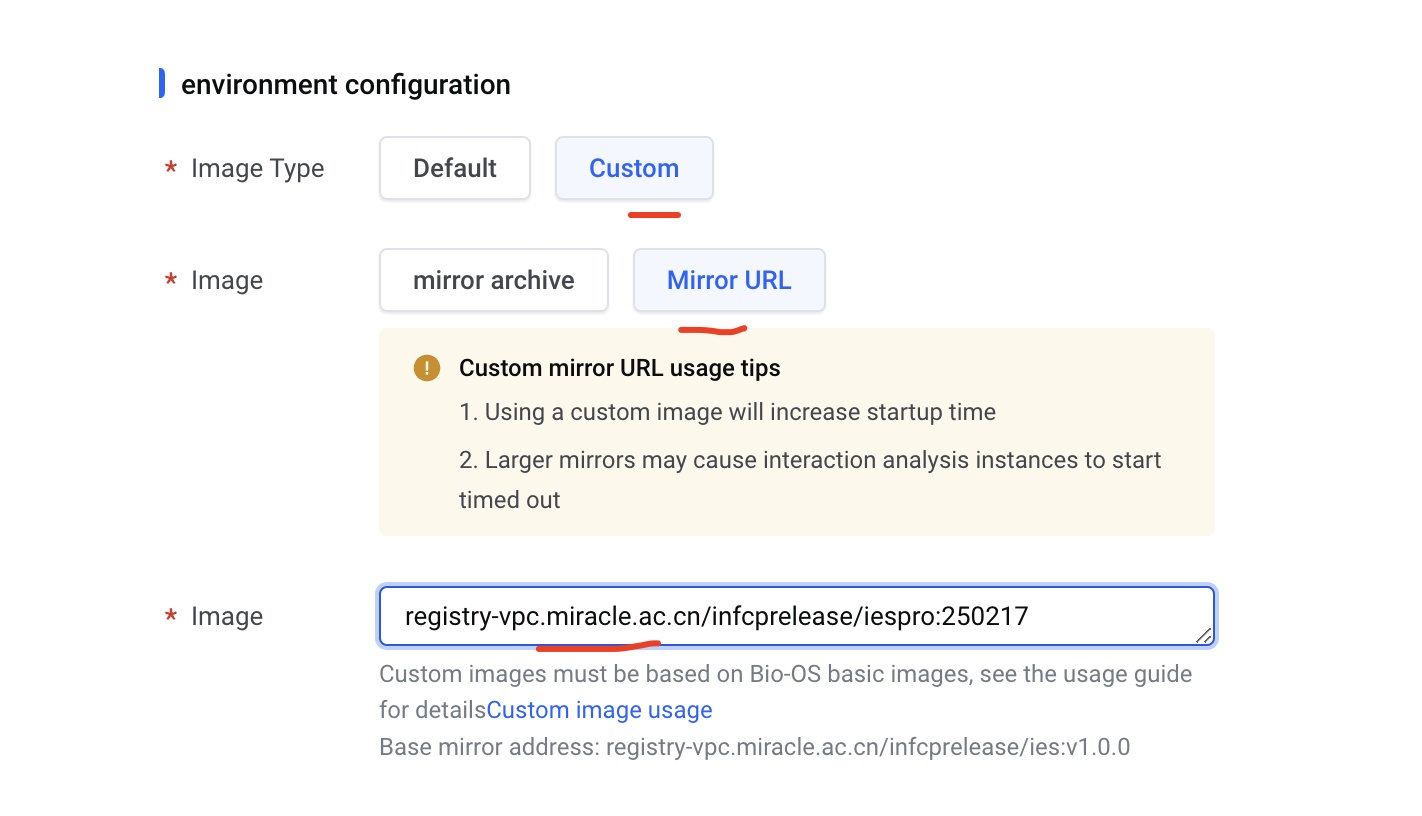
Launch an IES instance using the image:
registry-vpc.miracle.ac.cn/infcprelease/iespro:250217Select "Open with VSCode" to access the development environment:
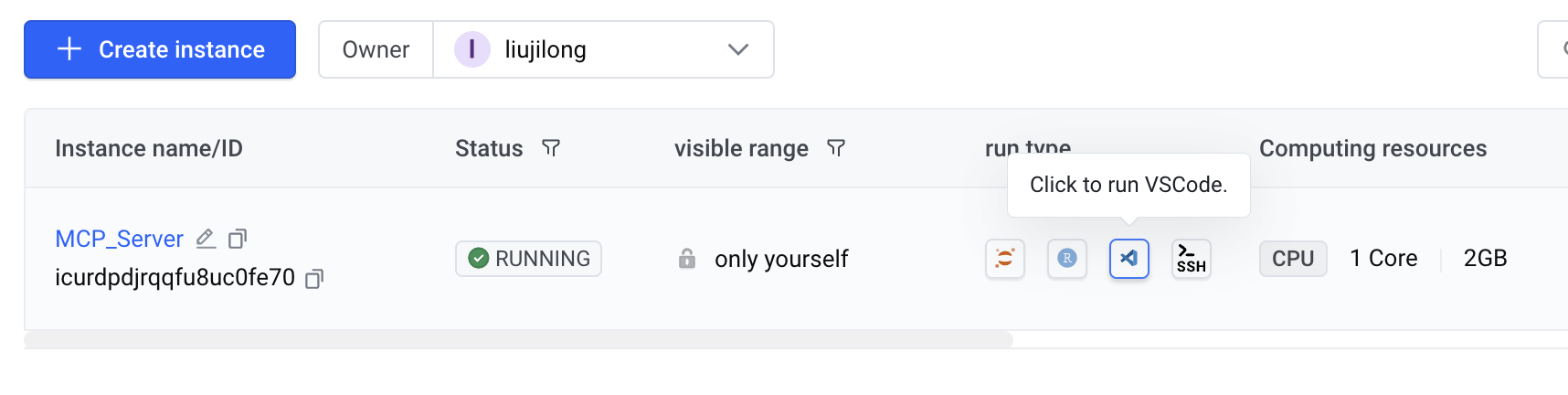
Configuration in Code Server
Click the CLINE icon in the left sidebar and configure your LLM model credentials:
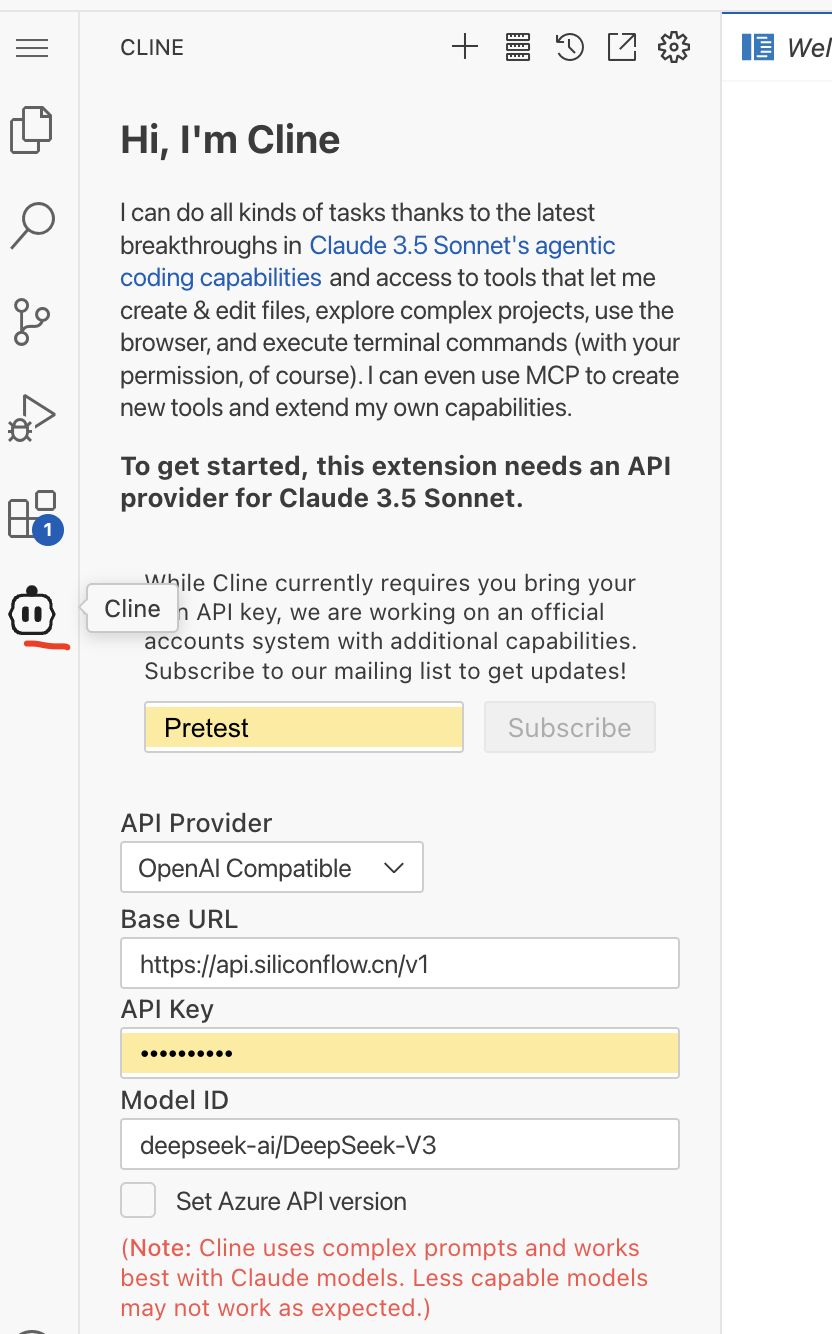
Navigate to CLINE's MCP configuration page and verify that Bio-OS MCP Server is properly connected. Use "Retry Connection" if needed:
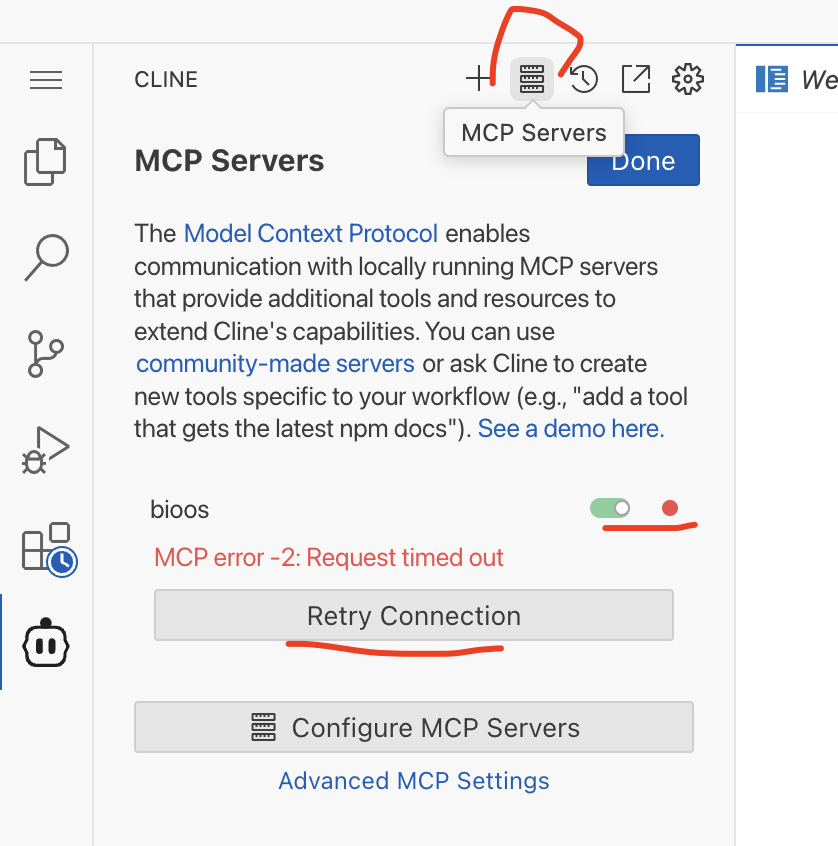
Once configured, you can begin development with Bio-OS MCP Server.
Features
1. Workflow Management
Submit and monitor workflows
Upload WDL workflows
Validate WDL scripts
Generate input file templates
2. Docker Image Management
Build Docker images
Check build status
Monitor build progress
Retrieve build logs
API Reference
Tools
submit_workflowFunction: Submit Bio-OS workflow
Parameters:
ak: Access Key
sk: Secret Key
workspace_name: Workspace name
workflow_name: Workflow name
input_json: Input JSON file path
import_workflowFunction: Upload WDL workflow to Bio-OS system
Parameters:
ak: Access Key
sk: Secret Key
workspace_name: Workspace name
workflow_name: Workflow name
workflow_source: WDL file path
workflow_desc: Workflow description
validate_wdlFunction: Validate WDL workflow script
Parameters:
wdl_path: WDL file path
generate_inputsFunction: Generate WDL input file template
Parameters:
wdl_path: WDL file path
build_docker_imageFunction: Build Docker image
Parameters:
registry: Image registry address
namespace_name: Namespace
repo_name: Repository name
tag: Version tag
source_path: Dockerfile or archive path
check_build_statusFunction: Check Docker image build status
Parameters:
task_id: Build task ID
Prompts (Not supported in Cline yet)
wdl_development_workflow_promptFunction: Generate complete guidance for WDL workflow development
Content:
WDL script development steps
Task structure guidelines
Runtime configuration requirements
Docker image preparation guide
wdl_runtime_promptFunction: Generate WDL runtime configuration template
Content:
Required docker image configuration
Memory settings (default: 8 GB)
Disk settings (default: 20 GB)
CPU settings (default: 4)
workflow_input_promptFunction: Generate workflow input preparation guide
Content:
Input file preparation steps
Parameter validation guidelines
File path requirements
workflow_submission_promptFunction: Generate workflow submission template
Content:
Required credentials (ak/sk)
Workspace configuration
Input file requirements
docker_build_promptFunction: Generate Docker build process guide
Content:
Dockerfile generation steps
Build configuration requirements
Image registry settings
Build status monitoring guide
Note: Prompts are currently not supported in Cline environment. These prompts are only available when using the MCP server directly or through Claude Desktop.
✅ Certified by MCPHub
This server is officially certified by MCPHub. Verify certification status on our MCPHub profile page.
Contributing
Issues and Pull Requests are welcome.
License
MIT License