
auth-fetch-mcp enables AI assistants to fetch content from authenticated and dynamic web pages by automating browser-based login and content capture.
Fetch authenticated pages (
auth_fetch): Opens a real browser to any URL (including login-required pages like Notion, Google Docs, Jira, Confluence, Linear, Slack, or any SaaS/private page), allows manual login (including SSO, 2FA, CAPTCHA), and captures the page as Markdown. Optionally specify a CSS selector (wait_for) to wait for specific elements before capturing — useful for Single Page Applications (SPAs).List open browser tabs (
list_pages): View all currently open tabs with their URLs and titles.Close the browser (
close_browser): Close the browser window while preserving login sessions for future reuse.Persist login sessions: Browser data is saved locally (
~/.auth-fetch-mcp/browser-data/), so you only need to log in once per service.Local & private: Runs entirely on your local machine, communicating with AI tools (Claude Code, Cursor, Windsurf, or any MCP client) via stdio, keeping all data local.
Enables fetching and capturing content from authenticated Notion pages, allowing AI assistants to read and summarize private workspace content by using a real browser to handle logins and session persistence.
Click on "Install Server".
Wait a few minutes for the server to deploy. Once ready, it will show a "Started" state.
In the chat, type
@followed by the MCP server name and your instructions, e.g., "@auth-fetch-mcpSummarize this private Notion page: https://notion.so/my-project-notes"
That's it! The server will respond to your query, and you can continue using it as needed.
Here is a step-by-step guide with screenshots.
auth-fetch-mcp




MCP server that lets AI assistants fetch content from authenticated web pages.
When your AI tries to read a URL that requires login, this tool opens a real browser for you to sign in — then captures the page content. Sessions are saved locally, so you only log in once per service.
Demo
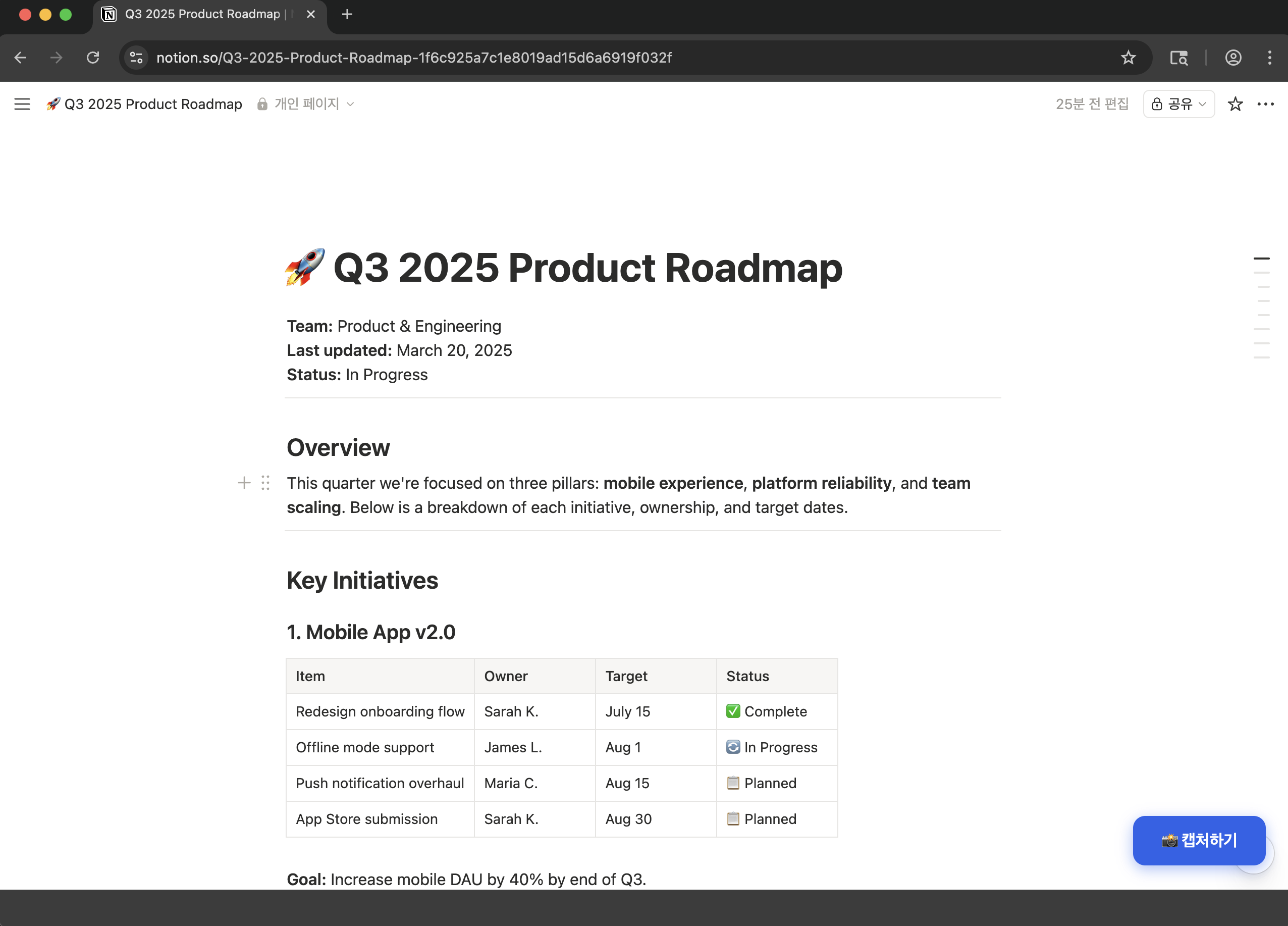
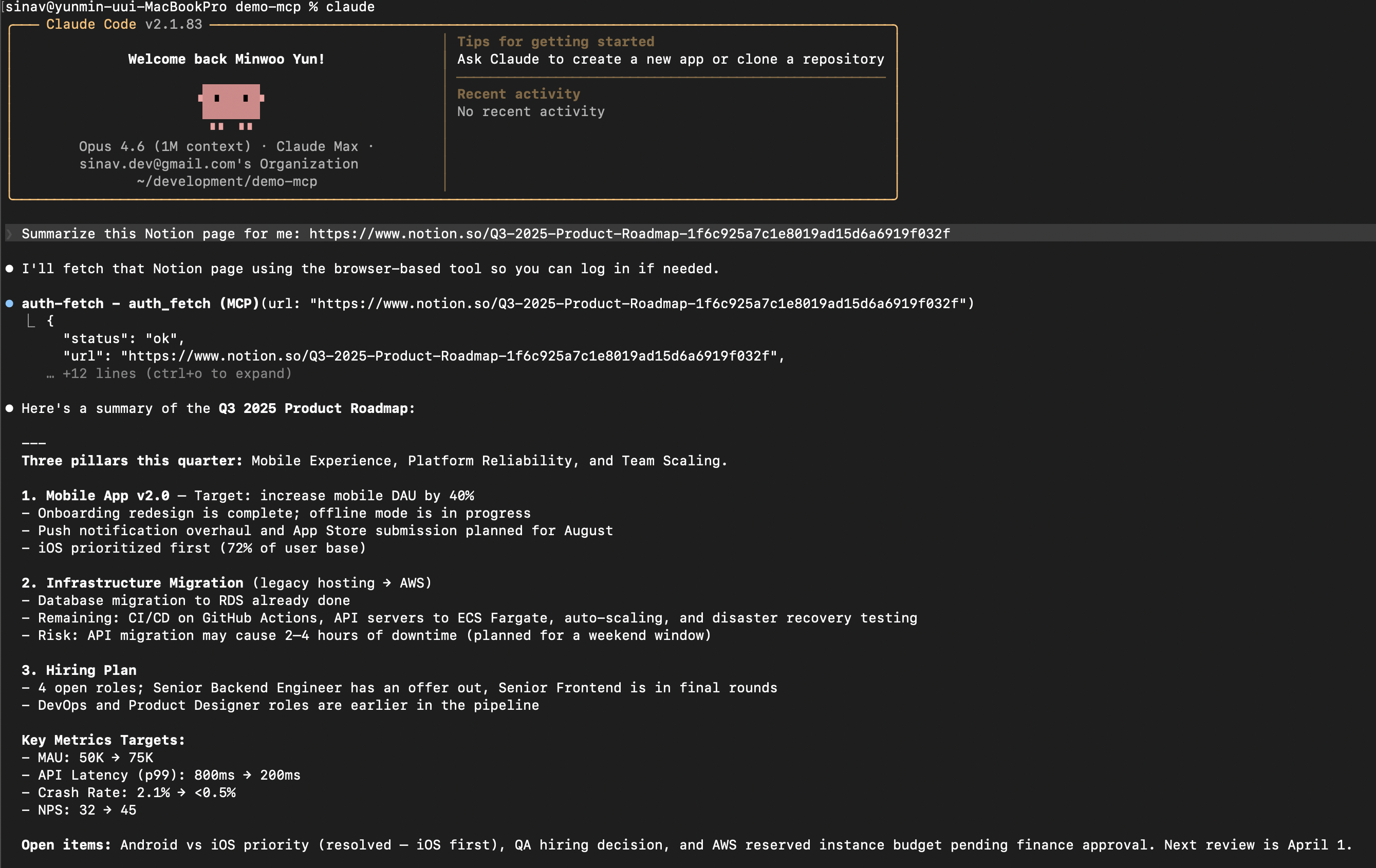
"Summarize this Notion page for me"
A browser opens with a Capture button. Log in if needed, then click it:
The AI receives the full page content and responds:
Quick Start
Claude Code
claude mcp add --scope user auth-fetch -- npx auth-fetch-mcp@latest.mcp.json (Cursor, Windsurf, etc.)
{
  "mcpServers": {
    "auth-fetch": {
      "command": "npx",
      "args": ["auth-fetch-mcp@latest"]
    }
  }
}
Chromium is auto-installed on first run if not already present.
How It Works
Ask your AI to read any authenticated page — just paste the URL.
A browser window opens automatically and navigates to the page.
Log in as you normally would (supports SSO, 2FA, CAPTCHA — anything).
Click the "📸 Capture" button in the bottom-right corner when ready.
The page content is captured, the browser closes, and your AI receives the content.
Tools
auth_fetch
The primary tool. Fetches page content using a real browser, opening a window for login if needed.
Parameter | Type | Required | Description |
| string | yes | The URL to fetch content from |
| string | no | CSS selector to wait for before capturing (useful for SPAs) |
Flow:
Opens a headed browser and navigates to the URL
A floating "📸 Capture" button appears on the page
User logs in or navigates as needed (button re-appears after page transitions)
User clicks the button — content is captured as Markdown — browser closes
list_pages
Lists all open tabs in the browser with their URLs and titles.
close_browser
Closes the browser window. Login sessions are saved and will be reused next time.
How Sessions Work
Login sessions are saved to ~/.auth-fetch-mcp/browser-data/. This is a standard Chromium profile directory containing cookies and local storage. Sessions persist across restarts, so previously logged-in sites will load faster on the next visit.
To clear all sessions:
rm -rf ~/.auth-fetch-mcp/browser-data/Supported AI Tools
Claude Code
Cursor
Windsurf
Any MCP-compatible client using stdio transport
Limitations
Requires a local environment (does not work in web-based chat interfaces)
First access to each service requires manual login
Very long pages are truncated to fit LLM context windows (50K chars)
Some sites with aggressive bot detection may not work (try the
wait_foroption)
Privacy
All data stays on your machine — nothing is sent to external servers
Browser sessions are stored locally in your home directory
The MCP server only communicates with the AI tool via stdio (local pipe)
Contributing
Contributions are welcome! Please open an issue or submit a pull request.
git clone https://github.com/ymw0407/auth-fetch-mcp.git
cd auth-fetch-mcp
npm install
npm run build
License
MIT