F
licenseNot graded
qualityD
maintenanceA lightweight AI agent that fetches real-time weather alerts for any U.S. state using the National Weather Service API.
-

Click on "Deploy Server".
Wait a few minutes for the server to deploy. Once ready, it will show a "Started" state.
In the chat, type @ followed by the MCP server name and your instructions, e.g., "@Weather Alerts MCP Server show me active weather alerts for Texas"
That's it! The server will respond to your query, and you can continue using it as needed.
Here is a step-by-step guide with screenshots.
It is a Python application that provides real-time weather alerts for US states using the National Weather Service (NWS) API. It leverages the mcp framework (with FastMCP) and is designed for modern async Python workflows. The project is fully managed with uv for dependency management and task running.
Related MCP server: Weather Alerts MCP Server
Weather Alerts Tool: Fetches and formats active weather alerts for any US state.
Echo Resource: Simple echo endpoint for testing.
Async & Modern: Uses Python 3.12+ and async/await patterns.
MCP Inspector: Visual tool to inspect and test your MCP tools and resources.
.
├── main.py                # Simple entry point (prints a message)
├── pyproject.toml         # Project metadata and dependencies
├── uv.lock                # Locked dependencies for reproducible installs
├── server/
│   └── weather.py         # Main server logic and weather tool/resource
├── .venv/                 # (optional) Virtual environment
├── .python-version        # Python version pin (3.12)
├── .gitignore             # Standard Python ignores
└── README.md # Project documentationPython 3.12+
uv (install with pip install uv if not already installed)
Clone the repository:
git clone <your-repo-url>
cd mcpproject
Install dependencies using uv:
uv pip install -r uv.lockOr, if you want to install from pyproject.toml:
uv pip installTo run the basic entry point:
uv run python main.pyTo start the MCP development server for the weather tool:
uv run mcp dev server/weather.pyThis will also open MCP Inspector in your browser—a visual tool to explore and test your MCP tools and resources interactively.
To install the weather tool for use as an MCP tool:
uv run mcp install server/weather.pyWith the dev server running, you can use the MCP Inspector or an MCP-compatible client to call the get_alerts tool:
Tool name: get_alerts
Argument: Two-letter US state code (e.g., CA, NY)
Example (from CLI):
mcp call get_alerts --state=CAYou can also use the weather alerts tool in Claude Desktop, as shown below:
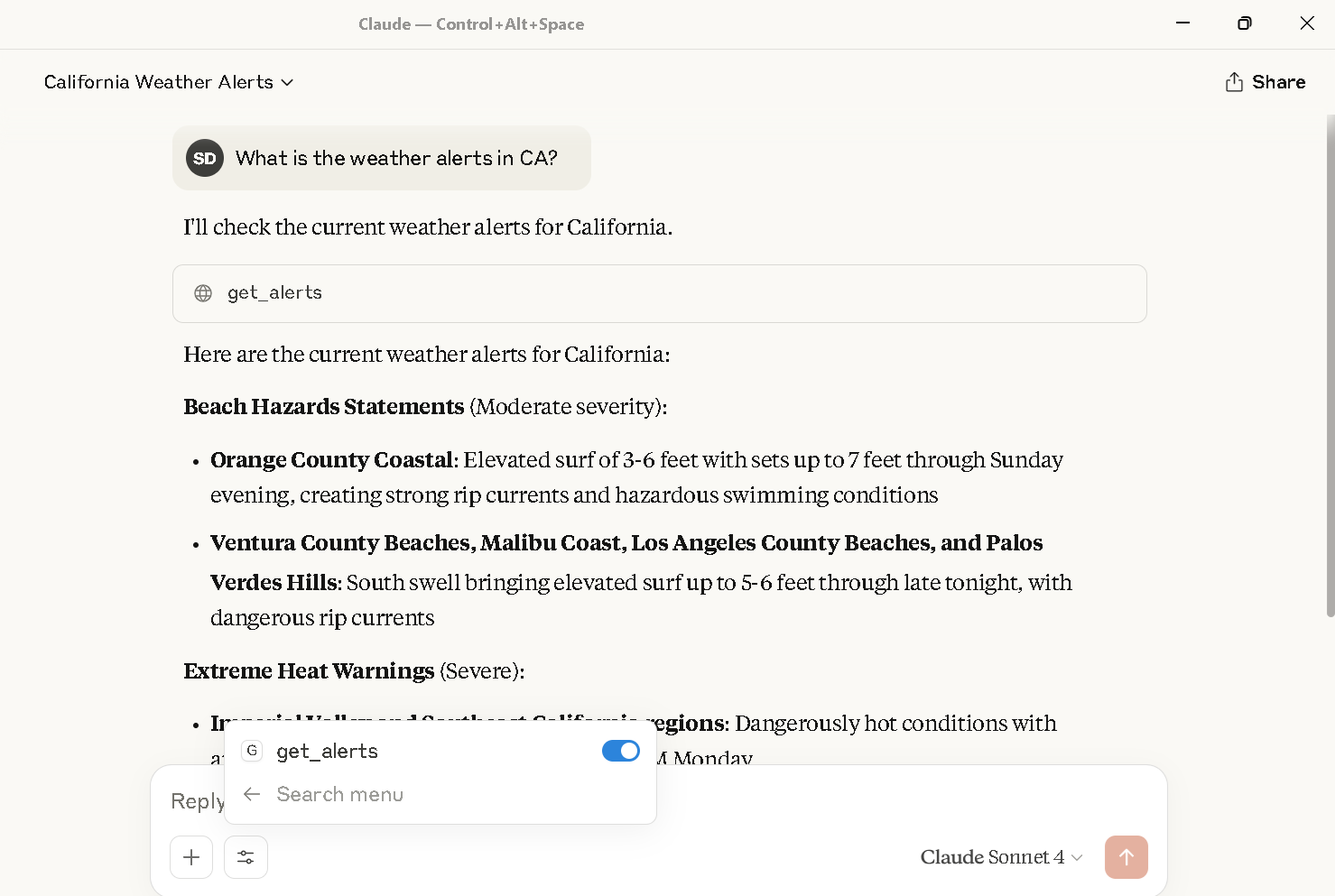
Weather alerts for California displayed in Claude Desktop using the get_alerts tool.
To call this MCP server from Claude Desktop, you need to update your claude_desktop_config.json file to include the server
For example:
{
  {
  "mcpServers": {
    "weather": {
      "command": "C:\\Users\\shubhechhadey\\.local\\bin\\uv.EXE",
      "args": [
        "run",
        "--with",
        "mcp[cli]",
        "mcp",
        "run",
        "C:\\Users\\shubhechhadey\\projects\\mcpproject\\server\\weather.py"
      ]
    }
  }
}
}
Attached is the screenshot: 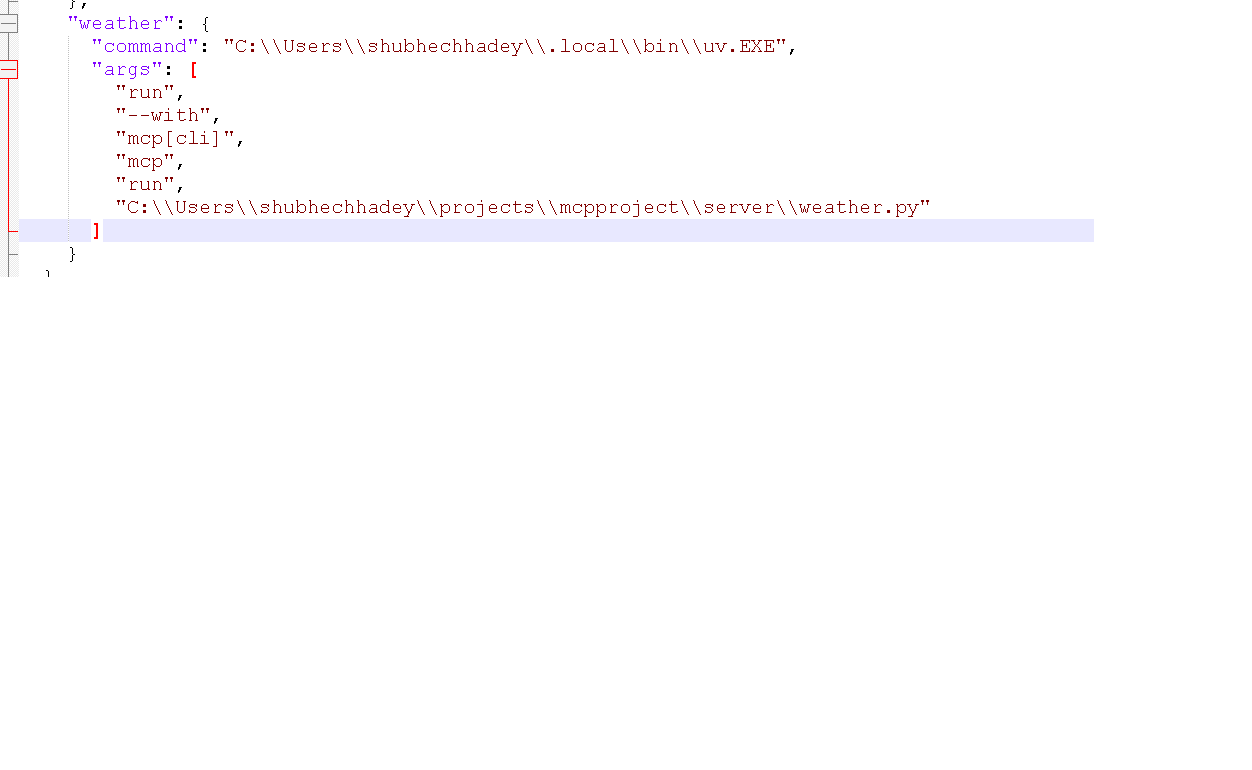
All commands use uv
Get weather alerts for a US state.
Args:
    state: Two-letter US state code (e.g. CA, NY)
| Name | Required | Description | Default |
|---|---|---|---|
| state | Yes |
Does the description disclose side effects, auth requirements, rate limits, or destructive behavior?
No annotations are provided, and the description does not disclose behavioral traits such as data source freshness, authentication requirements, rate limits, or error handling for invalid states. The agent is left uninformed about important runtime behaviors.
Agents need to know what a tool does to the world before calling it. Descriptions should go beyond structured annotations to explain consequences.
Is the description appropriately sized, front-loaded, and free of redundancy?
The description is extremely concise (two lines) with the purpose front-loaded. Every sentence adds value: the first states the action, the second clarifies the parameter. No wasted words.
Shorter descriptions cost fewer tokens and are easier for agents to parse. Every sentence should earn its place.
Given the tool's complexity, does the description cover enough for an agent to succeed on first attempt?
For a simple one-parameter tool with no output schema, the description is largely complete. It explains what the tool does and how to specify the input. However, it does not mention what the return value contains (e.g., alert details, count), which could be useful for an agent.
Complex tools with many parameters or behaviors need more documentation. Simple tools need less. This dimension scales expectations accordingly.
Does the description clarify parameter syntax, constraints, interactions, or defaults beyond what the schema provides?
With 0% schema description coverage, the description adds crucial meaning by specifying the parameter format ('Two-letter US state code') and providing examples (CA, NY). This adequately compensates for the missing schema descriptions.
Input schemas describe structure but not intent. Descriptions should explain non-obvious parameter relationships and valid value ranges.
Does the description clearly state what the tool does and how it differs from similar tools?
The description clearly states the action ('Get') and resource ('weather alerts') with a specific scope ('for a US state'). It is unambiguous and distinguishes the tool's function even without sibling tools present.
Agents choose between tools based on descriptions. A clear purpose with a specific verb and resource helps agents select the right tool.
Does the description explain when to use this tool, when not to, or what alternatives exist?
The description implies when to use the tool (when needing weather alerts for a US state) but does not provide explicit exclusions or alternatives. Since there are no sibling tools, this is acceptable but could be more prescriptive about valid state codes.
Agents often have multiple tools that could apply. Explicit usage guidance like "use X instead of Y when Z" prevents misuse.
Recent tool additions, removals, and schema changes observed during successful MCP inspections.
v0.1.0get_alertsScored across 1 tool
With only one tool, there is no possibility of confusion between tools. Each tool's purpose is distinct by default.
The single tool name 'get_alerts' follows a clear verb_noun pattern, consistent within the set.
A single tool for weather alerts feels thin for a server explicitly named 'Weather Alerts MCP Server'. While functional, it barely covers the expected scope.
The tool only retrieves alerts by state with no filtering, detail views, or additional operations like creating or managing alerts, leaving significant gaps for common use cases.
US NWS weather alerts and 5-day forecasts for AI agents. $0.01 per call.
US weather alerts (NWS): warnings, watches. $0.01/query. Register in-session — free testnet funds.
Get US weather forecasts, active alerts, and current observations.
Active weather alerts and warnings from the National Weather Service