

A
licenseA
qualityD
maintenanceA Model Context Protocol server that enables AI assistants to interact with iTerm2 terminals, allowing creation and management of terminal sessions, command execution, and reading terminal output.
5
25 npm
14
ISC

Click on "Deploy Server".
Wait a few minutes for the server to deploy. Once ready, it will show a "Started" state.
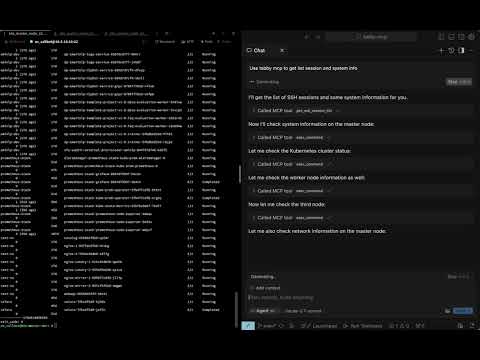
In the chat, type @ followed by the MCP server name and your instructions, e.g., "@Tabby MCP Server list my active terminal sessions and show the buffer for the first one"
That's it! The server will respond to your query, and you can continue using it as needed.
Here is a step-by-step guide with screenshots.


A Tabby Terminal plugin that exposes your active terminal sessions through the Model Context Protocol (MCP). It lets MCP-compatible AI clients discover terminal tabs, execute commands, read terminal buffers, and retrieve long command output.
Tabby stays the terminal UI. Your AI client connects to Tabby through MCP.
MCP server inside Tabby — exposes an SSE endpoint at http://localhost:3001/sse
Terminal session discovery — list local and SSH-backed Tabby terminal sessions
Command execution — run commands in a selected Tabby terminal tab
Robust output capture — simple marker protocol with exit-code parsing
Terminal buffer access — read visible/history buffer ranges from a tab
Long output pagination — retrieve full command output by outputId
Pair programming mode — optional confirmation dialogs and user feedback
Docker-based build — reproducible local plugin builds for Tabby
Related MCP server: TermPipe MCP
Tabby Terminal installed and running
Docker, for local builds
macOS for the provided install script path
An MCP-compatible client with SSE support, such as Claude Code, Cursor, Windsurf, Codex, or another SSE-capable MCP client
Open Tabby
Go to Settings → Plugins
Install Tabby MCP
Restart Tabby
Open Settings → Plugins → MCP and confirm the server configuration
git clone https://github.com/thuanpham582002/tabby-mcp-server.git
cd tabby-mcp-server

make build-dist
bash scripts/copy_to_plugin_folder.sh
The install script copies the plugin to:
~/Library/Application Support/tabby/plugins/node_modules/tabby-mcpRestart Tabby after installing or updating the plugin.
If your local Tabby installation requires bundled plugin dependencies, build the full package:
make build-dist-with-deps
bash scripts/copy_to_plugin_folder.shStart or restart Tabby
Open at least one terminal tab
Verify the MCP server is running:
curl http://localhost:3001/health
# OK
List Tabby terminal sessions:
curl -X POST http://localhost:3001/api/tool/get_ssh_session_list \
  -H 'Content-Type: application/json' \
  -d '{}'
Execute a command in a session:
curl -X POST http://localhost:3001/api/tool/exec_command \
  -H 'Content-Type: application/json' \
-d '{"command":"pwd","tabId":"0"}'Tabby-MCP provides:
SSE endpoint:    http://localhost:3001/sse
Health endpoint: http://localhost:3001/health
HTTP test API:   http://localhost:3001/api/tool/<tool-name>
The Tabby plugin must be running before clients can connect.
Use this configuration for clients that support SSE MCP servers directly:
{
  "mcpServers": {
    "tabby-mcp": {
      "type": "sse",
      "url": "http://localhost:3001/sse"
    }
  }
}
For Cursor-style clients, place it in the MCP config file, for example:
~/.cursor/mcp.jsonIf your Claude Code version supports SSE MCP servers:
claude mcp add --transport sse tabby-mcp http://localhost:3001/sseIf your setup uses JSON config, use the SSE clients configuration.
Use the SSE MCP server configuration supported by your Codex client:
{
  "mcpServers": {
    "tabby-mcp": {
      "type": "sse",
      "url": "http://localhost:3001/sse"
    }
  }
}
For TOML-based configs, map the same SSE URL using your client's supported SSE MCP syntax.
Tool | Description | Parameters |
| List available Tabby terminal sessions | none |
| Execute a shell command in a terminal tab |
|
| Read terminal buffer content |
|
| Retrieve full/paginated command output |
|
Default plugin configuration:
{
  "mcp": {
    "enabled": true,
    "startOnBoot": true,
    "port": 3001,
    "listenHost": "127.0.0.1",
    "serverUrl": "http://localhost:3001",
    "enableDebugLogging": true,
    "pairProgrammingMode": {
      "enabled": true,
      "showConfirmationDialog": true,
      "autoFocusTerminal": true
    }
  }
}
Configure these options in Tabby under Settings → Plugins → MCP.
To accept connections from other machines or environments such as WSL, set
listenHost to 0.0.0.0 in the MCP settings. This makes the server reachable
over the network; use an address reachable from your MCP client in its server
URL and apply any needed firewall restrictions.
Pair Programming Mode adds safety prompts when an AI client executes commands:
confirmation before command execution
optional terminal auto-focus
command rejection with feedback
command result dialog and history tracking
Clone and build:
git clone https://github.com/thuanpham582002/tabby-mcp-server.git
cd tabby-mcp-server
make build-dist
Install into local Tabby:
bash scripts/copy_to_plugin_folder.shRestart Tabby and verify:
curl http://localhost:3001/healthmake build-dist # Build dist only
make build-dist-with-deps # Build dist and copy node_modules
make help # Show available targetsMIT — see LICENSE.
This server cannot be deployed
A comprehensive Model Context Protocol (MCP) server that enables AI assistants to interact with yo…
Remote Desktop Commander: use files, terminal and processes on your own computers from any AI app.
Work on your own computers from Claude or ChatGPT: run commands, edit and search files.
Use your Mac, Windows or Linux computer from ChatGPT, Claude or Codex: files, commands, documents.