
Click on "Install Server".
Wait a few minutes for the server to deploy. Once ready, it will show a "Started" state.
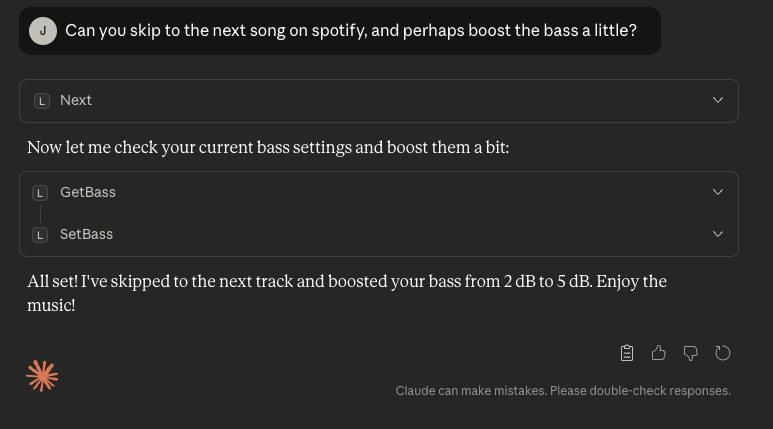
In the chat, type
@followed by the MCP server name and your instructions, e.g., "@Lyngdorf MCP Serverset the volume to -25 dB"
That's it! The server will respond to your query, and you can continue using it as needed.
Here is a step-by-step guide with screenshots.
Lyngdorf MCP Server
DISCLAIMER: This project is an independent, community-developed tool and is NOT affiliated with, endorsed by, or supported by Lyngdorf Audio. Use at your own risk. For official Lyngdorf products and support, visit lyngdorf.steinwaylyngdorf.com.
CODE GENERATION: Most of this codebase was generated using Claude Code, Anthropic's AI coding agent. The implementation demonstrates Claude Code's ability to create production-ready software from high-level requirements.
A Model Context Protocol (MCP) server for controlling Lyngdorf Audio devices (TDAI, MP, and CD series) via TCP. Features automatic device discovery, comprehensive control, volume safety, and built-in documentation.
Features
🔍 Auto-Discovery: Automatically finds and connects to Lyngdorf devices on startup
🛡️ Volume Safety: Two-tier safety system (Warning & Hard Limit) to protect your ears and equipment
🧠 Smart Capabilities: Automatically detects device model and prevents unsupported commands (e.g., no streaming on TDAI-2170)
🎵 43 Control Tools: Power, volume, source, RoomPerfect, voicing, tone controls, playback, and streaming
📚 Knowledge Base: Built-in manual data and command references for multiple models
🔄 Auto-Reconnect: Maintains connection with automatic recovery
🌐 Multi-Device: Supports TDAI, MP, and CD series with seamless device switching
Supported Devices
The server includes specific capability profiles for:
TDAI Series: 1120, 2170, 2190, 2210, 3400
MP Series: 40, 50, 60
CD Series: CD-1
Unknown devices are supported with a generic profile assuming full capabilities.
Installation
Prerequisites
Node.js 22+
npm or yarn
Install from npm
npm install -g lyngdorf-mcpOr use npx without installing:
npx lyngdorf-mcpInstall from Source
git clone <repository-url>
cd lyngdorf-mcp
npm install
cp .env.example .env
npm run build
Usage
With Claude Desktop
Add to your Claude Desktop configuration:
macOS: ~/Library/Application Support/Claude/claude_desktop_config.json
Windows: %APPDATA%\Claude\claude_desktop_config.json
Using npm package (recommended):
{
  "mcpServers": {
    "lyngdorf": {
      "command": "npx",
      "args": ["lyngdorf-mcp"],
      "env": {
        "VOLUME_WARNING_THRESHOLD": "-20",
        "VOLUME_HARD_LIMIT": "-10"
      }
    }
  }
}
Using local installation:
{
  "mcpServers": {
    "lyngdorf": {
      "command": "node",
      "args": ["/absolute/path/to/lyngdorf-mcp/dist/index.js"],
      "env": {
        "VOLUME_WARNING_THRESHOLD": "-20",
        "VOLUME_HARD_LIMIT": "-10"
      }
    }
  }
}
Configuration (Environment Variables)
Variable | Default | Description |
| (Auto) | Manually specify device IP if auto-discovery fails |
|
| Volume level (dB) that triggers a warning requiring user confirmation |
|
| Maximum volume level (dB) that cannot be exceeded via tools |
How It Works
On startup, the server:
Auto-discovers all Lyngdorf devices on your network via mDNS
Auto-connects if exactly one device is found
Lists devices if multiple are found (use
listDevicesandselectDevicetools)
No manual configuration needed! Just start Claude Desktop and ask:
"What's my current volume?"
Available Tools (43)
Power Control
powerOn,powerOff,togglePowercheckPowerState- Check if device is active or in standby
Volume Control (Safety Protected)
setVolume- Set volume (with safety checks)volumeUp,volumeDown- Adjust by 0.5dBgetVolume- Get current levelmute,unmute
Audio & Tone
setBass,getBass- Bass gain controlsetTreble,getTreble- Treble gain controlsetBalance,getBalance- L/R BalancesetBassFrequency,getBassFrequencysetTrebleFrequency,getTrebleFrequency
Input & Source
setSource,getSourcelistSources- List all available inputs
RoomPerfect & Voicing
setRoomPerfectFocus,setRoomPerfectGlobal,getRoomPerfectlistRoomPerfectPositions- List available focus positionssetVoicing,nextVoicing,previousVoicing,getVoicinglistVoicings- List available voicing presets
Playback & Streaming (Model Dependent)
play,pause,stop,next,previousgetStreamType- Detect current stream (Spotify, Roon, AirPlay, etc.)
Device Management
discoverDevices,listDevices,selectDevicegetStatus- Comprehensive device status
Available Resources
Access manuals and documentation as MCP resources:
lyngdorf://manual/{model}/commands- Command referencelyngdorf://manual/{model}/owners/index- Owner's Manual TOClyngdorf://manual/{model}/owners/{section}- Specific manual sectionslyngdorf://search?q={query}- Search all manuals
Supported Manuals: TDAI-1120, TDAI-2170, TDAI-2210, TDAI-3400
Troubleshooting
No Devices Found
Ensure device is powered on and connected to the network.
Check if you are on the same subnet.
Try setting
LYNGDORF_IPmanually.
Volume Limit Errors
If you see "Volume -XdB exceeds warning threshold...", simply ask the user for confirmation to proceed, or lower the requested volume.
Development
Run in Development Mode
npm run devTest
npm testCoverage: 125 passing tests covering tools, transport, discovery, and capabilities.
Project Structure
lyngdorf-mcp/
├── src/
│   ├── index.ts           # Server entry & discovery
│   ├── tools.ts           # Tool definitions & handlers
│   ├── capabilities.ts    # Device capability matrix
│   ├── transport.ts       # TCP communication
│   └── ...
├── docs/kb/               # JSON Knowledge Base
└── dist/                  # Compiled output
License
MIT
Disclaimer
This is an independent project developed by the community. It is NOT affiliated with, endorsed by, or supported by Lyngdorf Audio A/S or Steinway Lyngdorf.

Resources
Unclaimed servers have limited discoverability.
Looking for Admin?
If you are the server author, to access and configure the admin panel.