This is experimental software intended for testing and development purposes only. Do not use in production environments or with sensitive data.
A Model Context Protocol (MCP) server that provides persistent shell execution through tmux sessions. This server enables AI assistants to execute commands in a persistent shell.
This unlocks a lot of possiblities, such as Agent Orchestration...
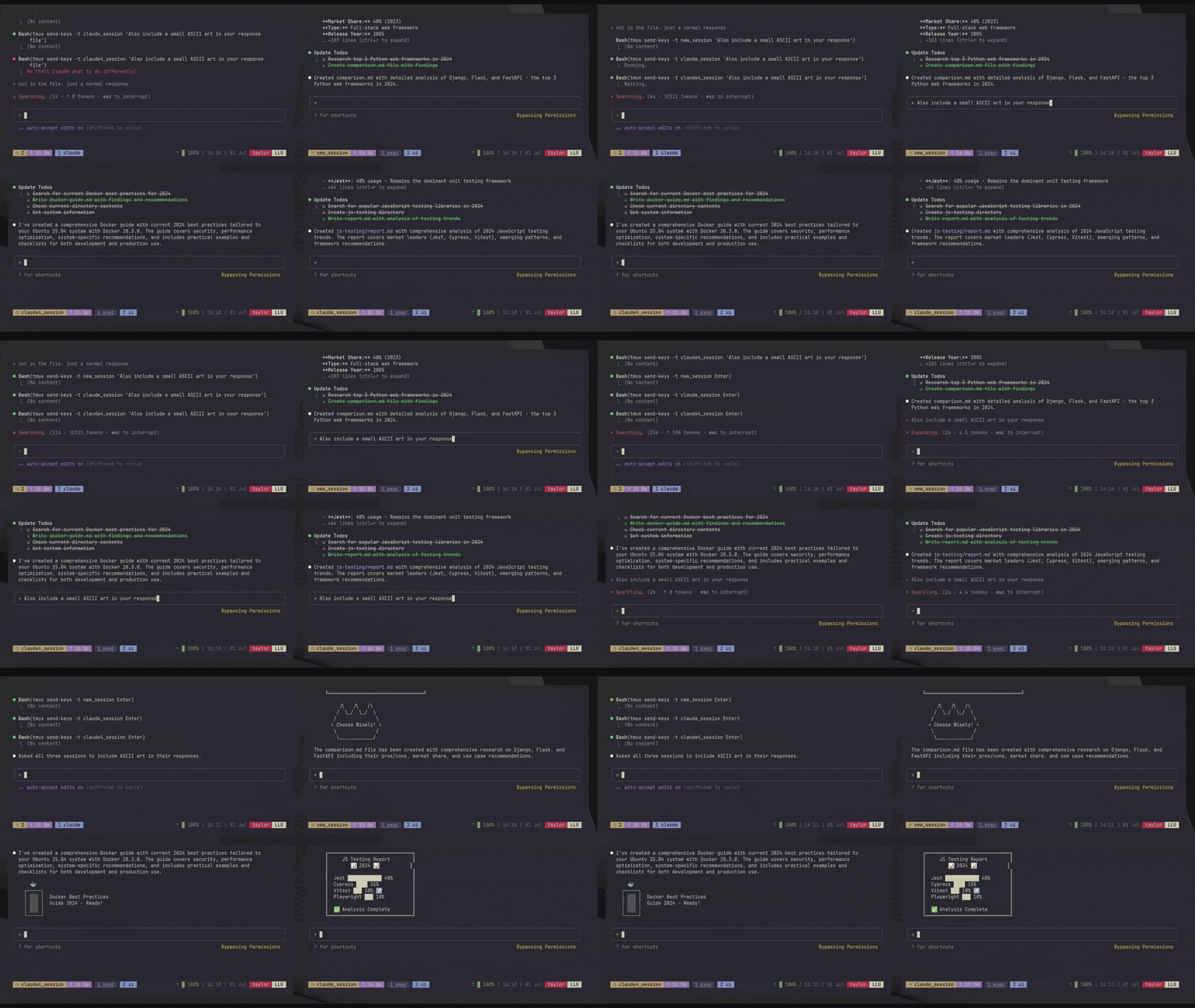
Features
Dual-Window Architecture: Each workspace has two windows - exec for command execution and ui for clean output display
Persistent Workspaces: Execute commands in tmux sessions that persist across MCP client restarts
Interactive Process Support: Handle long-running processes, REPLs, and interactive commands
Workspace Isolation: Multiple isolated workspaces for different projects or tasks
Clean UI Management: Separate windows for execution and user-facing output
Automatic Session Management: Create, destroy, and monitor workspaces seamlessly
Related MCP server: tmux-mcp
Installation
🚨 SECURITY WARNING: This software allows AI assistants to execute arbitrary shell commands on your system. Only install and use in isolated testing environments. Never use on systems with sensitive data or in production environments.
Prerequisites
Install from npm
npm install -g tmux-mcp-server
Install from source
git clone https://github.com/TNTisdial/persistent-shell-mcp.git
cd persistent-shell-mcp
npm install
npm link
Usage
MCP Client Configuration
Add to your MCP client configuration:
{
  "mcpServers": {
    "tmux-shell": {
      "command": "tmux-mcp-server"
    }
  }
}
Available Tools
Core Execution Tools
execute_command
Execute commands that complete quickly and return full output. Uses the exec window.
execute_command({
  command: "ls -la",
  workspace_id: "my-project"
})
start_process
Start long-running or interactive processes. Can target either window:
start_process({
  command: "python3",
  workspace_id: "dev",
  target_window: "ui"  // For interactive apps like vim, python REPL
})
get_output
Capture current terminal output from either window:
get_output({
  workspace_id: "dev",
  window_name: "ui"  // or "exec" for raw output
})
send_input
Send input to running processes in either window.
send_input({
  text: "print('Hello World')",
  workspace_id: "dev",
  target_window: "ui"
})
stop_process
Stop the currently running process in the exec window (sends Ctrl+C).
stop_process({workspace_id: "dev"})
Workspace Management Tools
create_workspace
Create a new isolated workspace with dual windows.
destroy_workspace
Destroy a workspace and all its processes.
list_workspaces
List all active workspaces.
Architecture
Dual-Window Design
Each workspace consists of two tmux windows:
exec window: Raw shell for command execution
Handles all command execution
Shows full shell history and prompts
Used for background processes
ui window: Clean output display
Shows clean output for user interaction
Used for interactive applications
Provides better user experience
Workspace Isolation
Each workspace is a separate tmux session
Independent working directories and environments
Processes don't interfere between workspaces
Clean separation of different projects/tasks
Common Workflows
Quick Command Execution
// Execute and get results immediately
execute_command({command: "npm install", workspace_id: "frontend"})
execute_command({command: "git status", workspace_id: "frontend"})
Interactive Development
// Start Python REPL in UI window
start_process({
  command: "python3",
  workspace_id: "python-dev",
  target_window: "ui"
})

// Send Python commands
send_input({text: "import os", workspace_id: "python-dev", target_window: "ui"})
send_input({text: "print(os.getcwd())", workspace_id: "python-dev", target_window: "ui"})

// Check output
get_output({workspace_id: "python-dev", window_name: "ui"})
Background Process Management
// Start server in background
start_process({command: "npm run dev", workspace_id: "server"})

// Check server status
get_output({workspace_id: "server", window_name: "exec"})

// Stop server when done
stop_process({workspace_id: "server"})
Multi-Project Development
// Frontend workspace
create_workspace({workspace_id: "frontend"})
execute_command({command: "cd /path/to/frontend", workspace_id: "frontend"})

// Backend workspace
create_workspace({workspace_id: "backend"})
execute_command({command: "cd /path/to/backend", workspace_id: "backend"})

// Database workspace
create_workspace({workspace_id: "database"})
start_process({command: "mysql -u root -p", workspace_id: "database", target_window: "ui"})
Project Structure
tmux-mcp/
├── src/
│   ├── server.js          # Main MCP server and tool definitions
│   ├── tmux-manager.js    # Tmux session and window management
│   └── index.js           # Entry point
├── bin/
│   └── tmux-mcp-server    # Executable script
├── package.json
└── README.md
Troubleshooting
Tmux Not Found
Error: tmux command not found
Install tmux: sudo apt install tmux (Ubuntu/Debian) or brew install tmux (macOS)
Workspace Creation Failed
Error: Failed to create workspace
Check if tmux server is running and you have permissions to create sessions
Commands Not Responding
Check workspace status with get_output
Use get_output with window_name: "exec" to see raw shell state
Process Stuck
Use stop_process to send Ctrl+C
Send interrupt signal with stop_process to terminate hanging processes
License
MIT

