

A
licenseNot graded
qualityF
maintenanceIntegrates with Google Drive to enable listing, searching, and reading files, plus reading and writing to Google Sheets.
587 npm
282
MIT

Allows access to Google Docs files through the Google Drive integration, with automatic export to Markdown format
Provides tools for searching, reading, and accessing files stored in Google Drive, with automatic export of Google Workspace files to readable formats
Enables reading data from and updating cells in Google Spreadsheets with flexible range selection and formatting options
Click on "Deploy Server".
Wait a few minutes for the server to deploy. Once ready, it will show a "Started" state.
In the chat, type @ followed by the MCP server name and your instructions, e.g., "@Google Drive MCP Server search for my budget spreadsheet from last quarter"
That's it! The server will respond to your query, and you can continue using it as needed.
Here is a step-by-step guide with screenshots.
This MCP server integrates with Google Drive to allow listing, reading, and searching files, as well as the ability to read and write Google Sheets, Google Docs, and Google Slides.
This project includes code originally developed by Anthropic, PBC, licensed under the MIT License from this repo.
gdrive_search
Description: Search for files in Google Drive.
Input:
query (string): Search query.
pageToken (string, optional): Token for the next page of results.
pageSize (number, optional): Number of results per page (max 100).
Output: Returns file names and MIME types of matching files.
gdrive_read_file
Description: Read contents of a file from Google Drive.
Input:
fileId (string): ID of the file to read.
Output: Returns the contents of the specified file.
gdrive_find_cleanup_candidates
Description: Find Google Docs and Google Sheets cleanup candidates in Drive, including root-level, untitled, and empty files.
Input:
rootOnly (boolean, optional): Limit results to files in the Drive root. Defaults to true.
fileTypes (array of strings, optional): Filter by docs or sheets.
untitledOnly (boolean, optional): Return only untitled files.
emptyOnly (boolean, optional): Return only empty files.
inspectEmpty (boolean, optional): Detect emptiness using Docs and Sheets APIs. Defaults to true.
pageToken (string, optional): Token for the next page of results.
pageSize (number, optional): Number of results per page.
Output: Returns structured cleanup candidates with untitled and empty flags.
gdrive_trash_files
Description: Move one or more Google Drive files to trash.
Input:
fileIds (array of strings): File IDs to move to trash.
dryRun (boolean, optional): Preview which files would be trashed.
Output: Returns a per-file trash result summary.
gdrive_move_files
Description: Move one or more Google Drive files into a destination folder.
Input:
fileIds (array of strings): File IDs to move.
destinationFolderId (string): Destination Google Drive folder ID.
dryRun (boolean, optional): Preview the move without changing anything.
Output: Returns a per-file move result summary.
gdrive_organize_root
Description: Bulk-organize Google Docs and Google Sheets from Drive root into dedicated folders.
Input:
docsFolderId (string, optional): Existing destination folder ID for Docs.
sheetsFolderId (string, optional): Existing destination folder ID for Sheets.
docsFolderName (string, optional): Folder name to locate or create for Docs. Defaults to Google Docs.
sheetsFolderName (string, optional): Folder name to locate or create for Sheets. Defaults to Google Sheets.
dryRun (boolean, optional): Preview the organization plan. Defaults to true.
Output: Returns the planned or completed root organization summary.
gdrive_upload_local_file
Description: Upload a local file into a Google Drive folder. Useful for attachments linked from imported notes.
Input:
filePath (string): Absolute path to the local file.
folderId (string): Destination Google Drive folder ID.
fileName (string, optional): Optional file name override.
reuseIfExists (boolean, optional): Reuse a same-named file already present in the destination folder. Defaults to true.
Output: Returns the Drive file ID and web link for the uploaded or reused file.
gdrive_import_joplin_export
Description: Import a Joplin Markdown export into Google Drive by recreating folders, creating Google Docs for notes, uploading linked attachments, and rewriting local links.
Input:
sourceRootPath (string): Absolute path to the exported Joplin root folder.
driveRootFolderName (string, optional): Top-level Drive folder to create or reuse. Defaults to Joplin.
resourcesFolderName (string, optional): Name of the special resource folder. Defaults to _resources.
supportsBasicGfm (boolean, optional): Parse basic GFM features. Defaults to true.
embedImagesInline (boolean, optional): Embed supported images inline in Google Docs using temporary anyone-with-link access during insertion. Defaults to true.
dryRun (boolean, optional): Preview what would be imported without changing Drive. Defaults to false.
Output: Returns summary counts for folders, Docs, attachments, and rewritten links.
gsheets_read
Description: Read data from a Google Spreadsheet with flexible options for ranges and formatting.
Input:
spreadsheetId (string): The ID of the spreadsheet to read.
ranges (array of strings, optional): Optional array of A1 notation ranges (e.g., ['Sheet1!A1:B10']). If not provided, reads the entire sheet.
sheetId (number, optional): Specific sheet ID to read. If not provided with ranges, reads the first sheet.
Output: Returns the specified data from the spreadsheet.
gsheets_update_cell
Description: Update a cell value in a Google Spreadsheet.
Input:
fileId (string): ID of the spreadsheet.
range (string): Cell range in A1 notation (e.g., 'Sheet1!A1').
value (string): New cell value.
Output: Confirms the updated value in the specified cell.
gdocs_create_from_markdown_file
Description: Read a local Markdown file, create a new Google Doc, and reproduce core Markdown structure with native Google Docs formatting.
Input:
filePath (string): Absolute path to a local .md file.
title (string, optional): Title for the new Google Doc. Defaults to the Markdown filename.
folderId (string, optional): Destination Google Drive folder ID for the created document.
supportsBasicGfm (boolean, optional): Enables parsing of basic GFM features like tables, task lists, and strikethrough. Defaults to true.
Output: Returns the Google Doc ID and URL, the Markdown features applied, and any unsupported elements that were preserved as plain text.
gslides_create_presentation
Description: Create a new Google Slides presentation.
Input:
title (string): Title for the new presentation.
folderId (string, optional): Existing Drive folder ID to move the new presentation into.
Output: Returns the new presentation ID and URL.
gslides_get_presentation
Description: Read a Google Slides presentation as JSON.
Input:
presentationId (string): Presentation ID.
fields (string, optional): Optional Slides API field mask to reduce response size.
Output: Returns the presentation payload and presentation URL.
gslides_get_slide
Description: Read one slide from a presentation as JSON.
Input:
presentationId (string): Presentation ID.
slideObjectId (string): Slide object ID.
Output: Returns the slide payload and direct slide URL.
gslides_summarize_presentation
Description: Extract slide text into compact JSON, with optional speaker notes.
Input:
presentationId (string): Presentation ID.
includeNotes (boolean, optional): Include speaker notes in the summary.
Output: Returns presentation metadata plus per-slide extracted text.
gslides_batch_update_presentation
Description: Apply raw Google Slides batchUpdate requests for write operations such as creating slides, inserting text, replacing text, or moving elements.
Input:
presentationId (string): Presentation ID.
requests (array): Raw Google Slides batchUpdate request objects.
writeControl (object, optional): Optional revision control object.
Output: Returns the Slides API batch update response.
The first-pass Joplin importer recreates notebook folders, imports Markdown notes as Google Docs, uploads linked attachments into the same Drive folder as the note, and rewrites local links to Google Drive or Google Docs URLs.
Local links to other Markdown notes are rewritten to the corresponding Google Doc when the target note is part of the same import.
Supported PNG, JPEG, and GIF attachments can be embedded inline. The importer temporarily grants anyone-with-link access to those uploaded image files so the Docs API can fetch them, then removes that temporary permission after the Doc write completes.
The import runs server-side against the filesystem and Google APIs. It does not need to push all note contents through the model context window.
The server provides access to Google Drive files:
Files (gdrive:///<file_id>)
Supports all file types
Google Workspace files are automatically exported:
Docs → Markdown
Sheets → CSV
Presentations → Plain text
Drawings → PNG
Other files are provided in their native format
Related MCP server: Google Sheets MCP Server
Configure an OAuth consent screen ("internal" is fine for testing)
Add OAuth scopes https://www.googleapis.com/auth/drive, https://www.googleapis.com/auth/documents, https://www.googleapis.com/auth/presentations, https://www.googleapis.com/auth/spreadsheets
In order to allow interaction with Drive, Sheets, Docs, and Slides you will also need to enable the Google Drive API, Google Sheets API, Google Docs API, and Google Slides API in your project's Enabled APIs and Services section.
Create an OAuth Client ID for application type "Desktop App"
Download the JSON file of your client's OAuth keys
Rename the key file to gcp-oauth.keys.json and place into the path you specify with GDRIVE_CREDS_DIR (i.e. /Users/username/.config/mcp-gdrive)
Note your OAuth Client ID and Client Secret. They must be provided as environment variables along with your configuration directory.
You will also need to setup a .env file within the project with the following fields. You can find the Client ID and Client Secret in the Credentials section of the Google Cloud Console.
GDRIVE_CREDS_DIR=/path/to/config/directory
CLIENT_ID=<CLIENT_ID>
CLIENT_SECRET=<CLIENT_SECRET>
Make sure to build the server with either npm run build or npm run watch.
Install dependencies with npm install (the project runs the TypeScript build automatically).
Populate .env with your CLIENT_ID, CLIENT_SECRET, and GDRIVE_CREDS_DIR values.
In VS Code, open the Run and Debug view and select Launch MCP GDrive. The launch configuration builds the TypeScript sources, loads environment variables from .env, and starts the server in an integrated terminal with Node source maps enabled.
Optional: start the npm: watch task from the Terminal → Run Task… menu to keep the TypeScript compiler running in watch mode while developing.
To integrate with VS Code's MCP client without hard-coding secrets, point your user mcp.json entry at the provided script scripts/launch-mcp-gdrive.ps1; the script loads .env, ensures the project is built, and launches the server over stdio.
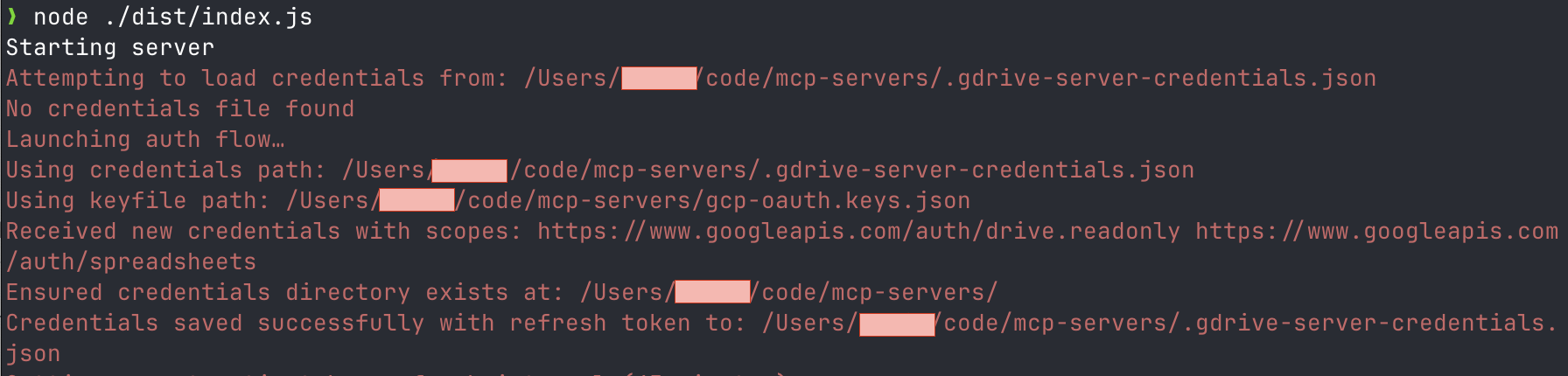
Next you will need to run node ./dist/index.js to trigger the authentication step
You will be prompted to authenticate with your browser. You must authenticate with an account in the same organization as your Google Cloud project.
Your OAuth token is saved in the directory specified by the GDRIVE_CREDS_DIR environment variable.
If you are upgrading an existing installation, delete the saved token or rerun the auth flow so the stored credentials include the current Drive, Docs, Slides, and Sheets scopes.
To integrate this server with the desktop app, add the following to your app's server configuration:
{
  "mcpServers": {
    "gdrive": {
      "command": "npx",
      "args": ["-y", "@isaacphi/mcp-gdrive"],
      "env": {
        "CLIENT_ID": "<CLIENT_ID>",
        "CLIENT_SECRET": "<CLIENT_SECRET>",
        "GDRIVE_CREDS_DIR": "/path/to/config/directory"
      }
    }
  }
}This MCP server is licensed under the MIT License. This means you are free to use, modify, and distribute the software, subject to the terms and conditions of the MIT License. For more details, please see the LICENSE file in the project repository.
This server cannot be deployed
Provides tools for searching Google Workspace documentation and much more.
Connect AI assistants to Google Sheets through controlled tools for reading and updating rows.
Permissioned access to Gmail, Drive and Calendar via the user's own Google account
SEO & marketing toolkit for AI agents: GA4, Search Console, AdSense, GTM, PageSpeed, Trends.