WeMo MCP Server
Control WeMo smart home devices through AI assistants using natural language.
mcp-name: io.github.apiarya/wemo








Table of Contents
Related MCP server: MCP Casambi
Overview
Seamlessly integrate WeMo smart home devices with AI assistants through the Model Context Protocol. Built on pywemo, this server enables natural language control of your WeMo devices with intelligent multi-phase discovery.
Example Usage
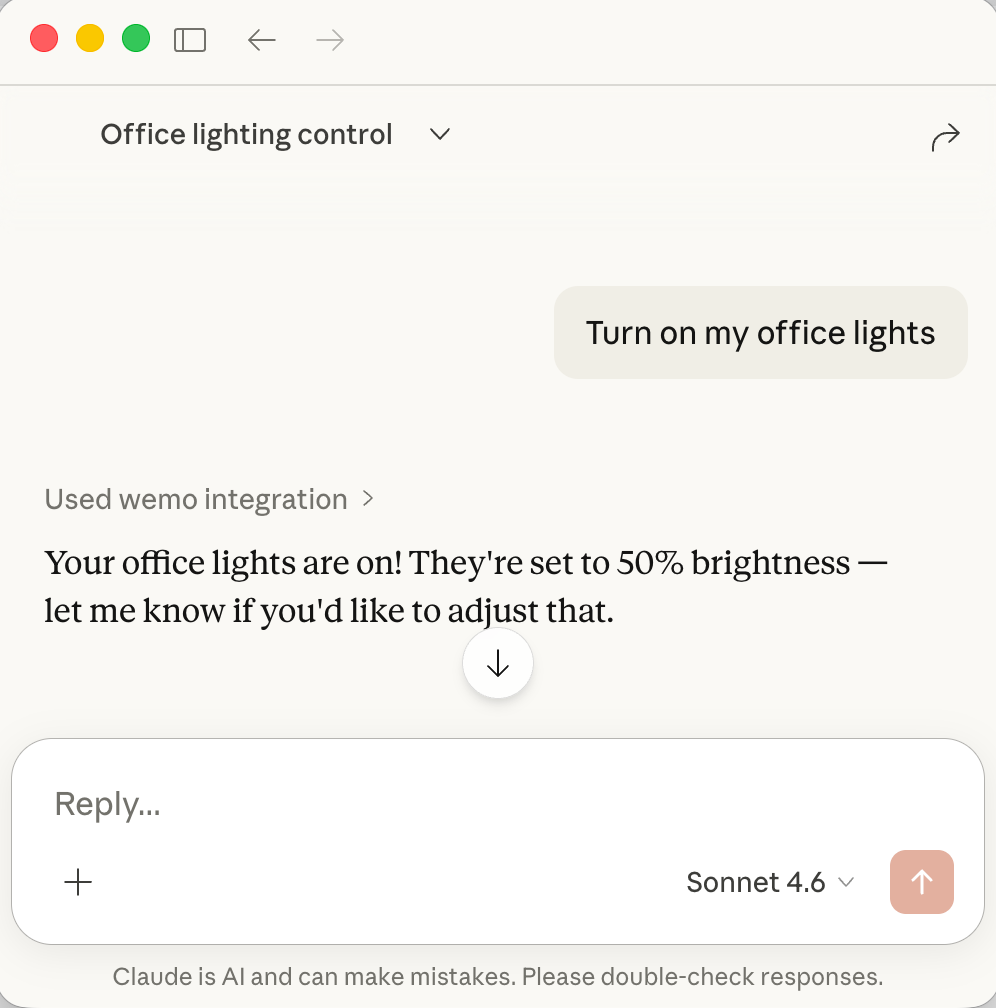
Control WeMo devices through AI assistants with natural language - just ask in plain English!
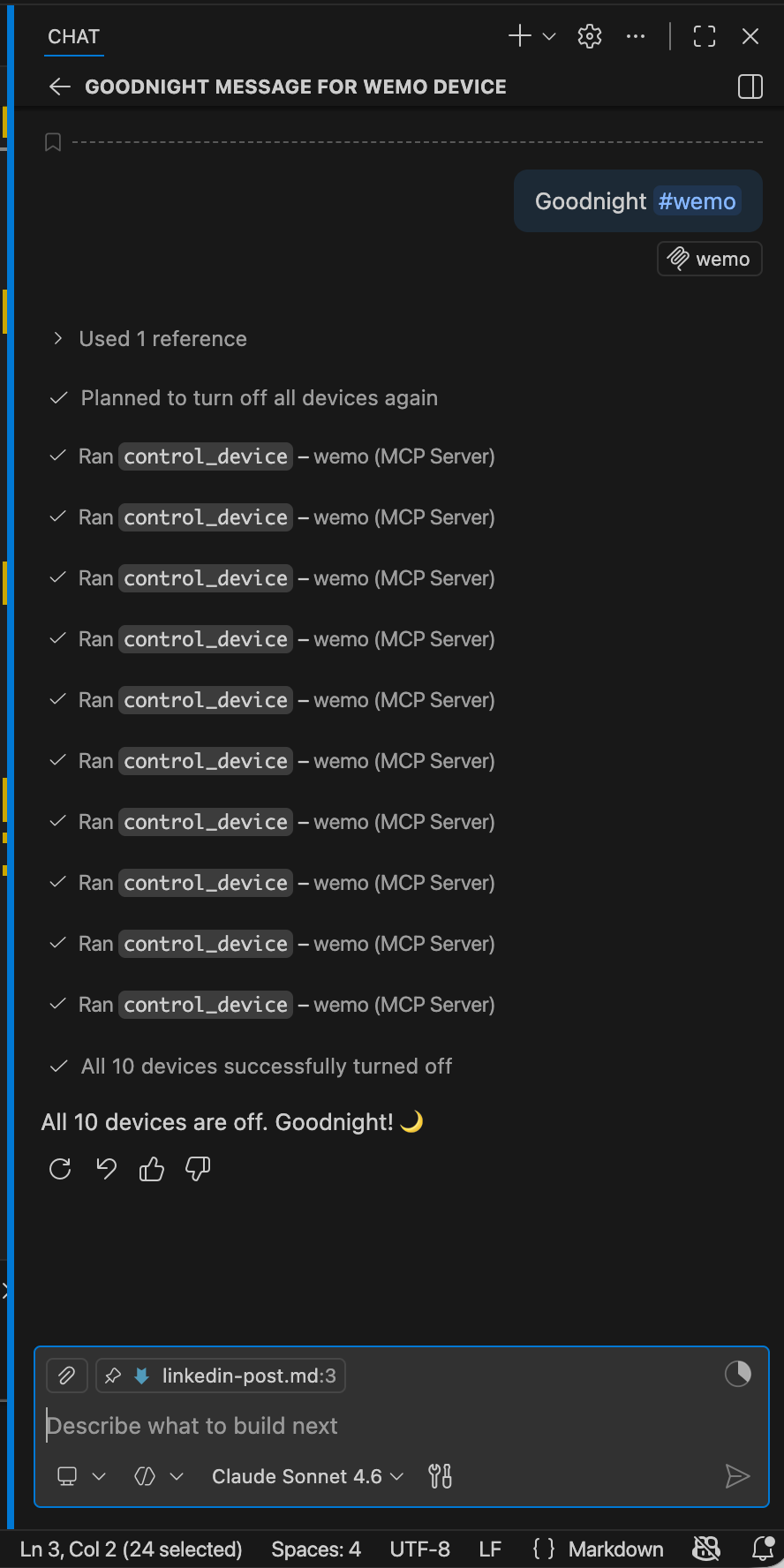
"Goodnight" — one command turns off every device in the house
Key Features
🔍 Smart Discovery - Multi-phase scanning (UPnP/SSDP + network ports) with 100% reliability
⚡ Fast Scanning - Parallel probes with 60 concurrent workers (~23-30s for full subnet)
🎛️ Full Control - On/off/toggle/brightness control for all device types
✏️ Device Management - Rename devices and extract HomeKit setup codes
📊 Real-time Status - Query device state and brightness
💾 Smart Caching - Persistent device cache with 1-hour TTL survives restarts
🔧 Configurable - YAML config files + environment variables for all settings
🔄 Auto-Retry - Automatic retry with exponential backoff for network errors
🛡️ Error Handling - Detailed error messages with actionable suggestions
🔌 Universal - Works with any MCP client (Claude, VS Code, Cursor, etc.)
📡 MCP Resources - Live device state via devices:// and device://{id} URIs
💬 MCP Prompts - Built-in guided prompts: discover, status report, scene control, troubleshoot
🗣️ MCP Elicitations - Interactive clarification when subnet or device name is ambiguous
Prerequisites
All configurations use uvx (from the uv Python package manager) to run the server. Install uv first:
# macOS/Linux
curl -LsSf https://astral.sh/uv/install.sh | sh

# macOS with Homebrew
brew install uv

# Windows
powershell -c "irm https://astral.sh/uv/install.ps1 | iex"
After installation, restart your terminal and verify:
Quick Start
Get started in seconds with Claude Code CLI:
claude mcp add wemo -- uvx wemo-mcp-server
Connect
One-Click Installation
Click your client to install instantly:
Manual Configuration
Claude Desktop
Edit ~/Library/Application Support/Claude/claude_desktop_config.json:
{
  "mcpServers": {
    "wemo": {
      "command": "uvx",
      "args": ["wemo-mcp-server"],
      "env": {
        "WEMO_MCP_DEFAULT_SUBNET": "192.168.1.0/24"
      }
    }
  }
}
Restart Claude Desktop after saving.
VS Code
Edit ~/.vscode/mcp.json:
{
  "servers": {
    "wemo": {
      "type": "stdio",
      "command": "uvx",
      "args": ["wemo-mcp-server"],
      "env": {
        "WEMO_MCP_DEFAULT_SUBNET": "192.168.1.0/24"
      }
    }
  }
}
Reload VS Code after saving.
Cursor
Edit ~/.cursor/mcp.json:
{
  "servers": {
    "wemo": {
      "type": "stdio",
      "command": "uvx",
      "args": ["wemo-mcp-server"]
    }
  }
}
Restart Cursor after saving.
Cline
Cline is a VS Code extension. Add to VS Code's settings.json:
{
  "mcp.servers": {
    "wemo": {
      "command": "uvx",
      "args": ["wemo-mcp-server"]
    }
  }
}
Reload VS Code after saving.
Windsurf
Edit ~/.windsurf/mcp.json:
{
  "mcpServers": {
    "wemo": {
      "command": "uvx",
      "args": ["wemo-mcp-server"]
    }
  }
}
Restart Windsurf after saving.
Zed
Edit ~/.config/zed/settings.json:
{
  "context_servers": {
    "wemo": {
      "command": "uvx",
      "args": ["wemo-mcp-server"]
    }
  }
}
Restart Zed after saving.
Continue
Continue is a VS Code extension. Edit ~/.continue/config.json:
{
  "mcpServers": [
    {
      "name": "wemo",
      "command": "uvx",
      "args": ["wemo-mcp-server"]
    }
  ]
}
Reload VS Code after saving.
Configuration
The WeMo MCP Server supports flexible configuration through YAML files and environment variables.
Quick Configuration
The most important setting is your network subnet — the server defaults to 192.168.1.0/24 but your devices may be on a different subnet (e.g. 192.168.86.0/24).
Set it directly in your MCP client config using env:
"env": {
  "WEMO_MCP_DEFAULT_SUBNET": "192.168.86.0/24"
}
Or export it before starting the server:
Using Environment Variables (simplest):
export WEMO_MCP_DEFAULT_SUBNET="192.168.1.0/24"
export WEMO_MCP_CACHE_TTL=7200
export WEMO_MCP_LOG_LEVEL=DEBUG
Using YAML Config File:
# Copy example config and customize
cp config.example.yaml config.yaml
# Edit config.yaml with your settings
Configuration Options
Setting | Environment Variable | Default | Description |
Network | | | |
Default subnet | WEMO_MCP_DEFAULT_SUBNET
| 192.168.1.0/24
| Network to scan for devices |
Scan timeout | WEMO_MCP_SCAN_TIMEOUT
| 0.6
| Port probe timeout (seconds) |
Max workers | WEMO_MCP_MAX_WORKERS
| 60
| Concurrent scanning threads |
Cache | | | |
Enable cache | WEMO_MCP_CACHE_ENABLED
| true
| Persistent device caching |
Cache file | WEMO_MCP_CACHE_FILE
| ~/.wemo_mcp_cache.json
| Cache file location |
Cache TTL | WEMO_MCP_CACHE_TTL
| 3600
| Cache lifetime (seconds) |
Logging | | | |
Log level | WEMO_MCP_LOG_LEVEL
| INFO
| DEBUG, INFO, WARNING, ERROR |
Example Configurations
Large Network (multiple subnets):
export WEMO_MCP_DEFAULT_SUBNET="10.0.0.0/16"
export WEMO_MCP_SCAN_TIMEOUT=1.0
export WEMO_MCP_MAX_WORKERS=100
Debug Mode:
export WEMO_MCP_LOG_LEVEL=DEBUG
export WEMO_MCP_CACHE_TTL=300  # 5 minutes
Disable Caching:
export WEMO_MCP_CACHE_ENABLED=false
See config.example.yaml and .env.example for complete configuration templates.
For detailed configuration guide, see CONFIGURATION.md.
MCP Tools
1. scan_network
Discover WeMo devices on your network using intelligent multi-phase scanning.
Example Prompts:
Example Response:
Found 12 WeMo devices in 23.5 seconds:

1. Office Light (Dimmer) - 192.168.1.100 - OFF
2. Living Room (Switch) - 192.168.1.101 - ON
3. Bedroom Lamp (Dimmer) - 192.168.1.102 - OFF
...
2. list_devices
List all devices cached from previous scans.
Example Prompts:
Example Response:
12 devices in cache:

- Office Light (Dimmer) at 192.168.1.100
- Living Room (Switch) at 192.168.1.101
- Bedroom Lamp (Dimmer) at 192.168.1.102
...
3. get_device_status
Get current state and information for a specific device.
Example Prompts:
"Is the office light on?"
"What's the status of the bedroom lamp?"
"Check the living room switch"
"What's the brightness of office light?"
Example Response:
Office Light (Dimmer):
- State: OFF
- Brightness: 75%
- IP: 192.168.1.100
- Model: DimmerLongPress
4. control_device
Control a WeMo device (on/off/toggle/brightness).
Example Prompts:
"Turn on the office light"
"Turn off the living room"
"Toggle the bedroom lamp"
"Set office light to 75%"
"Dim the bedroom lamp to 50%"
Example Response:
✓ Office Light turned ON
  Brightness set to 75%
  Current state: ON
5. rename_device
Rename a WeMo device (change its friendly name).
Example Prompts:
"Rename Office Dimmer to Office Light"
"Change the name of the bedroom device to Bedroom Lamp"
"Call the living room switch 'Main Light'"
Example Response:
✓ Device renamed successfully
  'Office Dimmer' → 'Office Light'
  IP: 192.168.1.100

The new name will appear in the WeMo app and all control interfaces.
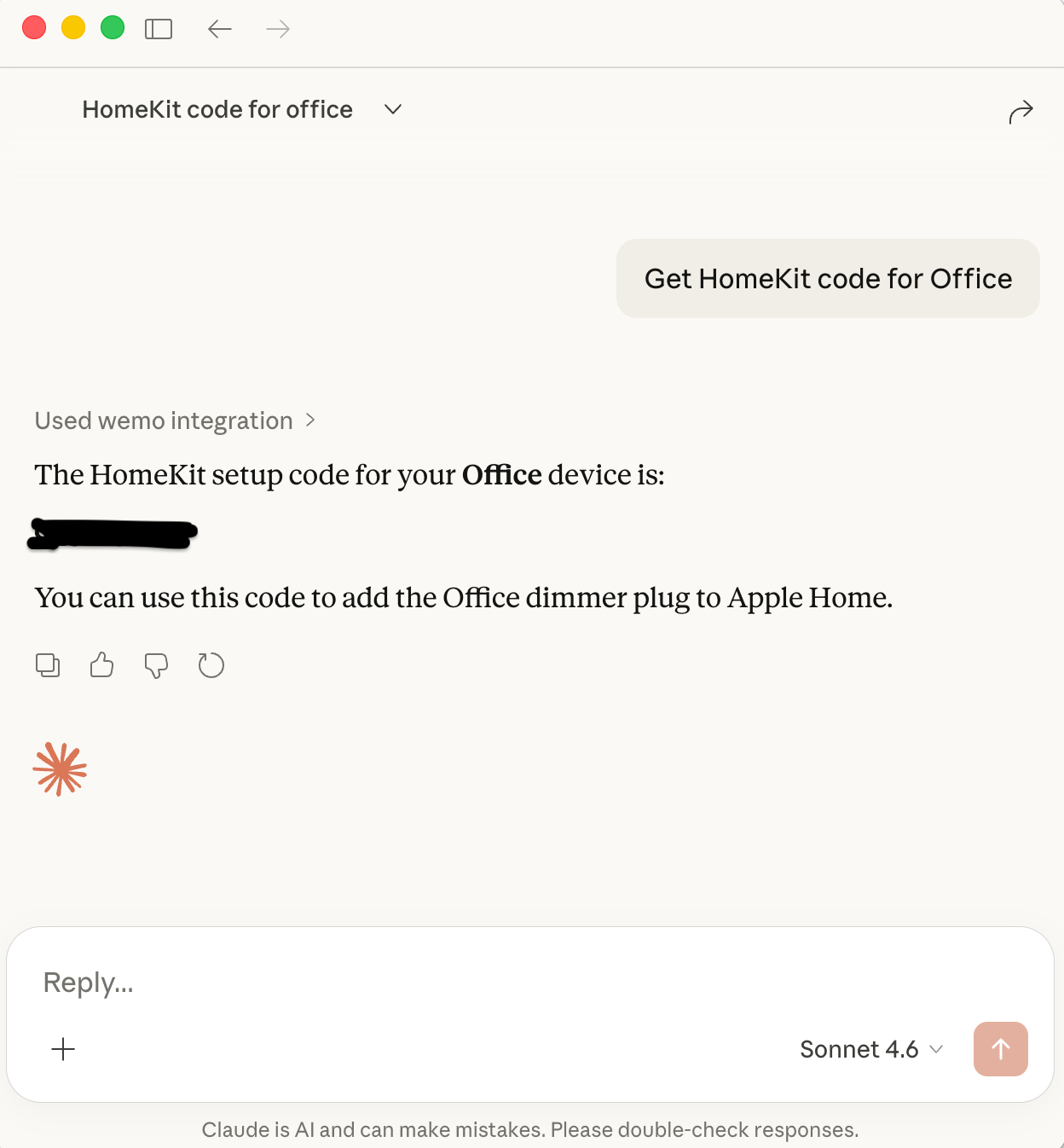
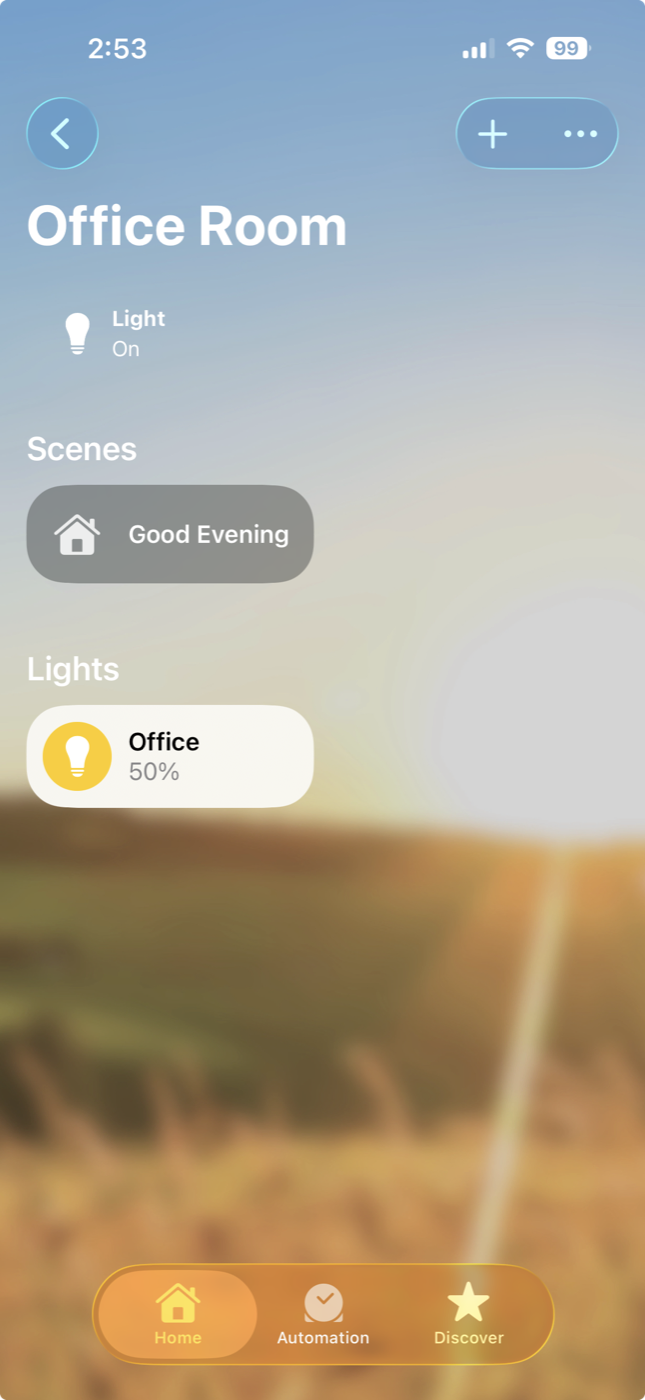
6. get_homekit_code
Get the HomeKit setup code for a WeMo device.
Example Prompts:
"Get the HomeKit code for Office Light"
"What's the HomeKit setup code for the bedroom lamp?"
"Show me the HomeKit code for all devices"
Example Response:
HomeKit Setup Code for 'Office Light':
  123-45-678

Use this code to add the device to Apple Home.
Note: Not all WeMo devices support HomeKit. If a device doesn't support HomeKit, you'll get an error message.
7. get_cache_info
Get information about the persistent device cache.
Example Prompts:
"Show me cache information"
"Is the device cache expired?"
"How many devices are cached?"
Example Response:
Device Cache Status:
  ✅ Cache exists
  📁 Location: ~/.wemo_mcp_cache.json
  📊 Devices: 12
  ⏰ Age: 1,234 seconds (20.6 minutes)
  💾 TTL: 3,600 seconds (1 hour)
  ✅ Status: Valid (not expired)
8. clear_cache
Clear the persistent device cache to force a fresh scan.
Example Prompts:
Example Response:
✅ Cache cleared successfully
Next scan will discover devices fresh.
Run scan_network to rebuild the cache.
Note: This clears both the persistent cache file and in-memory cache. After clearing, run scan_network to rediscover devices.
9. get_configuration
View current server configuration settings.
Example Prompts:
Example Response:
Current Configuration:
  Network:
    • Default subnet: 192.168.1.0/24
    • Scan timeout: 0.6 seconds
    • Max workers: 60
  Cache:
    • Enabled: true
    • File: ~/.wemo_mcp_cache.json
    • TTL: 3600 seconds (1 hour)
  Logging:
    • Level: INFO
Note: Shows all configuration including defaults and environment variable overrides. Use environment variables with WEMO_MCP_ prefix to customize.
MCP Capabilities
Beyond tools, this server exposes the full suite of MCP primitives.
Resources
Subscribe to live device data without calling a tool:
URI | Description |
devices://
| JSON index of all cached devices |
device://{name-or-ip}
| Live state for a specific device (URL-encoded name supported) |
Clients that support MCP Resources (VS Code, MCP Inspector) can read these directly.
Prompts
Four built-in guided prompts available via / slash commands in supporting clients:
Prompt | Description |
discover-devices
| Guided network scan with subnet selection |
device-status-report
| Summary report of all device states |
activate-scene
| Control multiple devices as a scene |
troubleshoot-device
| Step-by-step device troubleshooting |
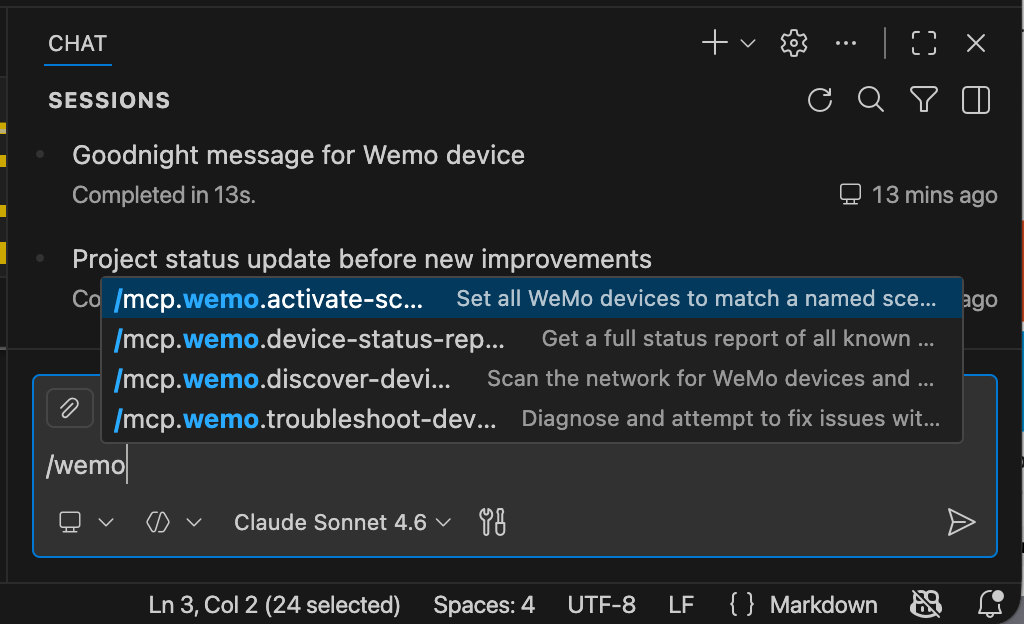
All four prompts surfaced as /mcp.wemo.* slash commands in VS Code
Elicitations
The server proactively asks for missing information rather than failing silently:
scan_network — if no custom subnet is configured (default 192.168.1.0/24), asks which subnet to scan before proceeding
control_device — if a device name isn't found in cache, presents closest matches and asks which device was intended
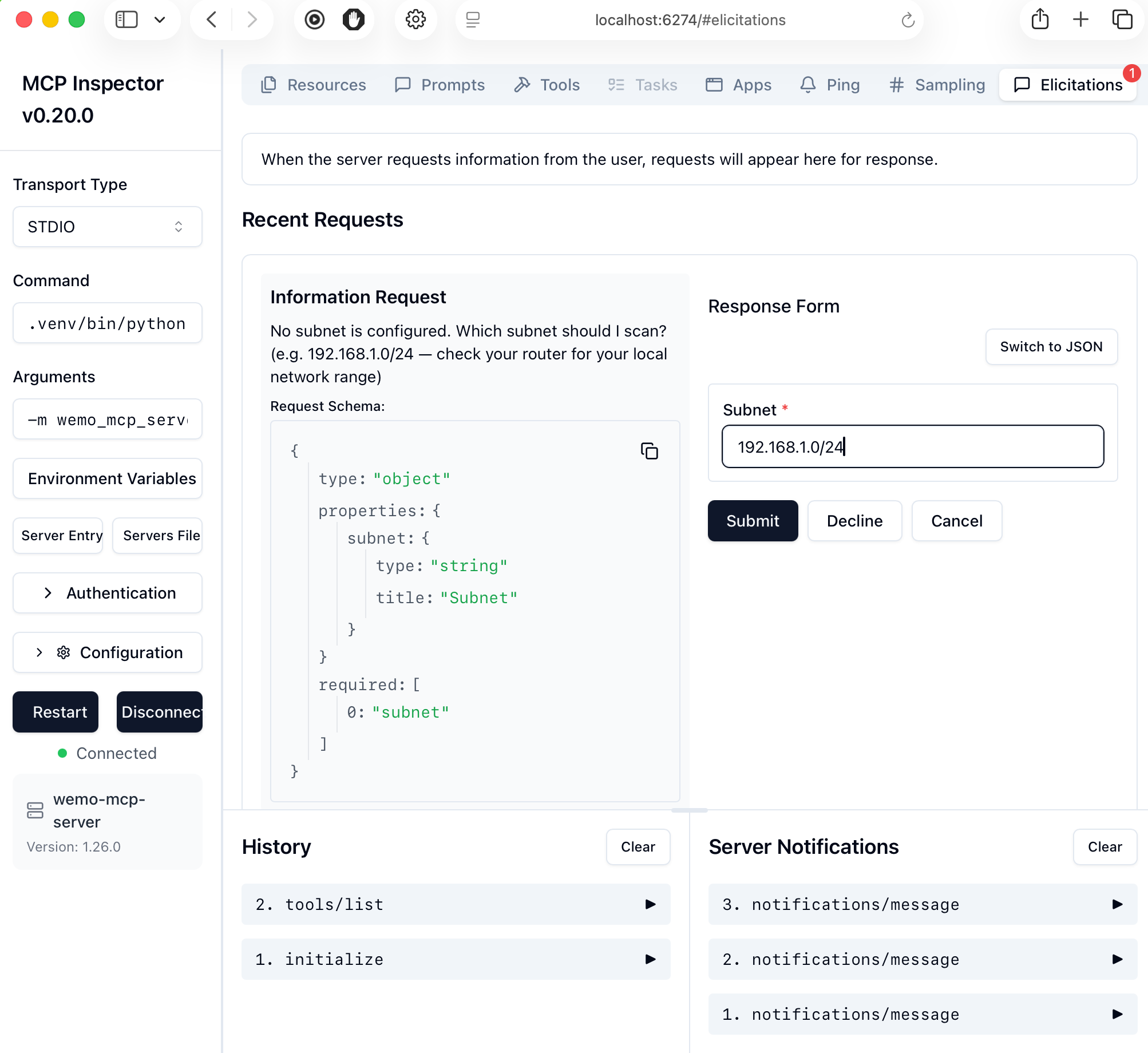
Elicitation in action — server asks for the subnet rather than scanning the wrong network silently
Client Support Matrix
Feature | Claude Desktop | VS Code | Cursor | MCP Inspector |
Tools | ✅ | ✅ | ✅ | ✅ |
Resources | ⚠️ protocol only | ✅ | ✅ | ✅ |
Prompts | ⚠️ no slash UI | ✅ / commands | ✅ | ✅ |
Elicitations | ✅ v1.1+ | ❌ | ❌ | ✅ v0.20+ |
How It Works
Multi-Phase Discovery
The server uses a three-phase discovery process optimized for reliability:
Phase 1 - UPnP/SSDP Discovery (Primary)
Multicast discovery finds all responsive devices (~12s)
Most reliable method, finds devices that don't respond to port probes
Uses pywemo's built-in discovery mechanism
Phase 2 - Network Port Scanning (Backup)
Parallel probing of WeMo ports (49152-49155) across subnet
60 concurrent workers for fast scanning (~10s for 254 IPs)
Catches devices missed by UPnP
Phase 3 - Device Verification (Backup)
HTTP verification of active IPs via /setup.xml
Parallel verification with 60 workers
Validates and extracts device information
This approach achieves 100% device discovery reliability while maintaining fast scan times (23-30 seconds for complete networks).
Local Control Signal Flow
All device commands travel exclusively over your local network — no cloud hop required at any stage.
Voice path (Google Home + WeMo):
sequenceDiagram
    participant U as User
    participant GH as Google Home Hub
    participant GC as Google Cloud (ASR only)
    participant WD as WeMo Device

    U->>GH: "Hey Google, turn on chandelier"
    GH->>GC: Audio stream for speech-to-text
    GC-->>GH: Intent: {action: ON, device: chandelier}
    GH->>WD: Matter OnOff.On (UDP 5540, LAN)
    WD-->>GH: ACK
    GH-->>U: "OK, turning on chandelier"
MCP path (AI assistant + this server):
sequenceDiagram
    participant U as User
    participant AI as AI Assistant
    participant MS as MCP Server
    participant WD as WeMo Device

    U->>AI: "Turn on the desk light"
    AI->>MS: tools/call control_device("desk light", "on")
    MS->>WD: UPnP/SOAP BinaryState=1 (TCP 49153, LAN)
    WD-->>MS: HTTP 200 OK
    MS-->>AI: {success: true, state: "on"}
    AI-->>U: "Desk light is now on!"
Both paths use local protocols only after the initial voice recognition (Google Cloud handles speech-to-text; Belkin's cloud is never involved).
Feature Comparison
MCP Server vs wemo-ops-center
Comparison of features between this MCP server and the main wemo-ops-center project:
Feature | wemo-ops-center | MCP Server | Notes |
Device Discovery | ✅ UPnP + Port Scan | ✅ Implemented | Multi-phase discovery with 100% reliability |
Device Control | ✅ On/Off/Toggle | ✅ Implemented | Includes brightness control for dimmers |
Device Status | ✅ Real-time | ✅ Implemented | Query by name or IP address |
Device Rename | ✅ Friendly names | ✅ Implemented | Updates device cache automatically |
HomeKit Codes | ✅ Extract codes | ✅ Implemented | For HomeKit-compatible devices |
Multi-subnet | ✅ VLAN support | ❌ Planned | Currently single subnet per scan |
WiFi Provisioning | ✅ Smart setup | ❌ Not planned | Requires PC WiFi connection changes |
Scheduling | ✅ Time + Solar | ❌ Not planned | Requires persistent daemon (incompatible with MCP model) |
Maintenance Tools | ✅ Resets | ❌ Not planned | Factory reset, clear WiFi, clear data |
Profile Management | ✅ Save/Load | ❌ Not planned | WiFi credential profiles for bulk setup |
User Interface | ✅ GUI + Web | ❌ N/A | MCP uses AI assistant interface |
Legend:
✅ Implemented - Feature is available
❌ Not planned - Feature conflicts with MCP architecture or use case
❌ Planned - Feature could be added in future
Why some features aren't planned for MCP:
Scheduling: Requires 24/7 background daemon polling. MCP servers are typically invoked on-demand by AI assistants, not run as persistent services.
WiFi Provisioning: Requires changing the host PC's WiFi connection to device setup networks, which is disruptive and platform-specific.
Maintenance Tools: Destructive operations (factory reset, etc.) better suited for dedicated GUI with confirmation dialogs.
Current MCP Coverage: 5 of 11 core features (45%) - focused on device discovery, monitoring, and control use cases that fit the MCP model.
Development
Setup
git clone https://github.com/apiarya/wemo-mcp-server.git
cd wemo-mcp-server
uv venv
source .venv/bin/activate  # On Windows: .venv\Scripts\activate
uv sync --dev
Running Tests
# Unit tests (CI-compatible, ~4 seconds, 128 tests)
.venv/bin/python -m pytest tests/test_server.py tests/test_phase2.py tests/test_models.py -v

# With coverage report
pytest tests/test_server.py tests/test_phase2.py tests/test_models.py --cov=wemo_mcp_server --cov-report=html

# E2E tests (requires WeMo devices on network)
python tests/test_e2e.py
Using Development Version
In your MCP client config, use:
{
  "command": "python",
  "args": ["-m", "wemo_mcp_server"],
  "env": {
    "PYTHONPATH": "/path/to/mcp/src"
  }
}
Contributing
Contributions welcome! Please:
Fork the repository
Create a feature branch (git checkout -b feature/amazing-feature)
Make your changes with tests
Run the test suite (python tests/test_e2e.py)
Commit your changes (git commit -m 'Add amazing feature')
Push to the branch (git push origin feature/amazing-feature)
Open a Pull Request
License
MIT License - see LICENSE file for details.
Acknowledgments

