

F
licenseNot graded
qualityD
maintenanceA containerized MCP (Model Context Protocol) server that provides a simple calculator tool for adding two numbers, deployable to Kubernetes/EKS environments.
7
-

Click on "Deploy Server".
Wait a few minutes for the server to deploy. Once ready, it will show a "Started" state.
In the chat, type @ followed by the MCP server name and your instructions, e.g., "@Remote Calculator MCP Server add 15.5 and 24.3"
That's it! The server will respond to your query, and you can continue using it as needed.
Here is a step-by-step guide with screenshots.
A containerized MCP (Model Context Protocol) server using FastMCP that provides a simple calculator tool for adding two numbers. This MCP server runs on Amazon EKS. The highlevel diagram of this project below:
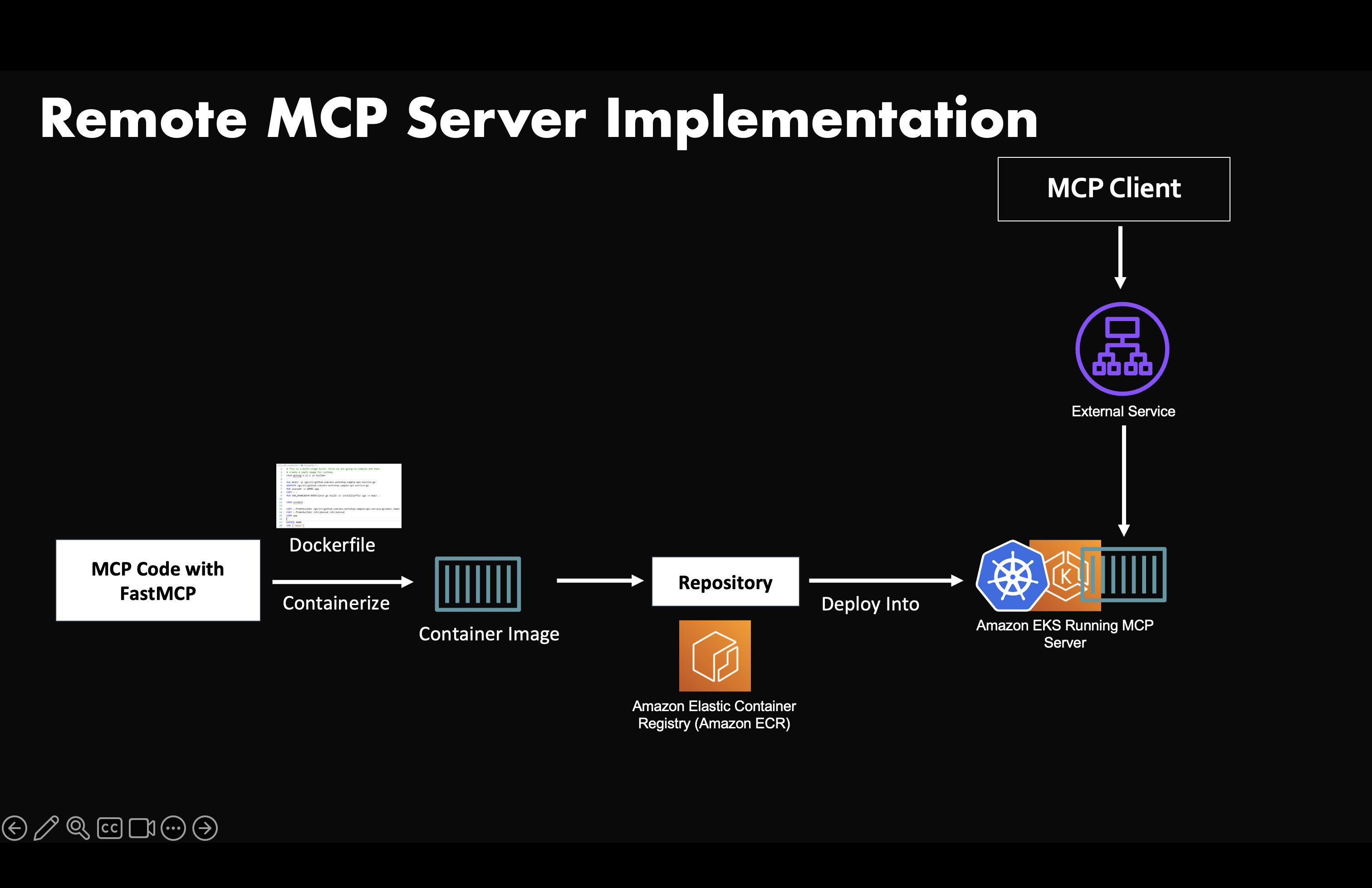
server.py - FastMCP server with add_numbers tool
requirements.txt - Python dependencies
Dockerfile - Container definition
k8s-deployment.yaml - Kubernetes deployment and LoadBalancer service
test_mcp_client.py - Test Remote MCP Server
Related MCP server: FastMCP QuickCalc Server
docker build -t mcp-calculator:latest .# Run the container locally
docker run -p 8000:8000 mcp-calculator:latestThe server will be available at http://localhost:8000
You can push this image to either Dockerhub or an ECR repo
AWS CLI configured with appropriate permissions
kubectl installed
Docker installed and running
You can use an existing EKS cluster or create a new one, it's upto you. Ensure that your terminal has access to run Kubectl on it
IMPORTANT: Change the container image to the repo URI in k8s-deployment.yaml file
Deploy MCP Server container to EKS:
# Deploy the application
kubectl apply -f k8s-deployment.yaml

# Check deployment status
kubectl rollout status deployment/mcp-calculator

# Get service information
kubectl get services mcp-calculator-service
Get the LoadBalancer external IP:
kubectl get services mcp-calculator-service -wThe server provides one tool:
add_numbers(a: float, b: float) -> float - Adds two numbers together
The MCP server is currently deployed and accessible at:
http://<insert loadbalancer url>/mcp/Step 1: Initialize MCP Session and Get Session ID
SESSION_ID=$(curl -s -X POST \
  -H "Content-Type: application/json" \
  -H "Accept: application/json, text/event-stream" \
  -d '{"jsonrpc":"2.0","id":1,"method":"initialize","params":{"protocolVersion":"2024-11-05","capabilities":{"roots":{"listChanged":true},"sampling":{}},"clientInfo":{"name":"curl-test","version":"1.0.0"}}}' \
  http://<insert loadbalancer url>/mcp/ \
  -D /dev/stderr 2>&1 | grep "mcp-session-id:" | cut -d' ' -f2 | tr -d '\r')

echo "Session ID: $SESSION_ID"
Step 2: Send Initialization Notification (Required by MCP Protocol)
curl -s -X POST \
  -H "Content-Type: application/json" \
  -H "Accept: application/json, text/event-stream" \
  -H "mcp-session-id: $SESSION_ID" \
  -d '{"jsonrpc":"2.0","method":"notifications/initialized"}' \
  http://<insert loadbalancer url>/mcp/
Step 3: List Available Tools (Optional)
curl -X POST \
  -H "Content-Type: application/json" \
  -H "Accept: application/json, text/event-stream" \
  -H "mcp-session-id: $SESSION_ID" \
  -d '{"jsonrpc":"2.0","id":2,"method":"tools/list"}' \
  http://<insert loadbalancer url>/mcp/
Expected Result:
event: message
data: {"jsonrpc":"2.0","id":2,"result":{"tools":[{"name":"add_numbers","description":"Add two numbers together.\n\nArgs:\n    a: First number to add\n    b: Second number to add\n    \nReturns:\n    The sum of a and b","inputSchema":{"type":"object","properties":{"a":{"type":"number"},"b":{"type":"number"}},"required":["a","b"]}}]}}
Step 4: Call the add_numbers Tool
curl -X POST \
  -H "Content-Type: application/json" \
  -H "Accept: application/json, text/event-stream" \
  -H "mcp-session-id: $SESSION_ID" \
  -d '{"jsonrpc":"2.0","id":3,"method":"tools/call","params":{"name":"add_numbers","arguments":{"a":15.5,"b":24.3}}}' \
  http://<insert loadbalancer url>/mcp/
Expected Result:
event: message
data: {"jsonrpc":"2.0","id":3,"result":{"content":[{"type":"text","text":"39.8"}],"structuredContent":{"result":39.8},"isError":false}}Replace the URL in the test_mcp_client.py, and execute it. This will act as MCP client and test the MCP server
Session Timeout: Sessions expire after ~30-60 seconds due to FastMCP framework limitations
Rapid Execution: Execute all steps quickly or use the one-liner command
MCP Protocol: The notifications/initialized step is required by the MCP protocol after initialization
To remove from Kubernetes:
kubectl delete -f k8s-deployment.yamlThis server cannot be deployed
Hosted Amazon Seller and Vendor MCP server for Claude, ChatGPT, Cursor, Codex, Gemini, Copilot.
MCP Hub: AI service discovery, per-user OAuth, and multi-service workflow orchestration
This MCP server enables users to perform scientific computations regarding linear algebra and vect…
Cloudflare Workers MCP server: ai-cost-optimizer