InfraNodus MCP Server
A Model Context Protocol (MCP) server that integrates InfraNodus knowledge graph and text network analysis capabilities into LLM workflows and AI assistants like Claude Desktop.

Available on npm: https://www.npmjs.com/package/infranodus-mcp-server
Overview
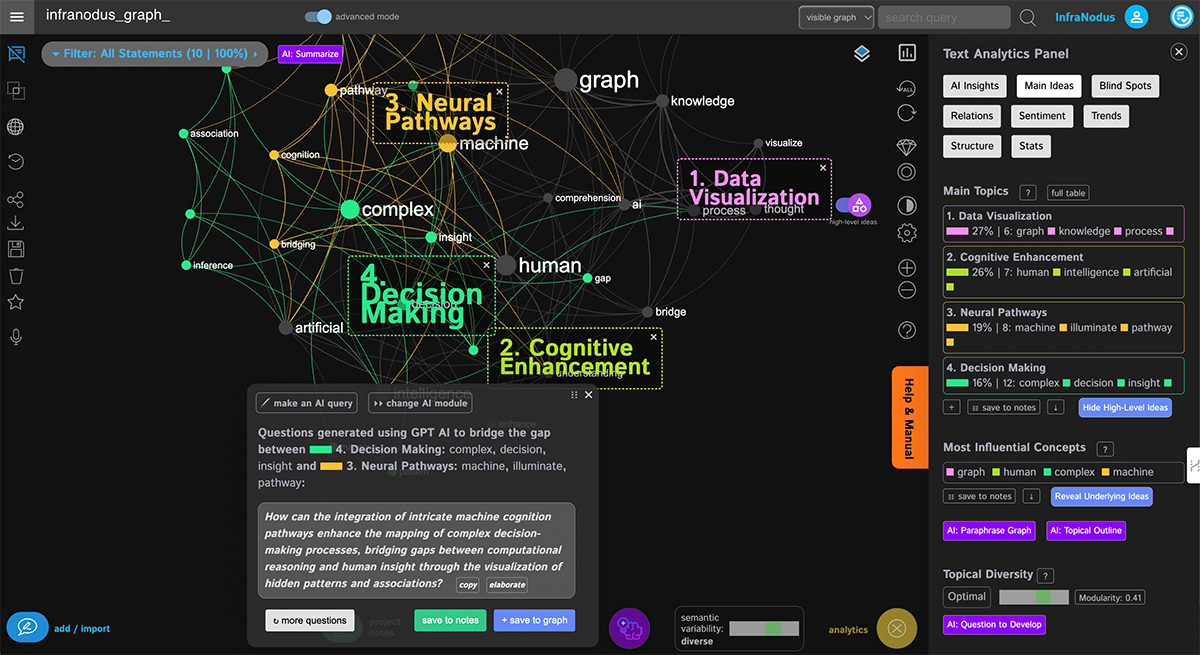
InfraNodus MCP Server enables LLM workflows and AI assistants to analyze text using advanced network science algorithms, generate knowledge graphs, detect content gaps, and identify key topics and concepts. It transforms unstructured text into structured insights using graph theory and network analysis.
Related MCP server: GraphRAG MCP
Features
You Can Use It To
Connect your existing InfraNodus knowledge graphs to your LLM workflows and AI chats
Identify the main topical clusters in discourse without missing the important nuances (works better than standard LLM workflows)
Identify the content gaps in any discourse (helpful for content creation and research)
Generate new knowledge graphs from any text and use them to augment your LLM responses
Save and retrieve entities and relations from memory using the knowledge graphs
Available Tools
generate_knowledge_graph
Convert any text into a visual knowledge graph
Extract topics, concepts, and their relationships
Identify structural patterns and clusters
Apply AI-powered topic naming
Perform entity detection for cleaner graphs
analyze_existing_graph_by_name
Retrieve and analyze existing graphs from your InfraNodus account
Access previously saved analyses
Export graph data with full statistics
analyze_text
Analyze a text, URL, or YouTube transcript
Extract and analyze a graph from text or URL; provide either text or url
Get topics, clusters, statements, graph structure, and AI summary as requested
generate_content_gaps
Detect missing connections in discourse
Identify underexplored topics
Generate research questions
Suggest content development opportunities
generate_topical_clusters
Generate topics and clusters of keywords from text using knowledge graph analysis
Make sure to beyond genetic insights and detect smaller topics
Use the topical clusters to establish topical authority for SEO
Returns AI-generated overviews of the topical clusters (topicalClusterSummaries), summarizing the discourse each cluster represents — useful for SEO-optimized content creation. Enabled by default; set generateTopicalSummaries: false to increase processing speed or if the summary request fails
generate_contextual_hint
Generate a topical overview of a text and provide insights for LLMs to generate better responses
Use it to get a high-level understanding of a text
Use it to augment prompts in your LLM workflows and AI assistants
generate_research_questions
Generate research questions that bridge content gaps from text, URL, or an existing InfraNodus graph
Use them as prompts in your LLM models and AI workflows
Use any AI model (included in InfraNodus API)
Content gaps are identified based on topical clustering
generate_research_ideas
Generate innovative research ideas based on content gaps identified in the text
Get actionable ideas to improve the text and develop the discourse
Use any AI model (included in InfraNodus API)
Ideas are generated from gaps between topical clusters
optimize_text_structure
Analyze the level of bias and coherence in text using knowledge graph analysis
If the text is too biased, develop the represented topics to balance the discourse
If the text is focused or diversified, develop the content gaps to deepen the analysis
If the text is dispersed, focus the most common gap topics to improve coherence
Choose response type: response, idea, question, or transcend
optimize_reasoning
Applies the same bias/coherence analysis to the model's own reasoning trace or chat with the user (pass it as text)
Detects whether the reasoning is biased, focused, diversified, or dispersed
Steers the reasoning toward optimal diversity and coherence at the same time
If too biased, develop the under-represented topics; if focused or diversified, bridge the content gaps; if dispersed, focus the most common gap topics
Returns a structural diagnosis (diversity stats, topical clusters, gaps) plus suggestions for how to continue thinking
generate_responses_from_graph
Generate responses based on an existing InfraNodus graph
Integrate them into your LLM workflows and AI assistants
Use any AI model (included in InfraNodus API)
Use any prompt
develop_conceptual_bridges
Analyze text and develop latent ideas based on concepts that connect this text to a broader discourse
Discover hidden themes and patterns that link your text to wider contexts
Use any AI model (included in InfraNodus API)
Generate insights that help develop the discourse
develop_latent_topics
Analyze text and extract underdeveloped topics with ideas on how to develop them
Identify topics that need more attention and elaboration
Use any AI model (included in InfraNodus API)
Get actionable suggestions for content expansion
develop_text_tool
Comprehensive text analysis combining content gap ideas, latent topics, and conceptual bridges
Executes multiple analyses in sequence with progress tracking
Generates research ideas based on content gaps
Identifies latent topics and conceptual bridges to develop
Finds content gaps for deeper exploration
create_knowledge_graph
Create a knowledge graph in InfraNodus from text and provide a link to it
Use it to create a knowledge graph in InfraNodus from text
Also accepts statements (discrete items) with parallel categories and timestamps. Categories are stored as metadata on each statement (filter, group, delete, or relabel by them) and stay out of the graph unless categoriesAsNodes: true, which turns each label into a [[label]] node — meant for large knowledge bases and Obsidian vaults where the connections between pages are the point. The parent modes of wikilinksMode (obsidianStyle, parentAndConcepts) always make the parent page a node
generate_ontology_graph
Use AI to generate a reasoning ontology graph (entities and the relations between them) from one of three sources: a prompt (a topic — e.g. "build an ontology on AI attention mechanisms"), a text (a long document or a structural digest of a project, chunked server-side), or a sourceGraphName (an existing graph — e.g. a fully ingested repo or corpus — whose statements are read back, chunked, and condensed into an ontology)
ontologyMode: 'codebase' frames the extraction around modules, functions, data stores, services, and the concepts they implement; ontologyMode: 'procedural' writes a digest instead — prose statements on how the project works with [[wikilinks]], each typed as [principles], [rules], [procedures], [handoffs], [main_ideas] or [gaps] (saved as the statement's category), from an already-uploaded docs/structure graph; save it as repo-<project>-digest for optimize_knowledge_base; chunkSize (default 12000 chars) controls granularity; every chunk appends to the same graph and the response reports chunksProcessed / chunksTotal
Saved as a persistent InfraNodus graph by default and a link is returned; set saveGraph: false if the user asks not to save, or when you only need a one-off AI ontology overview of a topic for the current context that won't be reused later (the generated statements are returned directly without persisting)
modelToUse defaults to claude-opus-5 for richer ontologies (also claude-fable-5, gpt-5.6-terra); pick -mini/-lite variants (or gpt-4o-mini) for faster, cheaper generation
Returns the compact graph structure (knowledgeGraph) and analytics (main topical clusters, content gaps, top influential nodes, top relations, statistics) by default. Set includeGraph: false to save context space when only the ontology statements or insights are needed. Set includeAnalytics: false if you just need the raw ontology without graph-derived insights — keep it on whenever you want to understand the structure, gaps, or key concepts
analyze_llm_results
Ask an LLM to describe a topic and turn its response into a knowledge graph that reveals how the model frames it — main concepts, clusters, content gaps, and the relations between them
Use it to probe model bias, surface the implicit structure of an LLM's view on a subject, or compare how different models describe the same topic
modelToUse defaults to claude-opus-5; pick the model you actually want to study
modifyAnalyzedText controls how the LLM output is parsed: 'detectEntities' (default — mixed entities + words), 'extractEntitiesOnly' (entity-only graph), or 'none' (plain co-occurrence)
Saves the graph by default; set saveGraph: false for a one-off probe. Returns analytics by default and omits the raw graph (includeGraph: false) to keep responses compact — enable includeGraph when you also need nodes/edges
overlap_between_texts
merged_graph_from_texts
Build a graph of all the texts and URLs provided, providing topical clusters and gaps present in the merged graph generated from all the texts
Use it to combine multiple sources into one graph and see clusters and content gaps across the merged content
difference_between_texts
analyze_google_search_results
analyze_youtube_results
Generate a graph with keywords and topics from YouTube results for a query, channel, or playlist
Choose what to pull via searchMode: search (video metadata for a search term), comments (comments on a video), channel (a channel's videos — pass a username, URL, or @handle), playlist (a playlist's videos — pass a playlist ID or a URL with list=), subtitles / subtitlesChannel / subtitlesPlaylist (transcribed subtitles of a video / channel / playlist), or searchVideos (analyzes the content of the videos found — limit hard-capped to 20)
Control results with limit (default 100, max 2000), sortBy (Popular / Oldest / Latest), excludeDescriptions, importLanguage, and importRegion
Use it to understand the topics, clusters, and content gaps in the discourse around a video, channel, playlist, or search term on YouTube
analyze_related_search_queries
search_queries_vs_search_results
Generate a graph of keyword combinations and topics people tend to search for that do not readily appear in the search results for the same queries
Use it to understand what people search for but don't yet find
generate_seo_report
Analyze content for SEO optimization by comparing it with Google search results and search queries
Identify content gaps and opportunities for better search visibility
Get comprehensive analysis of what's in search results but not in your text
Discover what people search for but don't find in current results
memory_add_relations
Add relations to the InfraNodus memory from text
Automatically detect entities or use [[wikilinks]] syntax to mark them
Save memory to a specified graph name for future retrieval
Support automatic entity extraction or manual entity marking
Provide links to created memory graphs for easy access
memory_get_relations
Retrieve relations from InfraNodus memory for specific entities
Search for entity relations using [[wikilinks]] syntax
Query specific memory contexts or search across all memory graphs
Extract statements and relationships from stored knowledge graphs
Support both entity-specific searches and full context retrieval
retrieve_from_knowledge_base
Retrieve context from an existing InfraNodus knowledge graph using GraphRAG
Query your knowledge base with a natural language prompt to get relevant statements
Include graph summaries for quick overviews of the knowledge structure
Optionally retrieve the full graph, statements, or extended analysis
Ideal for augmenting LLM responses with domain-specific knowledge
search
Search through existing InfraNodus graphs
Also use it to search through the public graphs of a specific user
Compatible with ChatGPT Deep Research mode via Developer Mode > Connectors
fetch
enable_project_learnings
Create the opt-in, per-project, append-only learnings graph (learn-<project>) in your account — the place where the assistant saves what it learned about operating in a project
Called only when you explicitly ask to start saving learnings for a project; idempotent, so calling it again just returns the existing graph
The assistant tells you first what will be stored (project knowledge only, never anything about you), where (a private graph you can delete at any time), and that batches are shown before saving
add_project_learnings
Save learnings about a project — where things live, traps, conventions, decisions, workflows, and a self-assessment of what worked well and what should be done differently next time — as statements with a type category each, for later sessions on any client
Refuses (without error) when the project has not been enabled and never creates the graph itself
Dry run by default: returns what would be written, marking near-duplicates as reinforced; writes only with confirm: true — or in the same call when your client supports MCP elicitation and you approve the form
Rejects statements with secret-like content server-side (indices only, never the content)
get_project_learnings
Retrieve learnings for a project: by prompt (GraphRAG — most relevant statements plus an overview of what is known), by entity (a file path, module, or concept), or a structural overview with neither
Call with no project to list the projects that have learnings in your account
Returns enabled: false with an empty list when a project has no learnings graph — not an error
Also available as the save-learnings prompt in clients that expose MCP prompts. Set INFRANODUS_LEARNINGS=0 to remove these three tools from the server entirely (see Project learnings).
optimize_knowledge_base
Structural feedback on a whole code base, document vault, or body of procedural knowledge (rules, frameworks, principles) from its digest graph (repo-<project>-digest / vault-<project>-digest) — or from a digest you write and pass as text, saved with saveAs
Diagnoses the structure (biased / focused / diversified / dispersed) and reads it for the chosen focus (codebase, vault, procedural, general): what dominates, which areas are under-developed (with latent-topic ideas), which clusters never connect — missing integrations, missing bridge notes, missing hand-offs between frameworks — plus AI suggestions for what to develop next
compareWith up to two other layers of the same project (e.g. digest vs structure map, docs vs code) and get what each has that the other lacks: rules without code, code without documentation, features described but not built
Two ways to get the digest: the assistant reads the project and writes it (the infranodus skill's digest build mode, or text + saveAs here), or generate_ontology_graph with ontologyMode: 'procedural' writes it server-side from an uploaded docs/structure graph
Pairs with the infranodus skill's build modes: full ingestion, digest, structure map, ontology
submit_workflow_feedback
Internal telemetry: after a workflow of InfraNodus calls, the assistant reports what it actually did with the output — how much it used, whether it contained anything new, whether it was the right tool, how many calls it took, concrete defects — as observations rather than a score; a rating is derived from them server-side
Autonomous: it never asks you anything and never surfaces in the conversation
The report contains short paraphrases of what you were working on (capped at 200 characters), the same policy as the prompts InfraNodus already logs; MCPCAT_ANONYMOUS=1 skips the per-user log entirely
Set INFRANODUS_FEEDBACK=0 to remove the tool (and the one-line nudge appended to workflow-ending results) from the server
delete_statements
Delete statements from a graph in your own account by a filter the server resolves — exactly one of categories (everything uploaded under a source label: a file path, a page name, a [[label]] parent), statements (exact text), query (substring or /regex/), before/after (ISO 8601 window), deleteAll (empties the graph but keeps its name, URL, and settings), or statementIds
Dry run by default: returns the matched count, a sample of the statements, and a per-category breakdown; nothing is removed until the same filter is sent again with confirm: true — or, on clients with MCP elicitation, until you accept the form in the same call. A filter that matches nothing returns deleted: 0 without asking
The per-source replace path: delete_statements with the source's category, then create_knowledge_graph to the same graph name. deleteAll then create_knowledge_graph rebuilds a graph in place
Irreversible, own-account only (no userName), never creates a graph, and the assistant is instructed never to call it on its own initiative. Set INFRANODUS_DELETE=0 to remove the tool from the server
update_statements
Edit statements of a graph in your own account in place — content, categories, or timestamp — keeping each statement's id, date, and position (unlike deleting and re-creating it)
Two modes: edits rewrites specific statements, each named by its exact current text (match, e.g. from analyze_existing_graph_by_name with includeStatements) or statementId; or one selector (the same as delete_statements, with all instead of deleteAll) plus set (addCategories, removeCategories, categories, timestamp) and/or replace ({ pattern, with }, substring or /regex/flags) for bulk relabelling or a find-and-replace across the graph — renaming a [[concept]] or a source path everywhere
Dry run by default: returns the matched count and the before → after of every change; nothing is written until the same arguments are sent again with confirm: true — or, on clients with MCP elicitation, until you accept the form in the same call. A request that matches nothing returns updated: 0 without asking
New content is capped at 1000 characters; for longer text use delete_statements then create_knowledge_graph. Irreversible (the old text survives only in the dry-run output), own-account only, never creates a graph, and the assistant is instructed never to call it on its own initiative. INFRANODUS_DELETE=0 removes it together with delete_statements
delete_graph
Delete one graph from your own account entirely — its statements, revisions, settings, and URL; the name becomes free again. delete_statements with deleteAll is the alternative that keeps the graph for a rebuild in place
Dry run by default: confirms the graph exists and reports its URL and whether it is a live graph; nothing is removed until the same graphName is sent again with confirm: true. Clients that support elicitation ask you directly and delete in the same call
Irreversible, own-account only (no userName; the graph is resolved from your API key's own graph list and the backend scopes the delete to the same user), and the assistant is instructed never to call it on its own initiative. INFRANODUS_DELETE=0 removes it together with the other two mutation tools
More capabilites coming soon!
Key Capabilities
Topic Modeling: Automatic clustering and categorization of concepts
Content Gap Detection: Find missing links between concept clusters
Entity Recognition: Clean extraction of names, places, and organizations
AI Enhancement: Optional AI-powered topic naming and analysis
Structural Analysis: Identify influential nodes and community structures
Network Structure Statistics: Modularity, centrality, betweenness, and other graph metrics
Knowledge Graph Memory: Save and retrieve knowledge graph memories and analyze them to retrieve key nodes, clusters, and connectors
Knowledge Graph Memory Use Advice
InfraNodus represents any text as a network graph in order to identify the main clusters of ideas and gaps between them. This helps generate advanced insights based on the text's structure. The network is effectively a knowledge graph that can also be used to retrieve complex ontological relations between different entities and concepts. This process is automated in InfraNodus using the search and fetch tools along with the other tools that analyze the underlying network.
However, you can also easily use InfraNodus as a more traditional memory server to save and retrieve relations. We use [[wikilinks]] to highlight entities in your text to make your content and graphs compatible with markup syntax and PKM tools such as Obsidian. By default, InfraNodus will generate the name of the memory graph for you based on the context of the conversation. However, you can modify this default behavior by adding a system prompt or project instruction into your LLM client.
Specifically you can specify to always use a speciic knowlege graph for memories to store everything in one place:
Save all memories in the `my-memories` graph in InfraNodus.
Or you can ask InfraNodus to only save certain entities, e.g. for building social networks:
When generating entities, only extract people, companies, and organizations. Ignore everything else.
Installation
The easiest and the fastest way to launch the InfraNodus MCP server is to either use our server URL https://mcp.infranodus.com for the remote / web applications or to add a manual configuration to your LLM apps if you're running them locally.
You can also install the server locally, so you have more control over it. In this case, you can also edit the source files and even create your tools based on the InfraNodus API.
Below we describe the two different ways to set up your InfraNodus MCP server.
1. Easiest Setup: InfraNodus MCP Server (via HTTP/SSE)
Prerequisites
Get the URL
https://mcp.infranodus.com
Add the MCP server URL to the Client Tool Where You Want to Use InfraNodus
Using InfraNodus Tools in Your Calls
To use InfraNodus, see the tools available and simply call them through the chat interface (e.g. "show me the graphs where I talk about this topic" or "get the content gaps from the document I uploaded")
If your client is not using InfraNodus for some actions, add the instruction to use InfraNodus explicitly.
2. Manual Setup: via NPX
You can deploy the InfraNodus server manually via npx — a package that allows to execute local and remote Node.Js packages on your computer.
The InfraNodus MCP server is available as an npm package at https://www.npmjs.com/package/infranodus-mcp-server from where you can launch it remotely on your local computer with npx. It will expose its tools to the MCP client that will be using this command to launch the server
For Claude Desktop / Cursor IDE:
Just add this in your Claude's configuration file (Settings > Developer > Edit Config), inside the "mcpServers" object where the different servers are listed:
{
	"mcpServers": {
		"infranodus": {
			"command": "npx",
			"args": ["-y", "infranodus-mcp-server"],
			"env": {
				"INFRANODUS_API_KEY": "YOUR_INFRANODUS_API_KEY"
			}
		}
	}
}
For Claude Code
To connect the InfraNodus MCP server to your Claude code, you can use this command. Make sure to provide the correct InfraNodus API key for your account:
claude mcp add infranodus -s user \
	-- env INFRANODUS_API_KEY=YOUR_INRANODUS_KEY \
		npx -y infranodus-mcp-server
3. Manual Setup: Launching MCP as a Local Server (for inspection & development)
Prerequisites
Clone and build the server:
git clone https://github.com/yourusername/mcp-server-infranodus.git
cd mcp-server-infranodus
npm install
npm run build:inspect
npm run inspect
Note that build:inspect will generate the dist/index.js file which you will then use in your server setup. The standard npm run build command will only build a Smithery file.
Set up your API key:
Create a .env file in the project root:
INFRANODUS_API_KEY=your-api-key-here
Inspect the MCP:
Claude Desktop Configuration (macOS)
Open your Claude Desktop configuration file:
open ~/Library/Application\ Support/Claude/claude_desktop_config.json
Add the InfraNodus server configuration:
a. remote launch via npx:
{
	"mcpServers": {
		"infranodus": {
			"command": "npx",
			"args": ["-y", "infranodus-mcp-server"],
			"env": {
				"INFRANODUS_API_KEY": "YOUR_INFRANODUS_API_KEY"
			}
		}
	}
}
b. launch this repo with node, specify the absolute path to the repo + /dist/index.js:
{
	"mcpServers": {
		"infranodus": {
			"command": "node",
			"args": ["/absolute/path/to/mcp-server-infranodus/dist/index.js"],
			"env": {
				"INFRANODUS_API_KEY": "your-api-key-here"
			}
		}
	}
}
Note: you can leave the INFRANODUS_API_KEY empty in which case you can make 70 free requests after which you will hit quota and will need to add your API key.
Restart Claude Desktop to load the new server.
Claude Desktop Configuration (Windows)
Open your Claude Desktop configuration file:
%APPDATA%\Claude\claude_desktop_config.json
Add the InfraNodus server configuration:
a. remote launch via npx:
{
	"mcpServers": {
		"infranodus": {
			"command": "npx",
			"args": ["-y", "infranodus-mcp-server"],
			"env": {
				"INFRANODUS_API_KEY": "YOUR_INFRANODUS_API_KEY"
			}
		}
	}
}
b. launch this repo with node:
{
	"mcpServers": {
		"infranodus": {
			"command": "node",
			"args": ["C:\\path\\to\\mcp-server-infranodus\\dist\\index.js"],
			"env": {
				"INFRANODUS_API_KEY": "your-api-key-here"
			}
		}
	}
}
Restart Claude Desktop.
Cursor Configuration
Other MCP-Compatible Applications
For other applications supporting MCP, use the following command to start the server via npx:
INFRANODUS_API_KEY=your-api-key npx -y infranodus-mcp-server
or locally
INFRANODUS_API_KEY=your-api-key node /path/to/mcp-server-infranodus/dist/index.js
The server communicates via stdio, so configure your application to run this command and communicate through standard input/output.
Legacy Setup via Smithery
InfraNodus server is also available through Smithery: a repository of MCP servers that has an easy-to-follow installation process for most LLM clients. You will need a separate accout at Smithery though.
For Cursor:
// e.g. Cursor will access directly the server via Smithery
"mcpServers": {
    "mcp-server-infranodus": {
      "type": "http",
      "url": "https://server.smithery.ai/@infranodus/mcp-server-infranodus/mcp?api_key=YOUR_SMITHERY_KEY&profile=YOUR_SMITHERY_PROFILE",
      "headers": {}
    }
  }
For Claude:
// Claude uses a slightly different implementation
// Fot this, it launches the MCP server on your local machine
"mcpServers": {
   "mcp-server-infranodus": {
			"command": "npx",
			"args": [
				"-y",
				"@smithery/cli@latest",
				"run",
				"@infranodus/mcp-server-infranodus",
				"--key",
				"YOUR_SMITHERY_KEY",
				"--profile",
				"YOUR_SMITHERY_PROFILE"
			]
		}
  }
Note, in both cases, you'll automatically get the YOUR_SMITHERY_KEY and YOUR_SMITHERY_PROFILE values from Smithery when you copy the URL with credentials. These are not your InfraNodus API keys. You can use the InfraNodus API server without the API for the first 70 calls. Then you can add it to your Smithery profile and it will automatically connect to your account using the link above.
Usage Examples
Once installed, you can ask Claude to:
"Use InfraNodus to analyze this text and show me the main topics"
"Generate a knowledge graph from this document"
"Find content gaps in this article"
"Retrieve my existing graph called 'Research Notes' from InfraNodus"
"What are the structural gaps in this text?"
"Identify the most influential concepts in this content"
Development
Running in Development Mode
Using the MCP Inspector
Test the server with the MCP Inspector:
npm run build:inspect
npm run inspect
Building from Source
Watching for Changes
API Documentation
generate_knowledge_graph
Analyzes text and generates a knowledge graph.
Parameters:
text (string): The text to analyze. Provide this, url, or statements
statements (string[]): Already-separated statements, with optional parallel categories (string[][]) and timestamps (ISO 8601 strings)
categoriesAsNodes (boolean, default false): Show category labels as [[label]] nodes. Only for large knowledge bases and Obsidian vaults where the connections between pages matter; otherwise the labels stay metadata
wikilinksMode (string): How [[wikilinks]] become nodes — "default", "wikilinksOnly", "obsidianStyle", "parentAndConcepts", or "plainText"
includeStatements (boolean): Include original statements in response
modifyAnalyzedText (string): Entity detection — "none", "detectEntities", or "extractEntitiesOnly"
analyze_existing_graph_by_name
Retrieves and analyzes an existing graph from your InfraNodus account.
Parameters:
graphName (string, required): Name of the existing graph
includeStatements (boolean): Include statements in response
includeGraphSummary (boolean): Include graph summary
analyze_text
Analyze a text, URL, or YouTube transcript. Extract and analyze a graph from text or URL; provide either text or url.
Parameters:
text (string, optional): Text to analyze. Provide either this or url.
url (string, optional): URL to fetch content from (e.g. webpage or YouTube transcript). Provide either this or text.
includeStatements (boolean): Include processed statements in response
includeGraph (boolean): Include full graph structure in response
addNodesAndEdges (boolean): Include nodes and edges in response
includeGraphSummary (boolean): Include AI-generated graph summary for RAG prompt augmentation
modifyAnalyzedText (string): Entity detection — "none", "detectEntities", or "extractEntitiesOnly"
generate_content_gaps
Identifies content gaps and missing connections in text.
Parameters:
Progress Notifications
For long-running operations (like SEO analysis), the MCP server supports real-time progress notifications that provide intermediary feedback to AI agents. This allows agents to:
Track the progress of multi-step operations
Display status messages to users
Understand what's happening during lengthy analyses
Implementation
The server implements MCP progress notifications using:
ToolHandlerContext: All tool handlers can receive an optional context parameter containing the server instance and progress token
ProgressReporter: A utility class that simplifies sending progress updates with percentages and messages
Wrapped Handlers: Tool registration automatically injects the server context into handlers
Example Usage in Tools
import { ProgressReporter } from "../utils/progress.js";
import { ToolHandlerContext } from "../types/index.js";

handler: async (params: ParamType, context: ToolHandlerContext = {}) => {
	const progress = new ProgressReporter(context);

	await progress.report(25, "Fetching data from API...");
	// Do work

	await progress.report(75, "Analyzing results...");
	// More work

	await progress.report(100, "Complete!");
	return results;
};
The generate_seo_report tool demonstrates this pattern with 6 major progress checkpoints that provide detailed status updates throughout the multi-step analysis process.
Usage Analytics & Privacy
To improve the product, this MCP server records which tools are used (tool names, errors, and latency). This helps us understand which features are useful and where things break. We do not train any models on your data — see the InfraNodus terms and conditions.
If you prefer these usage stats not to be linked to your InfraNodus account, set the MCPCAT_ANONYMOUS environment variable:
{
	"mcpServers": {
		"infranodus": {
			"command": "npx",
			"args": ["-y", "infranodus-mcp-server"],
			"env": {
				"INFRANODUS_API_KEY": "YOUR_INFRANODUS_API_KEY",
				"MCPCAT_ANONYMOUS": "1"
			}
		}
	}
}
With MCPCAT_ANONYMOUS=1 set, tool usage is still recorded but stays anonymous — it is not tied to your user account. It also disables the per-user submit_workflow_feedback log described under tool 34 (the report includes duration / error / retry of the call it rates).
Project learnings
The enable_project_learnings, add_project_learnings, and get_project_learnings tools let the assistant keep an append-only graph of what it learned about operating in a project (learn-<project> in your InfraNodus account). They are opt-in per project: the graph exists only after you explicitly ask to enable it, the write tool refuses when the graph is missing and never creates one, and every batch is shown to you before it is saved. If you never want these tools exposed, set INFRANODUS_LEARNINGS=0 in the server's environment (same place as MCPCAT_ANONYMOUS). To stop collecting for a project, delete its learn-<project> graph in InfraNodus.
As most tools have the doNotSave=1 option turned on, all the graphs you create are ephemeral and won't be saved into your InfraNodus account unless you explicitly ask the MCP server to do so. We will also not keep the logs of the data you process. We also never use your data for LLM training according to the InfraNodus [https://infranodus.com/terms-conditions](terms of service).
Troubleshooting
Server doesn't appear in Claude
Verify the configuration file path is correct
Check that the API key is valid
Ensure Node.js is in your system PATH
Restart Claude Desktop completely
API Key Issues
Build Errors
# Clean install
rm -rf node_modules package-lock.json
npm install
npm run build
Resources
License
MIT
Support
For issues related to: