A
licenseB
qualityD
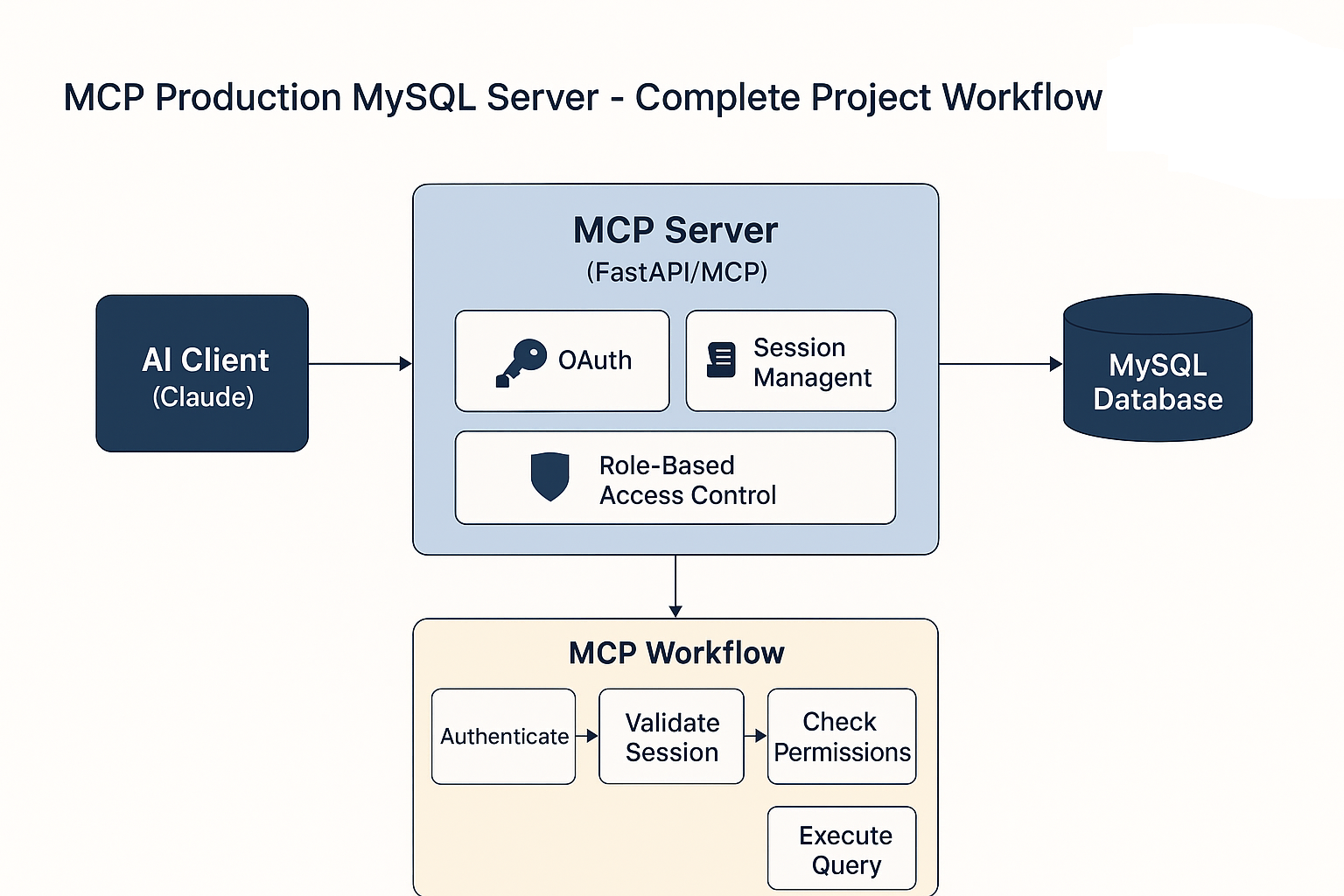
maintenanceA Model Context Protocol server that enables AI models to interact with MySQL databases through a standardized interface, providing tools for querying, executing commands, and managing database schemas.
7
MIT

Manages configuration through environment variables for database credentials, security settings, and optional integrations
Offers optional OAuth authentication integration for securing access to the MCP server
Enables secure database access with comprehensive operations including queries, table management, data modification, and transaction handling
Provides optional error tracking and monitoring capabilities for production deployments
Click on "Deploy Server".
Wait a few minutes for the server to deploy. Once ready, it will show a "Started" state.
In the chat, type @ followed by the MCP server name and your instructions, e.g., "@Cloudflare MySQL MCP Server list all tables in my database"
That's it! The server will respond to your query, and you can continue using it as needed.
Here is a step-by-step guide with screenshots.
This is a production-ready MySQL MCP (Model Context Protocol) server that provides secure database access through MCP tools. The server includes authentication, monitoring, and comprehensive database operations.
Related MCP server: MCP-MongoDB-MySQL-Server
Python 3.8+
MySQL database server
Claude Desktop application
Git
Clone and navigate to the project:
cd C:\Users\MCP-Procuction_MySQLInstall dependencies:
pip install -r requirements.txtSet up environment variables (create .env file):
# Database Configuration
MYSQL_HOST=localhost
MYSQL_PORT=3306
MYSQL_USER=your_username
MYSQL_PASSWORD=your_password
MYSQL_DATABASE=your_database

# Security
SECRET_KEY=your-secret-key-here
ALLOWED_OPERATIONS=SELECT,INSERT,UPDATE,DELETE

# Optional: GitHub OAuth
GITHUB_CLIENT_ID=your_github_client_id
GITHUB_CLIENT_SECRET=your_github_client_secret

# Optional: Monitoring
SENTRY_DSN=your_sentry_dsnPrimary method:
python -m src.mainAlternative methods:
# Using run script
python run_server.py

# Standalone mode
python mcp_standalone.pyAdd this configuration to your Claude Desktop MCP settings file. The configuration file is typically located at:
Windows: %APPDATA%\Claude\claude_desktop_config.json
macOS: ~/Library/Application Support/Claude/claude_desktop_config.json
Linux: ~/.config/Claude/claude_desktop_config.json
{
  "mcpServers": {
    "mysql-mcp": {
      "command": "python",
      "args": ["src/server.py"],
      "cwd": "/path/to/your/MYSQL-Production"
    }
  }
}Install the MCP server (follow installation steps above)
Locate your Claude Desktop config file using the paths above
Add the MCP configuration to the config file
Update the cwd path to match your actual installation directory
Set up environment variables in a .env file in your project directory
Restart Claude Desktop to load the new MCP server
Verify connection by asking Claude to list database tables
Replace your_username, your_password, etc. with your actual database credentials
Update the cwd path to match your actual installation directory
Ensure Python is available in your system PATH
The server will be available as "mysql-mcp" in Claude Desktop
Once configured, you can test the integration by asking Claude:
"List all tables in my database"
"Show me the structure of the users table"
"Query the first 5 rows from my products table"
MYSQL-Production/
├── src/
│   ├── main.py              # Main MCP server entry point
│   ├── server.py            # Core MCP server implementation
│   ├── config.py            # Configuration management
│   ├── models.py            # Data models
│   ├── auth/                # Authentication modules
│   │   ├── github_oauth.py  # GitHub OAuth integration
│   │   └── session.py       # Session management
│   ├── database/            # Database modules
│   │   ├── connection.py    # Database connection handling
│   │   ├── security.py      # Security and validation
│   │   └── utils.py         # Database utilities
│   ├── tools/               # MCP tools implementation
│   │   ├── basic_tools.py   # Basic database operations
│   │   ├── advanced_tools.py# Advanced database features
│   │   ├── write_tools.py   # Write operations
│   │   └── transaction_tools.py # Transaction management
│   └── monitoring/          # Monitoring and logging
│       └── sentry.py        # Sentry integration
├── tests/                   # Test suite
├── requirements.txt         # Python dependencies
├── pyproject.toml          # Project configuration
├── docker-compose.yml      # Docker setup
└── README.md # Basic documentationmysql-mcp:query_database - Execute SELECT queries
mysql-mcp:list_tables - List all database tables
mysql-mcp:describe_table - Get table schema information
mysql-mcp:execute_sql - Execute INSERT, UPDATE, DELETE operations
mysql-mcp:create_table - Create new tables
Transaction management
Query optimization
Performance monitoring
Security validation
Variable | Description | Required | Default |
| MySQL server host | Yes | localhost |
| MySQL server port | No | 3306 |
| Database username | Yes | - |
| Database password | Yes | - |
| Database name | Yes | - |
| Security secret key | Yes | - |
| Permitted SQL operations | No | SELECT,INSERT,UPDATE,DELETE |
| Connection pool size | No | 10 |
| Query timeout (seconds) | No | 30 |
SQL injection prevention
Query validation and sanitization
Operation restrictions
Connection pooling with limits
Session-based authentication
Optional GitHub OAuth integration
# Using MCP client
result = await client.call_tool("mysql-mcp:query_database", {
    "sql": "SELECT * FROM users LIMIT 10"
})# List tables
tables = await client.call_tool("mysql-mcp:list_tables", {})
# Describe table structure
schema = await client.call_tool("mysql-mcp:describe_table", {
"table": "users"
})# Insert data
result = await client.call_tool("mysql-mcp:execute_sql", {
"sql": "INSERT INTO users (name, email) VALUES ('John', 'john@example.com')"
})Run the test suite:
# Run all tests
python -m pytest tests/

# Run specific test
python test_mcp.pyUse the provided Docker setup:
# Start services
docker-compose up -d

# View logs
docker-compose logs -fThe server includes structured logging with different levels:
INFO: General operations
WARNING: Potential issues
ERROR: Operation failures
DEBUG: Detailed debugging info
Configure Sentry for error tracking:
SENTRY_DSN=your_sentry_dsn
SENTRY_ENVIRONMENT=productionEnable debug mode in debug_settings.py:
DEBUG = True
LOG_LEVEL = "DEBUG"Connection Errors
Verify MySQL server is running
Check credentials in .env file
Ensure network connectivity
Permission Errors
Verify database user permissions
Check ALLOWED_OPERATIONS configuration
Performance Issues
Monitor connection pool usage
Check query execution times
Review database indexes
# Test database connection
python -c "from src.database.connection import test_connection; test_connection()"

# Check MCP server status
python -c "from src.main import main; main()"The project uses:
Black for code formatting
Ruff for linting
MyPy for type checking
# Format code
black src/

# Run linting
ruff check src/

# Type checking
mypy src/Create tool function in appropriate module
Register in src/tools/register_tools.py
Add tests in tests/
Update documentation
See DEPLOYMENT.md for detailed production deployment instructions including:
Environment setup
Security hardening
Performance optimization
Monitoring configuration
Always use parameterized queries
Implement proper authentication
Regularly update dependencies
Monitor for suspicious activity
Use SSL/TLS for connections
Implement rate limiting
For issues and questions:
Check the troubleshooting section
Review logs for error details
Consult the existing README.md and DEPLOYMENT.md files
Check the test files for usage examples
This server cannot be deployed
A comprehensive Model Context Protocol (MCP) server that enables AI assistants to interact with yo…
Hosted MySQL MCP server for Claude, ChatGPT and Cursor, with each action switched per account.
Hosted SQL Server MCP server for Claude, ChatGPT and Cursor, with each action switched per account.
Text-to-SQL MCP server: read-only queries on PostgreSQL, MySQL and SQL Server with your real schema