
Enables AI agents to create, modify, and manage Figma designs through natural language, including operations like creating elements, updating properties, managing components, and checking accessibility.
Click on "Install Server".
Wait a few minutes for the server to deploy. Once ready, it will show a "Started" state.
In the chat, type
@followed by the MCP server name and your instructions, e.g., "@figma-pilotCreate a responsive card component with a header, body text, and a primary button."
That's it! The server will respond to your query, and you can continue using it as needed.
Here is a step-by-step guide with screenshots.
figma-pilot

AI agents control Figma through code execution.
English | 中文
Demo
OpenAI Landing Page
Prompt: "Create an OpenAI style landing page introducing the upcoming GPT 5.3 release on Figma"
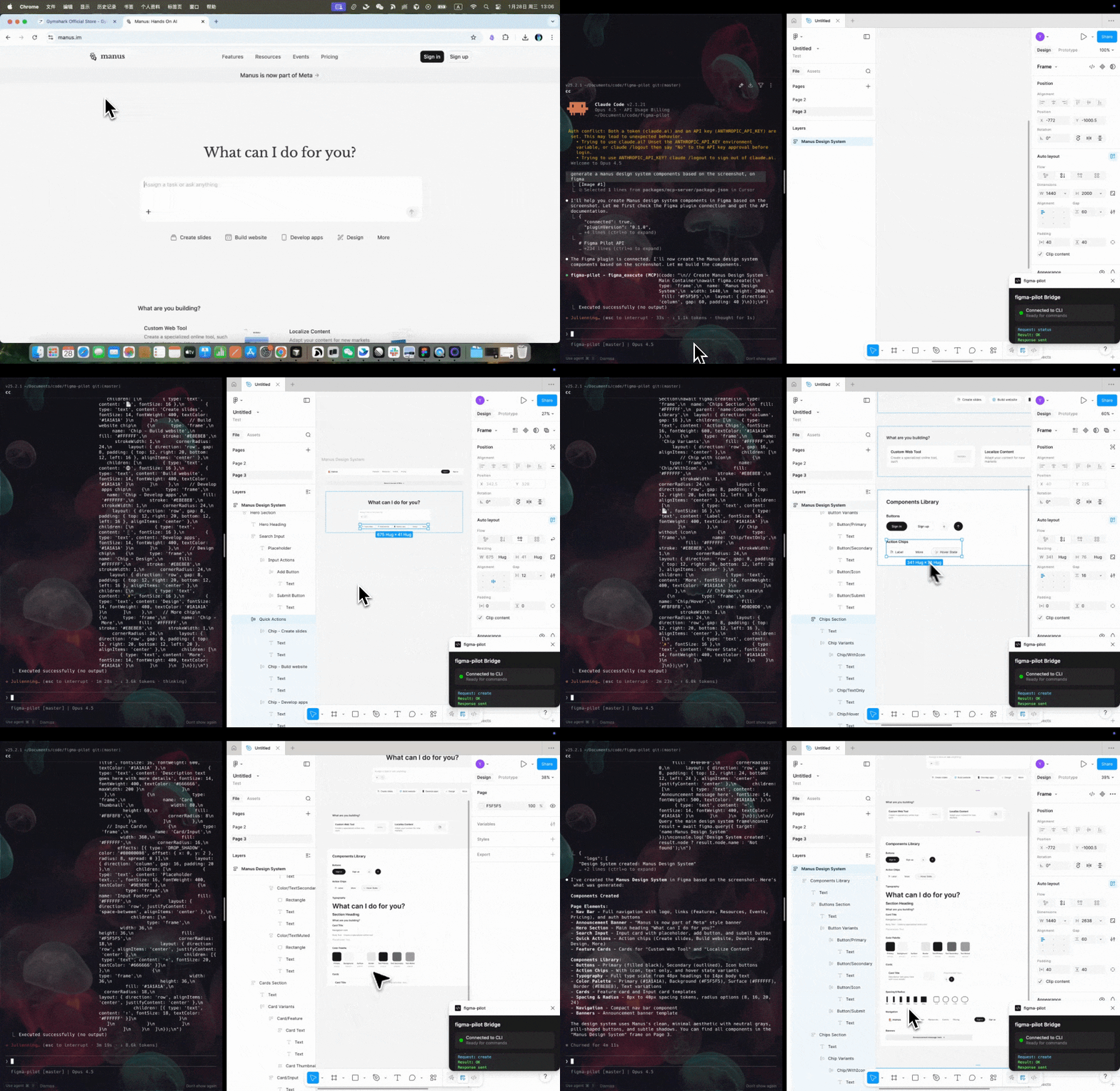
Manus Design System
Prompt: "Generate a Manus design system components based on the screenshot, on Figma"
Design Philosophy
This project is inspired by Anthropic's Code execution with MCP approach.
Instead of exposing dozens of individual MCP tools (which bloat the context window and slow down agents), figma-pilot provides only 3 tools:
Tool | Description |
| Check connection status |
| Execute JavaScript code with full Figma API |
| Get API documentation |
The AI writes code to interact with Figma. This means:
90%+ fewer tokens in tool definitions
Batch operations - modify 100 elements in one call
Data filtering - filter results before returning to context
Complex workflows - loops, conditionals, error handling
Quick Start
Prerequisites
Node.js >= 18
Figma Desktop app
An MCP-compatible AI client (Claude Desktop, Claude Code, Cursor, Codex, etc.)
1. Install MCP Server
Config locations:
Claude Desktop:
~/.config/claude/claude_desktop_config.json(macOS/Linux)Cursor:
~/.cursor/mcp.json
2. Install Skill (Recommended)
The skills/ folder contains API documentation that helps AI agents use figma_execute correctly. Install it to your AI client's skill directory:
AI Client | Skill Directory |
Claude Code / Codex |
|
Cursor |
|
Claude Desktop |
|
After installation, restart your AI client to pick up the new skill.
3. Install Figma Plugin
Download
figma-pilot-plugin-vX.X.X.zipfrom ReleasesUnzip the file
In Figma: Plugins > Development > Import plugin from manifest...
Select
manifest.jsonfrom the unzipped folderRun: Plugins > Development > figma-pilot
4. Verify Connection
Ask your AI agent:
Usage Examples
Natural Language
What the AI Generates
Creating a Card:
Batch Modifying Elements:
Accessibility Check:
API Reference
Full documentation: skills/SKILL.md
Architecture
Development
Project Structure
Building from Source
Creating a Release
Troubleshooting
Plugin Not Connecting
Ensure MCP server is running (check your AI client's MCP status)
Plugin should show "Connected" in Figma
Try reopening the plugin
Check that port 38451 is not blocked
Port 38451 Already in Use
MCP Server Not Found
For offline use, install globally:
Plugin Error: "ENOENT: no such file or directory, lstat '.../dist/main.js'"
This error means the dist folder is missing from the plugin directory. This can happen if:
The downloaded zip file was incomplete
You're using the source code directly without building
Solution:
If you have the source code, build the plugin:
Or build from the project root:
After building, verify that packages/plugin/dist/main.js and packages/plugin/dist/ui.html exist, then import the plugin again in Figma.
License
MIT - YouWare Labs