
Click on "Install Server".
Wait a few minutes for the server to deploy. Once ready, it will show a "Started" state.
In the chat, type
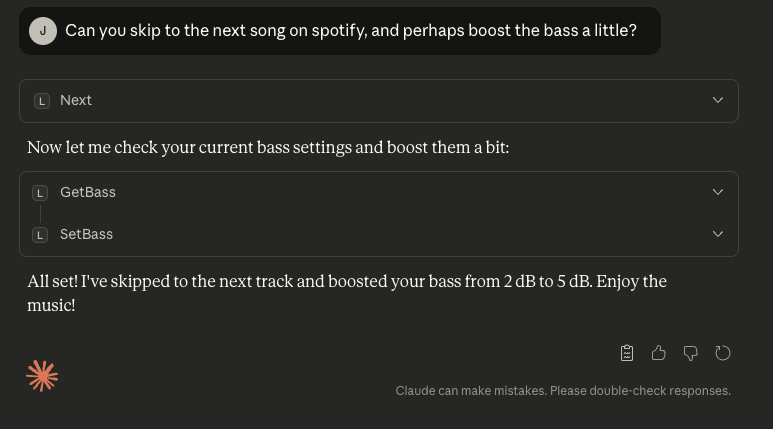
@followed by the MCP server name and your instructions, e.g., "@Lyngdorf MCP Serverset the volume to -25 dB"
That's it! The server will respond to your query, and you can continue using it as needed.
Here is a step-by-step guide with screenshots.
Lyngdorf MCP Server
DISCLAIMER: This project is an independent, community-developed tool and is NOT affiliated with, endorsed by, or supported by Lyngdorf Audio. Use at your own risk. For official Lyngdorf products and support, visit lyngdorf.steinwaylyngdorf.com.
CODE GENERATION: Most of this codebase was generated using Claude Code, Anthropic's AI coding agent. The implementation demonstrates Claude Code's ability to create production-ready software from high-level requirements.
A Model Context Protocol (MCP) server for controlling Lyngdorf Audio devices (TDAI, MP, and CD series) via TCP. Features automatic device discovery, comprehensive control, volume safety, and built-in documentation.
Features
🔍 Auto-Discovery: Automatically finds and connects to Lyngdorf devices on startup
🛡️ Volume Safety: Two-tier safety system (Warning & Hard Limit) to protect your ears and equipment
🧠 Smart Capabilities: Automatically detects device model and prevents unsupported commands (e.g., no streaming on TDAI-2170)
🎵 43 Control Tools: Power, volume, source, RoomPerfect, voicing, tone controls, playback, and streaming
📚 Knowledge Base: Built-in manual data and command references for multiple models
🔄 Auto-Reconnect: Maintains connection with automatic recovery
🌐 Multi-Device: Supports TDAI, MP, and CD series with seamless device switching
Supported Devices
The server includes specific capability profiles for:
TDAI Series: 1120, 2170, 2190, 2210, 3400
MP Series: 40, 50, 60
CD Series: CD-1
Unknown devices are supported with a generic profile assuming full capabilities.
Installation
Prerequisites
Node.js 22+
npm or yarn
Install from npm
Or use npx without installing:
Install from Source
Usage
With Claude Desktop
Add to your Claude Desktop configuration:
macOS: ~/Library/Application Support/Claude/claude_desktop_config.json
Windows: %APPDATA%\Claude\claude_desktop_config.json
Using npm package (recommended):
Using local installation:
Configuration (Environment Variables)
Variable | Default | Description |
| (Auto) | Manually specify device IP if auto-discovery fails |
|
| Volume level (dB) that triggers a warning requiring user confirmation |
|
| Maximum volume level (dB) that cannot be exceeded via tools |
How It Works
On startup, the server:
Auto-discovers all Lyngdorf devices on your network via mDNS
Auto-connects if exactly one device is found
Lists devices if multiple are found (use
listDevicesandselectDevicetools)
No manual configuration needed! Just start Claude Desktop and ask:
"What's my current volume?"
Available Tools (43)
Power Control
powerOn,powerOff,togglePowercheckPowerState- Check if device is active or in standby
Volume Control (Safety Protected)
setVolume- Set volume (with safety checks)volumeUp,volumeDown- Adjust by 0.5dBgetVolume- Get current levelmute,unmute
Audio & Tone
setBass,getBass- Bass gain controlsetTreble,getTreble- Treble gain controlsetBalance,getBalance- L/R BalancesetBassFrequency,getBassFrequencysetTrebleFrequency,getTrebleFrequency
Input & Source
setSource,getSourcelistSources- List all available inputs
RoomPerfect & Voicing
setRoomPerfectFocus,setRoomPerfectGlobal,getRoomPerfectlistRoomPerfectPositions- List available focus positionssetVoicing,nextVoicing,previousVoicing,getVoicinglistVoicings- List available voicing presets
Playback & Streaming (Model Dependent)
play,pause,stop,next,previousgetStreamType- Detect current stream (Spotify, Roon, AirPlay, etc.)
Device Management
discoverDevices,listDevices,selectDevicegetStatus- Comprehensive device status
Available Resources
Access manuals and documentation as MCP resources:
lyngdorf://manual/{model}/commands- Command referencelyngdorf://manual/{model}/owners/index- Owner's Manual TOClyngdorf://manual/{model}/owners/{section}- Specific manual sectionslyngdorf://search?q={query}- Search all manuals
Supported Manuals: TDAI-1120, TDAI-2170, TDAI-2210, TDAI-3400
Troubleshooting
No Devices Found
Ensure device is powered on and connected to the network.
Check if you are on the same subnet.
Try setting
LYNGDORF_IPmanually.
Volume Limit Errors
If you see "Volume -XdB exceeds warning threshold...", simply ask the user for confirmation to proceed, or lower the requested volume.
Development
Run in Development Mode
Test
Coverage: 125 passing tests covering tools, transport, discovery, and capabilities.
Project Structure
License
MIT
Disclaimer
This is an independent project developed by the community. It is NOT affiliated with, endorsed by, or supported by Lyngdorf Audio A/S or Steinway Lyngdorf.
