
Enables management of Google Tasks through natural language, including listing, searching, creating, updating, and deleting tasks, as well as clearing completed tasks from task lists.
Click on "Install Server".
Wait a few minutes for the server to deploy. Once ready, it will show a "Started" state.
In the chat, type
@followed by the MCP server name and your instructions, e.g., "@Google Tasks MCP Servercreate a task to 'Buy groceries' due tomorrow"
That's it! The server will respond to your query, and you can continue using it as needed.
Here is a step-by-step guide with screenshots.
Google Tasks MCP Server
A Model Context Protocol (MCP) server for Google Tasks integration in Claude Desktop. This server enables AI assistants to manage Google Tasks through natural language interactions.
Forked from Zach Caceres' (zcaceres) original implementation to enhance authentication handling, add support for multiple task lists, and provide a more robust npm package with Smithery integration for Claude Desktop. This fork is fully functional and properly deployed on Smithery, making it ready for immediate use with Claude.

Features
List all tasks in your Google Tasks lists
Search for specific tasks by query
Create new tasks with title, notes, and due date
Update existing tasks (title, notes, status, due date)
Delete tasks
Clear completed tasks from a task list
Full integration with Google Tasks API
Secure OAuth2 authentication
Docker support for containerized deployment
Task Creation Example
Here's a simple example of task creation using natural language with Claude:
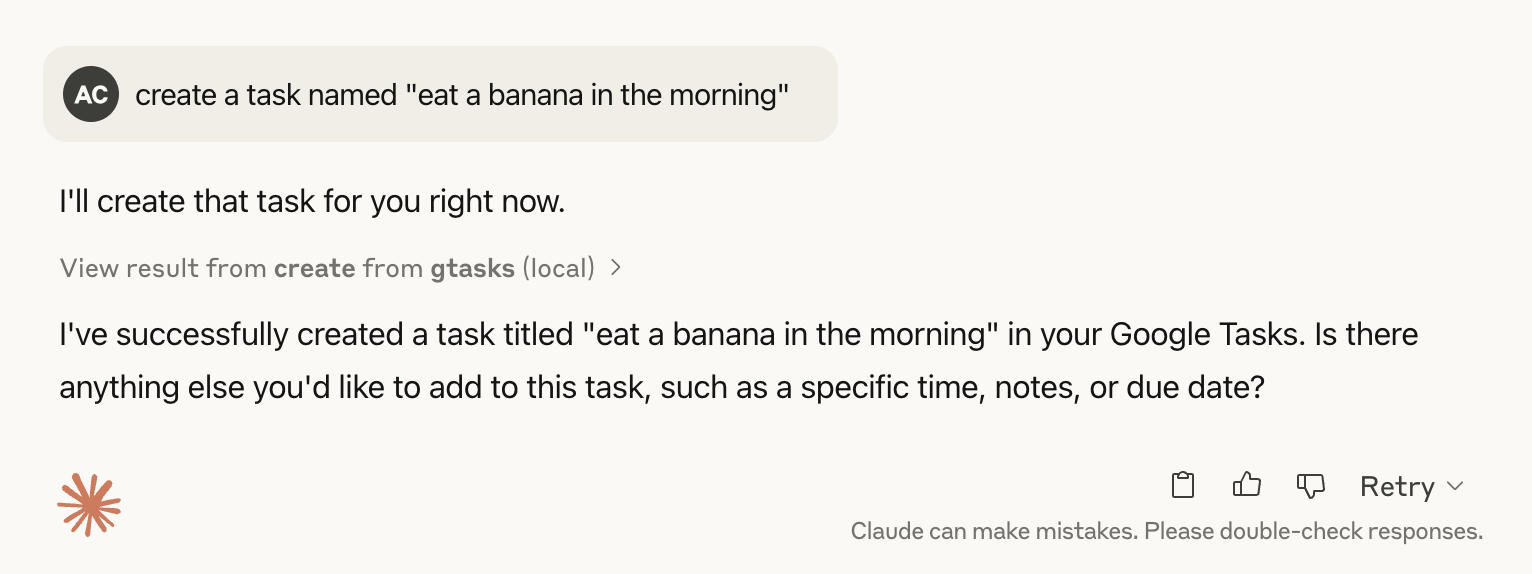
With just a simple instruction like "create a task named 'eat a banana in the morning'", Claude can instantly create the task in your Google Tasks.
Installation
Installing via Smithery
To install Google Tasks Integration for Claude Desktop automatically:
Manual Installation
Setup
Create a Google Cloud Project and obtain credentials:
a. Create a Google Cloud Project:
Go to Google Cloud Console
Create a new project or select an existing one
Enable the Google Tasks API for your project
b. Create OAuth 2.0 Credentials:
Go to "APIs & Services" > "Credentials"
Click "Create Credentials" > "OAuth client ID"
Choose "Desktop app" as application type
Give it a name and click "Create"
You will get your
GOOGLE_CLIENT_IDandGOOGLE_CLIENT_SECRET
c. Get Refresh Token:
Go to OAuth 2.0 Playground
Click the gear icon (Settings) in the top right
Check "Use your own OAuth credentials"
Enter your OAuth Client ID and Client Secret
In the left panel, find "Tasks API v1" and select "https://www.googleapis.com/auth/tasks"
Click "Authorize APIs" and complete the OAuth flow
Click "Exchange authorization code for tokens"
Copy the "Refresh token" - this is your
GOOGLE_REFRESH_TOKEN
Configure in Claude Desktop:
Docker Support
You can run this server in a Docker container:
Usage Examples
The server provides several tools that can be used through Claude Desktop:
Search Tasks
List Tasks
Create Task
Update Task
Delete Task
Clear Completed Tasks
Security Notes
Keep your Google API credentials secure
Regularly rotate your refresh tokens
Store sensitive information in Claude Desktop configuration
Never share or commit your credentials to version control
The refresh token gives access to your Google Tasks, treat it like a password
License
This project is licensed under the MIT License.