
The Tempo Filler MCP Server enables AI assistants to manage time tracking and worklogs in JIRA via the Tempo Timesheets plugin.
Retrieve worklogs: Get time entries for specific date ranges with optional filtering by issue key
Create single worklogs: Add individual time entries with customizable hours, dates, billable status, and descriptions
Bulk operations: Efficiently create multiple worklog entries simultaneously with concurrent processing
Delete worklogs: Remove existing time entries by their worklog ID
Time analysis: Generate summaries and breakdowns of logged hours by issue and date patterns
Resource browsing: Access worklog data and recent issues for comprehensive time tracking management
Allows interaction with JIRA's Tempo Timesheets plugin, enabling worklog retrieval, creation, deletion, and bulk operations for time tracking management.
Click on "Install Server".
Wait a few minutes for the server to deploy. Once ready, it will show a "Started" state.
In the chat, type
@followed by the MCP server name and your instructions, e.g., "@Tempo Filler MCP Serverlog 6 hours to PROJ-456 for yesterday's meeting"
That's it! The server will respond to your query, and you can continue using it as needed.
Here is a step-by-step guide with screenshots.
⏰ Tempo Filler MCP Server
A Model Context Protocol (MCP) server for managing Tempo worklogs in JIRA. This server enables AI assistants to interact with Tempo's time tracking system, allowing for worklog retrieval, creation, bulk operations, and management.
🖼️ Visual UI with MCP Apps
TempoFiller now supports MCP Apps - rendering rich visual interfaces directly in compatible AI chat clients like Claude Desktop. Instead of just text responses, you get interactive calendar and timesheet views!
Timesheet Grid View
Ask for your logged hours and see them in a familiar Tempo-style pivot table:

Features:
Issues as rows, time periods as columns
Coverage-aware coloring (green = full, yellow = under, red = gap)
Zoom toggle: Days / Weeks / Months
Total row with logged/required hours comparison
Schedule Calendar View
Check your work schedule with a visual calendar:
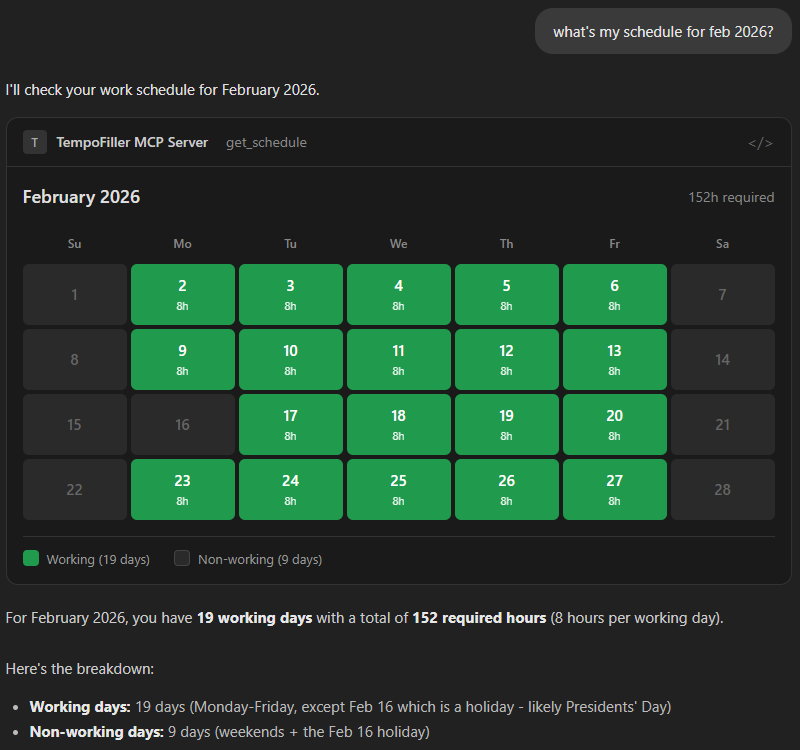
Features:
Month grid with working days (green) and non-working days (gray)
Shows required hours per day
Holiday and weekend awareness
Summary with total working days and required hours
Note: Visual UIs render in MCP Apps-compatible hosts (Claude Desktop, VS Code). CLI hosts receive the same structured data, which the AI formats conversationally.
Related MCP server: Jira MCP Server
🚀 Quick Start
Install in VS Code
Install in Claude Desktop
Click the button above to download the desktop extension (
.dxtfile)Open Claude Desktop and go to Settings → Extensions
Drag the downloaded
.dxtfile into the extensions panel to installIf dragging doesn't work: Click Advanced Settings → Install Extension and select the downloaded file
Fill in the Tempo Base URL and PAT in the environment variables section
Don't forget to enable it!
Install Manually on your favorite AI Assistant
{
  "mcpServers": {
    "tempo-filler": {
      "command": "npx",
      "args": ["@tranzact/tempo-filler-mcp-server"],
      "env": {
        "TEMPO_BASE_URL": "https://your-jira-instance.com",
        "TEMPO_PAT": "your-personal-access-token"
      }
    }
  }
}
💬 Real Usage Example
Here's an actual conversation showing how natural and powerful the interaction can be:
👤 User:
fill my october hours with the same project from september
🤖 AI Assistant:
I'll help you fill your October hours with the same project from September. Let me first check your September worklogs to understand the pattern, then fill October accordingly.
🔧 mcp_tempo-filler-_get_worklogs({
  "startDate": "2025-09-01",
  "endDate": "2025-09-30"
})
Perfect! I can see you worked on PROJ-1234 (Tempo MCP Server) for 200 hours in September. Now let me get your October work schedule to see which days need to be filled.
🔧 mcp_tempo-filler-_get_schedule({
  "startDate": "2025-10-01",
  "endDate": "2025-10-31"
})
Excellent! I now have all the information needed. Let me fill all 23 working days in October with the Tempo MCP Server project using 8 hours per working day.
🔧 mcp_tempo-filler-_bulk_post_worklogs({
  "billable": true,
  "worklogs": [
    {"issueKey": "PROJ-1234", "hours": 8, "date": "2025-10-01", "description": "Tempo MCP Server development"},
    {"issueKey": "PROJ-1234", "hours": 8, "date": "2025-10-02", "description": "Tempo MCP Server development"},
    // ... 21 more entries for all working days
  ]
})
✅ October Hours Filled Successfully
Project: PROJ-1234 (Tempo MCP Server)
Total Hours: 184 hours across 23 working days
Hours per Day: 8 hours (matching your standard work schedule)
Status: All entries created successfully with no failures
Tool Calls Made:
get_worklogs- Retrieved September pattern (PROJ-1234, 200h)
get_schedule- Found 23 working days in October (184h capacity)
bulk_post_worklogs- Created 23 entries in one operationYour October timesheet is now complete and matches the same project pattern you used in September!
🎯 What Happened Here:
3 Tool Calls:
get_worklogs→get_schedule→bulk_post_worklogsSmart Pattern Recognition: Automatically identified PROJ-1234 from September data
Schedule Awareness: Only filled working days, skipped weekends automatically
Bulk Operations: Created 23 worklog entries in a single API call
Error-Free Execution: 100% success rate with proper validation
Natural Language: No need to remember issue keys, dates, or tool syntax
⏱️ Time Saved: This single natural language request triggered 3 MCP tool calls and replaced hours of manual timesheet entry!
🛠️ How This Was Built
This MCP server was built in just 3 hours using AI-powered development tools, demonstrating the power of modern AI-assisted coding:
Development Timeline
Specification Phase
Created the complete technical specification using GitHub Copilot with Claude Sonnet 4
Defined all API endpoints, data structures, and tool interfaces
Refined requirements through iterative conversation
Implementation Phase
Used VS Code with Claude Code to one-shot the entire implementation
Generated complete TypeScript codebase, tool implementations, and client logic
Implemented all core functionality in a single AI-assisted session
Refinement Phase
Switched back to GitHub Copilot with Claude Sonnet 4 after hitting usage limits in Claude Code
Fixed API payload formatting and authentication issues
Debugged and polished the Tempo API integration
Key Success Factors
Clear specification first: Having a detailed spec enabled effective one-shot implementation
AI tool synergy: Different AI tools excelled at different phases of development
Iterative refinement: Quick feedback loops with AI assistants for debugging
This project showcases how AI-powered development can dramatically accelerate the creation of robust, production-ready tools.
✨ Features
Get Worklogs: Retrieve worklogs for users with date range and issue filtering
Create Worklogs: Add single worklog entries with automatic issue resolution
Bulk Operations: Create multiple worklog entries efficiently using concurrent processing
Delete Worklogs: Remove existing worklog entries
Get Schedule: Retrieve work schedule with working/non-working day information
Visual UIs: Rich calendar and timesheet grid views via MCP Apps
Resource Access: Browse worklog data and recent issues
Prompt Templates: Generate analysis prompts for worklog data
📦 Installation
Prerequisites
Node.js (version 18 or higher)
A JIRA instance with Tempo Timesheets plugin installed
Personal Access Token for your JIRA account
NPX (Recommended)
The easiest way to use the server is with npx - no installation required:
npx @tranzact/tempo-filler-mcp-serverJust configure your AI assistant to use npx @tranzact/tempo-filler-mcp-server as the command.
Development Setup (Source)
For development or customization:
Clone the repository:
git clone https://github.com/TRANZACT/tempo-filler-mcp-server
cd TempoFiller
Install dependencies and build:
npm install && npm run build
⚙️ Configuration
The server requires environment variables for authentication and configuration:
Required Environment Variables
TEMPO_BASE_URL: Your JIRA instance URL (e.g.,https://jira.company.com)TEMPO_PAT: Personal Access Token for authentication
Optional Environment Variables
TEMPO_DEFAULT_HOURS: Default hours per workday (default: 8)
Creating a Personal Access Token (PAT)
Log into your JIRA instance
Go to Profile → Personal Access Tokens
Click Create token
Give it a name (e.g., "Tempo MCP Server")
Set appropriate permissions (read/write access to issues and worklogs)
Copy the token value for use in
TEMPO_PAT
🛠️ Available Tools
1. get_worklogs - Retrieve Time Logs
Retrieve worklogs for a date range with optional filtering. In MCP Apps-compatible hosts, displays an interactive timesheet grid.
Parameters:
startDate(string): Start date in YYYY-MM-DD formatendDate(string, optional): End date, defaults to startDateissueKey(string, optional): Filter by specific issue key
Visual Output (MCP Apps):
Example Usage:
"Get my July hours"
→ Returns: Total: 184h (23 entries)
          • PROJ-1234: 184.0h (23 entries)

"Show me my worklogs for PROJ-1234 in July"
→ Filters results to specific issue
2. post_worklog - Log Single Entry
Create a new worklog entry for a specific issue and date.
Parameters:
issueKey(string): JIRA issue key (e.g., "PROJ-1234")hours(number): Hours worked (decimal, 0.1-24)startDate(string): Date in YYYY-MM-DD formatendDate(string, optional): End date for multi-day entriesbillable(boolean, optional): Whether time is billable (default: true)description(string, optional): Work description
Example Usage:
"Log 8 hours to PROJ-1234 for July 10th"
→ Returns: ✅ Worklog Created Successfully
          Issue: PROJ-1234 - Example Project Task
          Hours: 8h
          Date: 2025-07-10
          Worklog ID: 1211549
3. bulk_post_worklogs - Create Multiple Entries
Create multiple worklog entries efficiently with concurrent processing.
Parameters:
worklogs(array): Array of worklog objects:issueKey(string): JIRA issue keyhours(number): Hours workeddate(string): Date in YYYY-MM-DD formatdescription(string, optional): Work description
billable(boolean, optional): Whether time is billable for all entries
Example Usage:
"Post 8 hours a day every weekday from July 11 to 15 on PROJ-1234"
→ Returns: ✅ Bulk Worklog Creation Started
          Processing 3 worklog entries...
          ✅ Successful: 3
          ❌ Failed: 0
          📊 Total Hours: 24

"Fill all weekdays in July with 8 hours on PROJ-1234"
→ Creates 23 entries for all weekdays in the month
4. delete_worklog - Remove Entry
Delete an existing worklog entry by ID.
Parameters:
worklogId(string): Tempo worklog ID to delete
Example Usage:
"Delete worklog with ID 1211547"
→ Removes the specified worklog entry
5. get_schedule - Retrieve Work Schedule
Retrieve work schedule information showing working days, non-working days, and expected hours per day. In MCP Apps-compatible hosts, displays an interactive calendar view.
Parameters:
startDate(string): Start date in YYYY-MM-DD formatendDate(string, optional): End date, defaults to startDate
Visual Output (MCP Apps):
Example Usage:
"What's my work schedule for October 2025?"
→ Returns: ## Work Schedule (2025-10-01 to 2025-10-31)

          **Period Summary:**
          - Total Days: 31
          - Working Days: 23
          - Non-Working Days: 8
          - Total Required Hours: 184h

"Show me working days this week"
→ Returns schedule for current week with working/non-working day breakdown
💡 Integration Tip: Use this tool before bulk worklog operations to identify working days and avoid logging time on weekends/holidays.
🌎 Real-World Usage Examples
Based on successful implementation, here are practical scenarios:
Daily Time Logging
# Using VS Code with GitHub Copilot:
User: "Log 8 hours on PROJ-1234 for today"
AI: ✅ Worklog Created Successfully
    Issue: PROJ-1234 - Example Project Task
    Hours: 8h
    Date: 2025-08-01
    Worklog ID: 1211550
    Time Spent: 1d
Schedule-First Bulk Time Filling
# RECOMMENDED: Check schedule first, then create entries:
User: "Check my October schedule, then fill all working days with 8 hours on PROJ-1234"
AI: ## Work Schedule (2025-10-01 to 2025-10-31)
    **Period Summary:**
    - Working Days: 23
    - Non-Working Days: 8
    - Total Required Hours: 184h

    ✅ Bulk Worklog Creation Started
    Processing 23 worklog entries (working days only)...
    ✅ Successful: 23
    ❌ Failed: 0
    📊 Total Hours: 184
Monthly Time Filling (Legacy)
# Direct bulk operation (may include non-working days):
User: "Fill all weekdays in July with 8 hours on PROJ-1234"
AI: ✅ Bulk Worklog Creation Started
    Processing 23 worklog entries...
    ✅ Successful: 23
    ❌ Failed: 0
    📊 Total Hours: 184
Schedule-Aware Planning
# Smart time planning workflow:
User: "What's my capacity this month and how should I distribute my time?"
AI: ## Work Schedule (2025-10-01 to 2025-10-31)
    - Working Days: 23
    - Total Required Hours: 184h
    - Average Daily Hours: 8h

    **💡 Next Steps - Schedule-Aware Time Logging:**
    - Total capacity is 184h across 23 working days
    - Example: "Fill all working days shown above with 8 hours on PROJ-1234"
Time Tracking Analysis
# Monthly summary:
User: "Get my July hours"
AI: 📊 Total Hours: 184 hours (23 entries)

    Breakdown by issue:
    • PROJ-1234: 184.0h (23 entries)

    Daily pattern: 8 hours per weekday
    Completion: 100% (all weekdays filled)
🤖 Development
Project Structure
src/
├── index.ts              # Main MCP server entry point (stdio transport)
├── http-server.ts        # HTTP transport server (development/testing)
├── tempo-client.ts       # Tempo API client with PAT auth
├── tools/                # Tool implementations
│   ├── get-worklogs.ts
│   ├── post-worklog.ts
│   ├── bulk-post.ts
│   ├── delete-worklog.ts
│   └── get-schedule.ts
├── types/                # TypeScript type definitions
│   ├── tempo.ts          # Tempo API types
│   ├── mcp.ts            # MCP validation schemas
│   ├── responses.ts      # JSON response types
│   └── index.ts
└── ui/                   # MCP Apps visual components
    ├── get-schedule/     # Calendar view
    │   ├── index.html
    │   ├── index.ts
    │   └── styles.css
    └── get-worklogs/     # Timesheet grid view
        ├── index.html
        ├── index.ts
        └── styles.css
Build Commands
npm run build: Compile TypeScript + build UI bundles + create MCP bundlenpm run build:ui: Build UI components only (Vite)npm run dev: Build and run the server (stdio)npm run dev:http: Build and run HTTP server (for MCP Apps testing)npm run typecheck: Type checking without compilation
License
ISC License - see package.json for details
Contributing
Contributions are welcome! Please follow the existing code style and ensure all tools work correctly with real Tempo API endpoints.