
Click on "Install Server".
Wait a few minutes for the server to deploy. Once ready, it will show a "Started" state.
In the chat, type
@followed by the MCP server name and your instructions, e.g., "@IBM Decision Intelligence MCP ServerCalculate the loan eligibility for a $50,000 application"
That's it! The server will respond to your query, and you can continue using it as needed.
Here is a step-by-step guide with screenshots.
MCP server for IBM Decision Intelligence and IBM Automation Decision Services



This Model Context Protocol (MCP) server empowers AI assistants by accessing decisions from IBM Decision Intelligence or IBM Automation Decision Services.
The MCP server is available as an npm package in the free npm registry at https://www.npmjs.com/package/di-mcp-server.
It supports both STDIO and streamable HTTP transports for local or remote deployments for supporting any MCP clients.
Resources
Supercharge your AI Assistants with the decisioning capabilities of IBM Decision Intelligence: Step-by-step instructions on how to use the MCP server for IBM Decision Intelligence.
Trusted automated decisions in Agentic application with IBM Decision Intelligence and MCP: This video shows how an agentic application can leverage automated decision services that are defined and hosted in the IBM Decision Intelligence platform to make accurate and explainable decisions.
Enrich your watsonx Orchestrate chat experience with IBM Decision Intelligence: Step-by-step instructions on how to use the decisioning capability in IBM watsonx Orchestrate.
Getting started with the MCP server
You can use the MCP server available in the npm registry. To develop your own MCP server or contribute to the development, see Developing the MCP server.
You can run the MCP server with npx to expose each operation of the last deployed version of a decision service as an MCP tool.
For IBM Decision Intelligence
Create the MCP server by using decisions that are deployed in Decision Intelligence:
For IBM Automation Decision Services
Zen API key authentication
Create the MCP server by using decisions that are deployed in Automation Decision Services that uses the Zen API key authentication:
Basic authentication
Create the MCP server by using decisions that are deployed in Automation Decision Services that uses the basic authentication:
Command line syntax
Syntax of the command line:
where
AUTHENTICATION_MODE(optional) is the authentication mode to access the decision runtime; eitherdiapikey(default),zenapikey, orbasicrespectively for authenticating with the Decision Intelligence API key, Zen API key, or basic credentials (i.e. username and password)CREDENTIALSis one of the following options, depending on the chosen authentication mode:For Decision Intelligence API key authentication:
--di-apikey <DI_API_KEY>whereDI_API_KEYis the API key to access the decision runtime for Decision Intelligence.For Zen API key authentication:
--zen-username <ZEN_USERNAME> --apikey <ZEN_API_KEY>whereZEN_USERNAMEandZEN_API_KEYare the Zen API key credentials to access the decision runtime for Automation Decision Services (see Authorizing HTTP requests by using the Zen API key)For basic authentication:
--basic-username <BASIC_USERNAME> --basic-password <BASIC_PASSWORD>whereBASIC_USERNAMEandBASIC_PASSWORDare the basic authentication credentials to connect to the decision runtime for Automation Decision Services.
RUNTIME_BASE_URLis the base URL of the decision runtime REST API. For Decision Intelligence, its pattern is:https://<TENANT_NAME>.decision-prod-us-south.decision.saas.ibm.com/ads/runtime/api/v1where TENANT_NAME is the name of the tenant.TRANSPORT(optional) is the transport protocol, eitherstdio(default) orhttp.DEPLOYMENT_SPACES(optional) is a comma-separated list of deployment spaces to scan (defaults todevelopment).DECISION_SERVICE_IDS(optional) If defined, comma-separated list of decision service ids to be exposed as toolsDECISION_SERVICE_POLL_INTERVAL(optional) is the interval in seconds for polling decision services (default:30, minimum:1)
The following environment variables can be used in addition to the command line options.
CLI Option | Environment Variable | Description |
--authentication-mode | AUTHENTICATION_MODE | (Optional) Authentication mode to connect to the decision runtime: |
--di-apikey | DI_APIKEY | Decision Intelligence API key |
--zen-username | ZEN_USERNAME | Zen username |
--zen-apikey | ZEN_APIKEY | Zen API key |
--basic-username | BASIC_USERNAME | Basic authentication username |
--basic-password | BASIC_PASSWORD | Basic authentication password |
--decision-service-ids | DECISION_SERVICE_IDS | (Optional) Comma-separated list of decision services (default: fetch all decision services) |
--deployment-spaces | DEPLOYMENT_SPACES | (Optional) Comma-separated list of deployment spaces to scan (default: |
--debug | DEBUG | When the value is |
--decision-service-poll-interval | DECISION_SERVICE_POLL_INTERVAL | (Optional) Interval in seconds for polling decision services (default: |
--transport | TRANSPORT | (Optional) Transport protocol: |
--url | URL | Base URL of the decision runtime |
Integrating decision services into AI applications
The MCP server for Decision Intelligence extends its capability by enabling AI applications, such as IBM watsonx Orchestrate and Claude, to discover and execute deployed decision services.
Integrating decision services into IBM watsonx Orchestrate
The article Enrich your watsonx Orchestrate chat experience with IBM Decision Intelligence demontrates how to integrate the capability to discover and execute decisions in an IBM watsonx Orchestrate agent by using the Decision Intelligence MCP server.
See the IBM watsonx Orchestrate integration page for passing sensitive configuration settings to the IBM Decision Intelligence MCP Server.
Integrating decision services into Claude Desktop
You can integrate decision services into Claude Desktop by adding the MCP server.
Locate the Claude Desktop configuration file.
Find your Claude configuration directory:
macOS:
~/Library/Application\ Support/Claude/claude_desktop_config.jsonWindows:
%APPDATA%\Claude\claude_desktop_config.jsonLinux:
${HOME}/.config/Claude/claude_desktop_config.json
Add the MCP server configuration to the configuration file.
In the configuration directory, edit or create
claude_desktop_config.json:{ [..] "mcpServers": { "di-mcp-server": { "command": "npx", "args": [ "-y", "di-mcp-server", "--di-apikey", "<APIKEY>", "--url", "https://<TENANT_NAME>.decision-prod-us-south.decision.saas.ibm.com/ads/runtime/api/v1" ] } } [..] }Alternatively, you can use the
APIKEYandURLenvironment variables to respectively specify the API key and the base URL of the decision runtime REST API:{ [..] "mcpServers": { "di-mcp-server": { "command": "npx", "args": ["-y", "di-mcp-server"], "env": { "DI_APIKEY": "<APIKEY>", "URL": "https://<TENANT_NAME>.decision-prod-us-south.decision.saas.ibm.com/ads/runtime/api/v1" } } } [..] }
For more information, see https://modelcontextprotocol.io/quickstart/user.
Integrating decision services into Cursor
You can integrate decision services into Cursor by adding the MCP server.
In Cursor, click the cog wheel icon to open the Cursor settings.
Click Tools & Integration in the settings categories that are listed on the left.
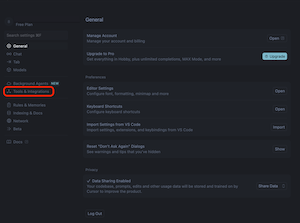
Click + New MCP Server, to open Cursor's
mcp.jsonconfiguration file.
Add a new MCP server entry.
As for Claude Desktop, you can specify the API key and base URL of the decision runtime REST API using with one of the following methods:
Using command line arguments:
{ [..] "mcpServers": { "di-mcp-server": { "command": "npx", "args": [ "-y", "di-mcp-server", "--di-apikey", "<APIKEY>", "--url", "https://<TENANT_NAME>.decision-prod-us-south.decision.saas.ibm.com/ads/runtime/api/v1" ] } } [..] }Using environment variables:
{ [..] "mcpServers": { "di-mcp-server": { "command": "npx", "args": ["-y", "di-mcp-server"], "env": { "DI_APIKEY": "<APIKEY>", "URL": "https://<TENANT_NAME>.decision-prod-us-south.decision.saas.ibm.com/ads/runtime/api/v1" } } } [..] }
For more information, see Installing MCP servers in the Cursor documentation.
Using custom tool names
When you integrate with MCP hosts, you might need to customize the tool names to meet specific requirements or limitations, such as:
Maximum length restrictions
Forbidden characters
Naming conventions
Default tool naming algorithm
By default, tool names are generated in the following way:
Combines the decision service name with the operation ID:
decisionServiceName operationIDReplaces spaces and forward slashes with underscores:
decisionServiceName_operationIDHandles name collisions by using the decision service ID: use
decisionServiceID_operationIDifdecisionServiceName_operationIDalready exists
Customizing tool names with the decision runtime REST API
If the default naming strategy doesn't meet the requirements of your MCP hosts, you can specify custom tool names by setting the mcpToolName.OPERATION_ID decision metadata:
where
OPERATION_IDis the operation unique identifierYourCustomToolNameis the desired tool name for the operation
Dynamic Tool Updates
For information about how the MCP server automatically detects and notifies clients of tool changes, see Dynamic Tool Updates.